

Prerequisites
You’ll need RingCentral Super Admin access and a Momentum admin account.
Ensure users exist in both systems with matching work emails.
- Momentum workspace permissions to install and manage integrations.
- RingCentral plan requirements: RingEX Advanced or higher is recommended.
- Super Admin authorization: A RingCentral Super Admin must authorize the connection in Momentum to access company-wide call logs.
- RingCentral for Salesforce package installed in Salesforce with auto call logging enabled.
- Calls must have automatic call recording enabled in RingCentral.
RingCentral Configuration
Enable Automatic Call Recording
To ensure Momentum can access your call recordings:- Sign in to the RingCentral Admin Portal with administrator credentials
- Navigate to Phone System tab
- Depending on your company settings layout:
- If New company settings layout is OFF:
- Navigate to Auto-Receptionist → General Settings → Call Recording
- Toggle Enable Automatic Call Recording on
- If New company settings layout is ON:
- Navigate to Company → Company Call Handling → Call recording
- Toggle Enable Automatic Call Recording on
- If New company settings layout is OFF:
- Click Save
Salesforce Add-on: RingCentral Package
When you’re using RingCentral for Salesforce add-on, ensure proper setup for optimal call attribution:Prerequisites
- RingCentral for Salesforce is available for RingEX Advanced and Ultra customers
- Install the RingCentral for Salesforce package
Setup Steps
- Install the RingCentral for Salesforce package
- Enable auto-logging calls as Tasks in Salesforce
- Verify Task page layout:
- Ensure RingCentral custom fields are visible: CALL_UNIQUE_ID
(rcsfl__CALL_UNIQUE_ID__c)and Call Recording(rcsfl__Call_Recording__c) - Adjust field-level security for all RingCentral users if needed
- Ensure RingCentral custom fields are visible: CALL_UNIQUE_ID
Resources
- Admin Guide (PDF)
- RingCentral Integrations Portal - To check your connection status
Connect RingCentral to Momentum
RingCentral uses OAuth 2.0 authentication. To connect: From the Momentum web app:- Click on your profile icon and select Integrations.
- Find the RingCentral integration from Browse integrations and click Sign in.
- Type
/configureto open Momentum’s Integrations menu. - Find the RingCentral integration and click Authorize.
- You’ll be redirected to RingCentral to authorize the connection.
- Sign in with your RingCentral Super Admin account.
- Review and approve the requested permissions (
ReadCallLog,ReadCallRecording,ReadAccounts). - When connected, the status will show as Connected.
Momentum requests read-only access to your RingCentral call logs and recordings. No data is written back to RingCentral.
Where to Find Calls
Open the Call Library in Momentum to browse and search RingCentral calls.Assign AI License Seats
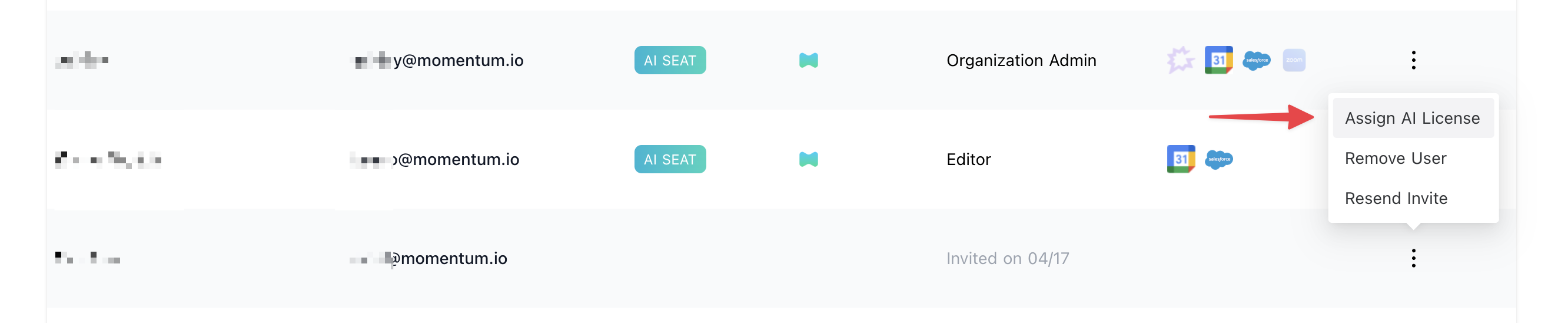
To enable RingCentral call sync for users:- Log in to the Momentum admin page.
- In the Team section, invite or locate users to license.
- Click Assign AI License for each user.
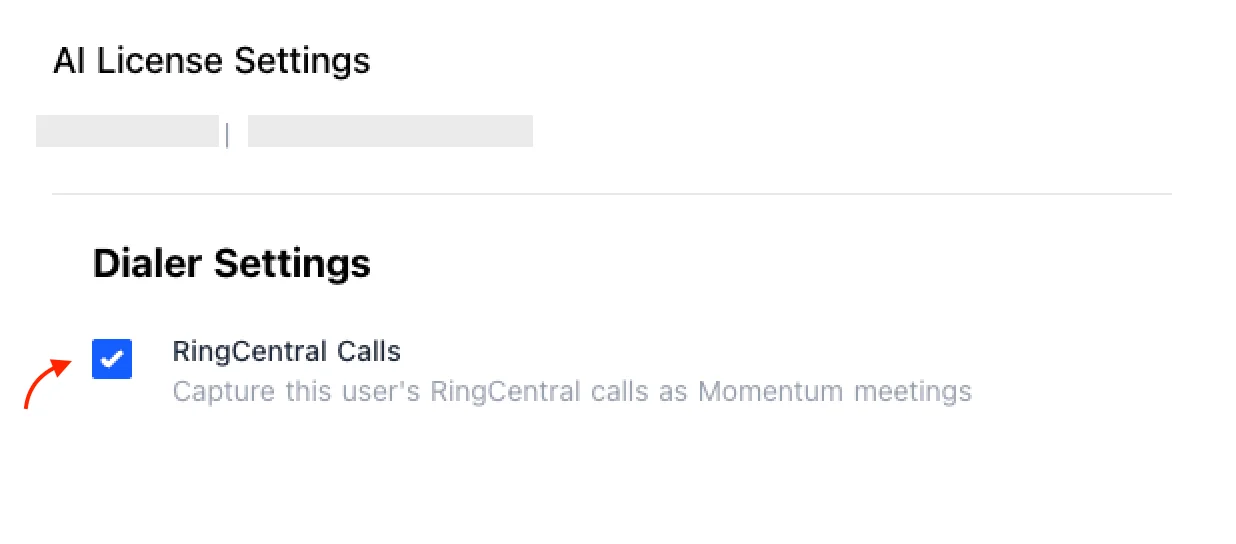
-
Enable RingCentral calls to sync that user’s calls.
Troubleshooting
- Calls not appearing:
- Authorizing user must be a Super Admin in RingCentral (for company-wide call log access)
- Automatic call recording not enabled: Enable via Admin Portal (see steps above)
- Check that your RingCentral plan is RingEX Advanced or higher
- Slack: Use your shared Momentum channel
- Email: support@momentum.io
FAQs
Which RingCentral plans support the required API access?
Which RingCentral plans support the required API access?
RingEX Advanced and Ultra plans include full API access. RingEX Core may have limited recording capabilities and is not recommended.
What about RingCX plan users?
What about RingCX plan users?
Momentum supports RingCentral RingEX. Most RingCX customers can also connect because RingCX is typically deployed alongside RingEX. However, contact-center-specific features are not currently supported (queue-level analytics, contact-center routing, agent performance metrics, supervisor workflows, omnichannel interactions).