

Prerequisites
You’ll need Vonage Contact Center administrator access and a Momentum admin account.
Ensure users exist in both systems with matching work emails.
- Momentum workspace permissions to install and manage integrations.
- Calls must have recordings enabled and accessible in Vonage Contact Center.
- Vonage Contact Center region: Know your VCC region (NAM, EMEA, or APAC) — this determines the API endpoints used.
Vonage Contact Center Configuration
Required API Scopes
Your Vonage Contact Center API credentials must have the following scopes enabled in the VCC Admin Portal: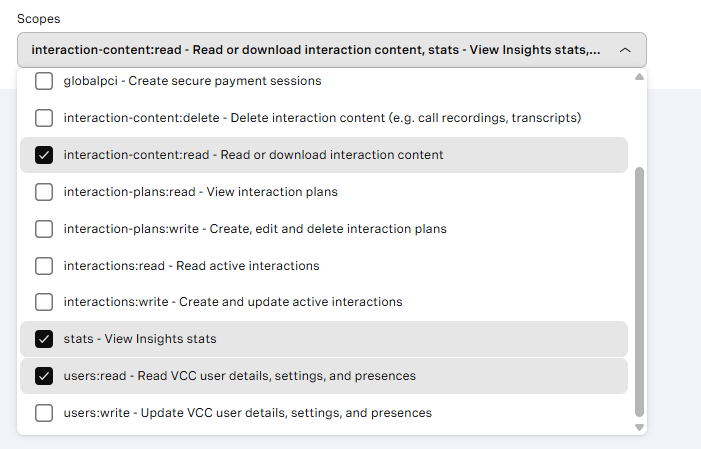
Regional Endpoints
Vonage Contact Center uses region-specific endpoints. Momentum will use the appropriate endpoints based on your configured region:EMEA is the default region. If your VCC account is provisioned in a different region, ensure you specify the correct region when configuring the integration or inform the support team and they will help you to configure.
Generate your Vonage API Credentials
- Sign in to your Vonage Contact Center Admin Portal with an administrator account.
- Navigate to Admin → API Credentials.
- Click Create API Credentials or locate existing credentials.
- Select the required scopes.
- Click Create.
- Copy the Client ID and Client Secret.
Add API Credentials to Momentum
- Copy the generated API credentials from Vonage Contact Center.
- Switch to your Momentum admin dashboard.
-
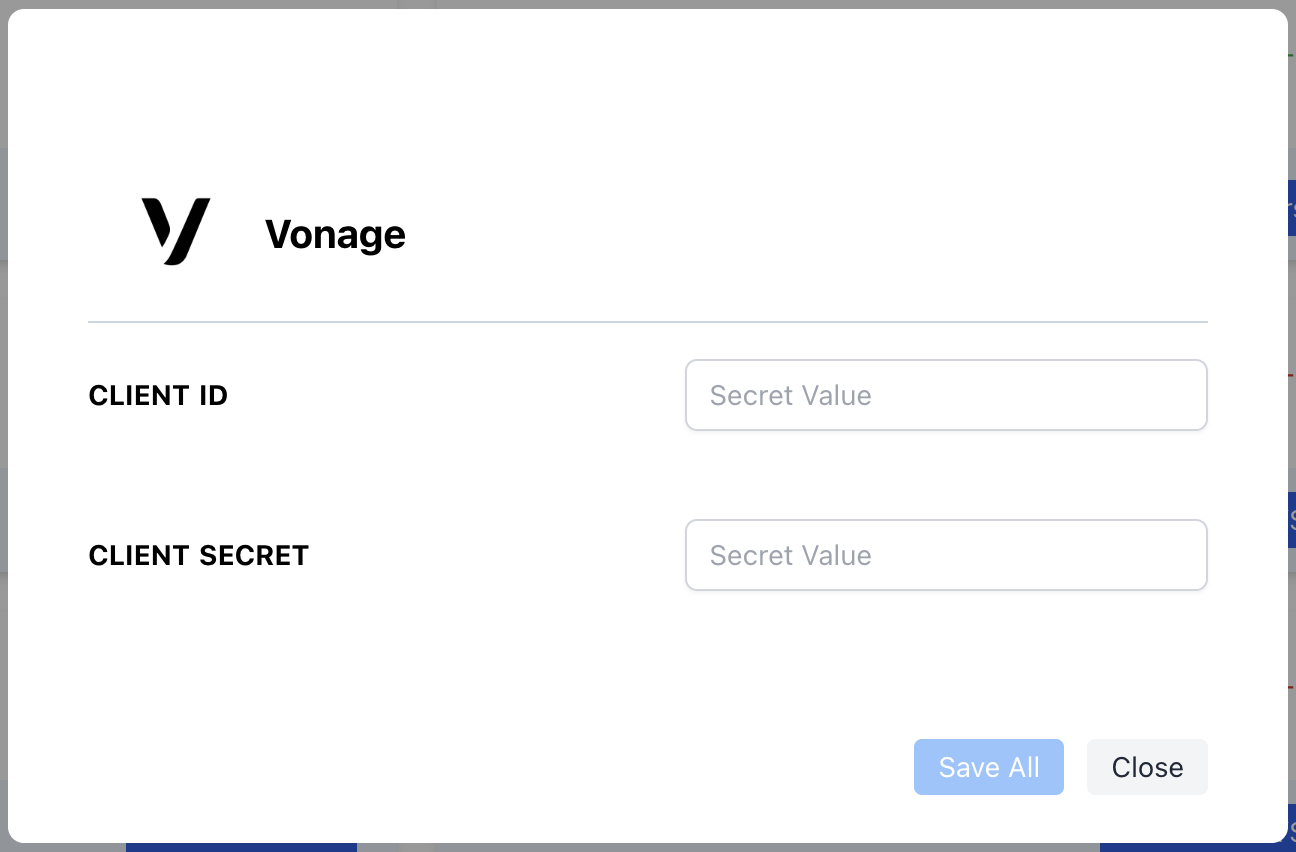
Find the Vonage integration tile and enter:
- Client ID
- Client Secret
Where to Find Calls
Open the Call Library in Momentum to browse and search Vonage calls.Assign AI License Seats
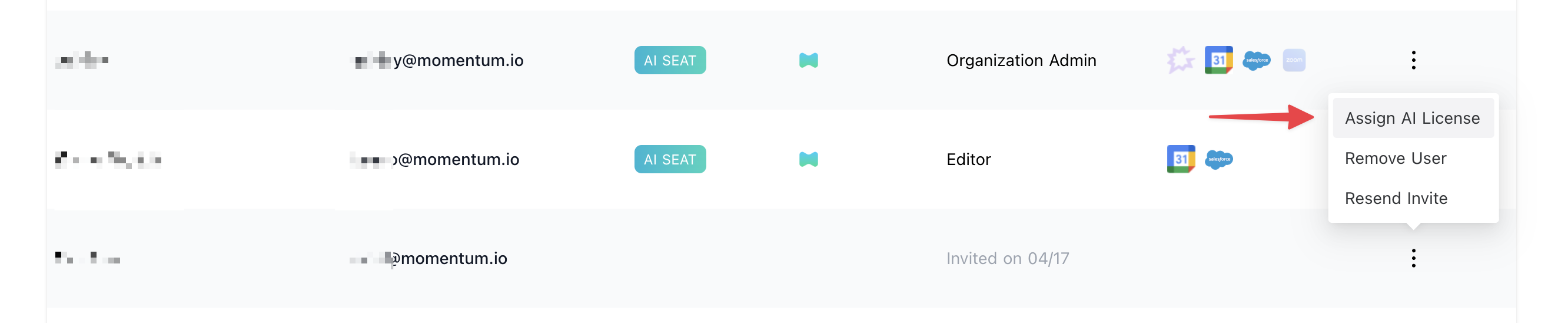
To enable Vonage call sync for users:- Log in to the Momentum admin page.
- In the Team section, invite or locate users to license.
- Click Assign AI License for each user.
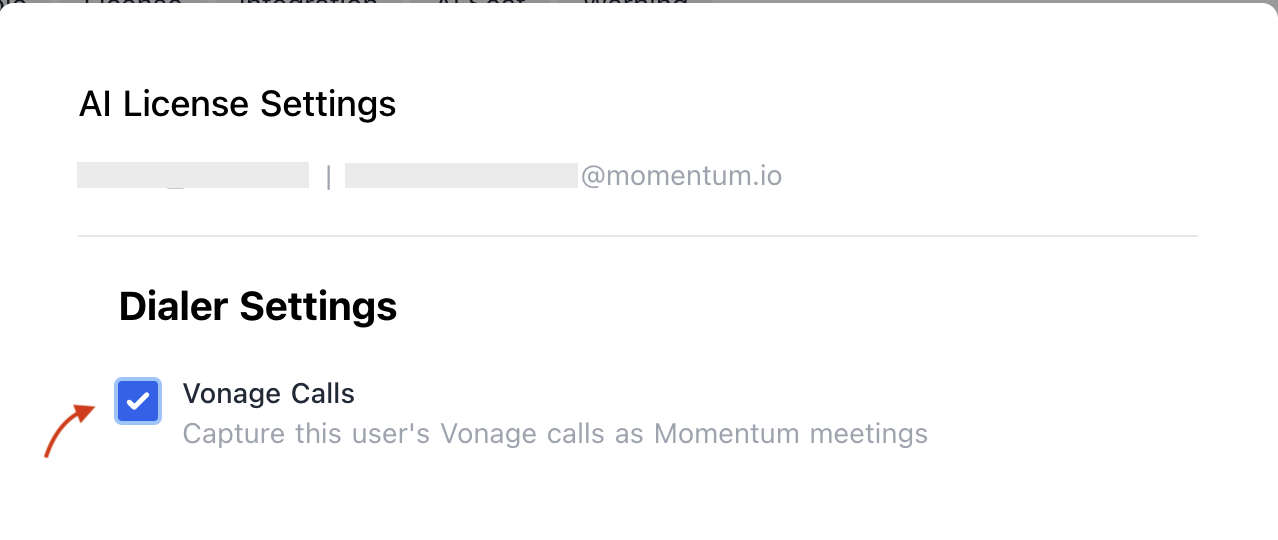
-
Enable Vonage calls to sync that user’s calls.
Troubleshooting
If you encounter issues, contact our support team:- Slack: Use your shared Momentum channel
- Email: support@momentum.io
FAQs
Do you support historical backfill?
Do you support historical backfill?
By default, ingestion starts after connection. Contact Momentum support for historical backfill requests.
What happens if I regenerate my API credentials?
What happens if I regenerate my API credentials?
You’ll need to update the credentials in Momentum’s integration settings to maintain the connection.
How do I know which region to select?
How do I know which region to select?
Your region is determined by where your Vonage Contact Center account was provisioned. If you’re unsure, contact your Vonage administrator or check your VCC Admin Portal URL — it typically contains the region prefix (nam, emea, or apac).