

Prerequisites
You’ll need Salesloft administrator access and a Momentum admin account.
Ensure users exist in both systems with matching work emails.
- Salesloft account with API access to Conversations and recordings (where applicable).
- Momentum workspace permissions to install and manage integrations.
Connect Salesloft
- In Slack, type
/configureto open Momentum’s Integrations menu. - Select Salesloft and click Authorize.
- Sign in to Salesloft and approve the requested scopes.
- When connected, the status will show as Active.
What Gets Synced
- Source: Salesloft Conversations (API docs)
- Frequency: every 15 minutes
- Content: call recording (if available) and metadata (e.g., call ID, timestamps, user/owner, and related references)
Where to Find Calls
- Open the Call Library in Momentum to browse, search, and play Salesloft CI calls.
- Standard processing applies: AI summaries, key moments, trackers/extractions, and full-text search.
Sync Timing and Limitations
- Allow up to 15 minutes from availability in Salesloft to appearance in Momentum.
- Salesloft permissions limit what Momentum can retrieve; restricted users/calls are not synced.
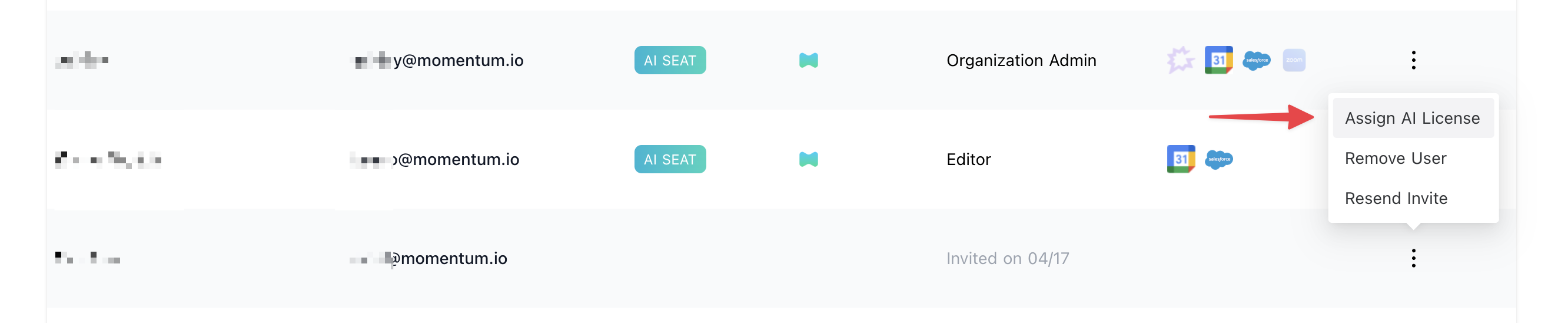
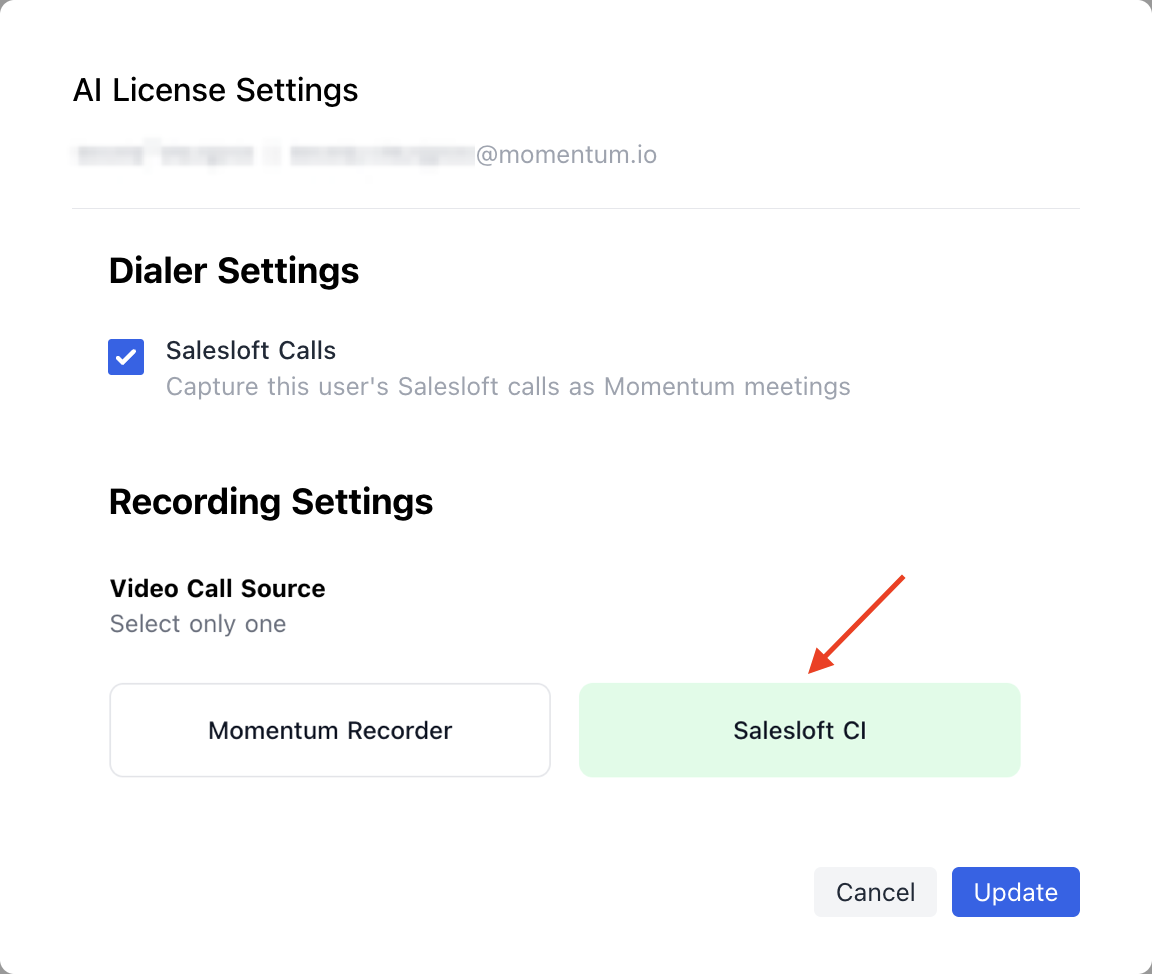
Assign AI License Seats
- Log in to the Momentum admin page.
- In Team, invite or locate users to license.
-
Click Assign AI License for each user.
Security and Access
- Read-only: Momentum retrieves Salesloft Conversations and recordings; it does not write back to Salesloft.
- To ingest Salesloft Conversations, Momentum requires the
conversations:readscope and appropriate permissions to import corresponding recordings (where applicable). - Access is governed by your Salesloft and Momentum permissions.
- You can disconnect anytime in Momentum Settings > Integrations; you may also revoke access in Salesloft.
Need Help?
If you have questions about setup, permissions, or backfills, contact Momentum Support and include:- Your workspace name
- The Salesloft Conversation ID(s)
- A brief description of the issue and when it occurred