

Prerequisites
You’ll need Dialpad administrator access and a Momentum admin account.
Ensure users exist in both systems with matching work emails.
- Momentum workspace permissions to install and manage integrations.
- Calls must have recordings enabled in Dialpad.
- Dialpad plan requirements: API access is typically available on Dialpad Pro or Enterprise plans.
Dialpad Configuration
Required API Scopes
Your Dialpad API key must have the following additional scopes enabled:Enable Automatic Call Recording
Ensure that Automatic Call Recording is turned on in Dialpad Office Settings for all users whose calls should be synced to Momentum.- In Dialpad Admin Portal, navigate to Office Settings
- Enable Automatic Call Recording for desired users.
Generate your Dialpad API Key
- Sign in to your Dialpad Admin Portal with an administrator account.
- Navigate to Admin Settings → My Company → Authentication → API Keys.
- Click Add Key.
- Select the required additional scopes:
- Recordings export
- List calls
- Click Save, then copy the API Key.
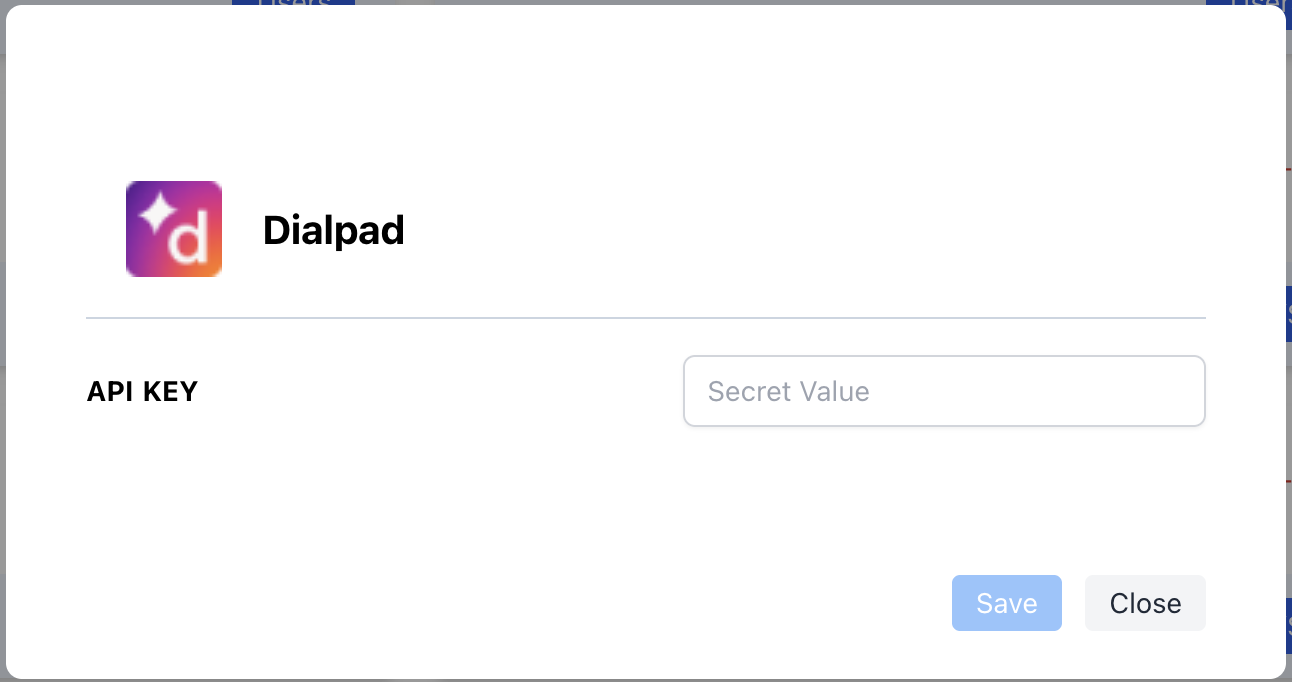
Add API Key to Momentum
- Copy the generated API key from Dialpad.
- Switch to your Momentum admin dashboard.
-
Find the Dialpad integration tile and paste the API Key.
Where to Find Calls
Open the Call Library in Momentum to browse and search Dialpad calls.Assign AI License Seats
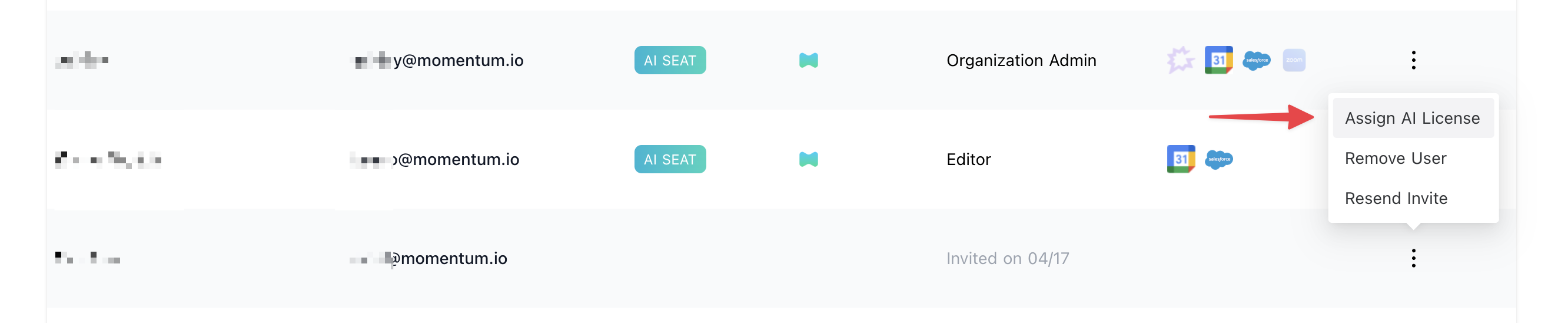
To enable Dialpad call sync for users:- Log in to the Momentum admin page.
- In the Team section, invite or locate users to license.
- Click Assign AI License for each user.
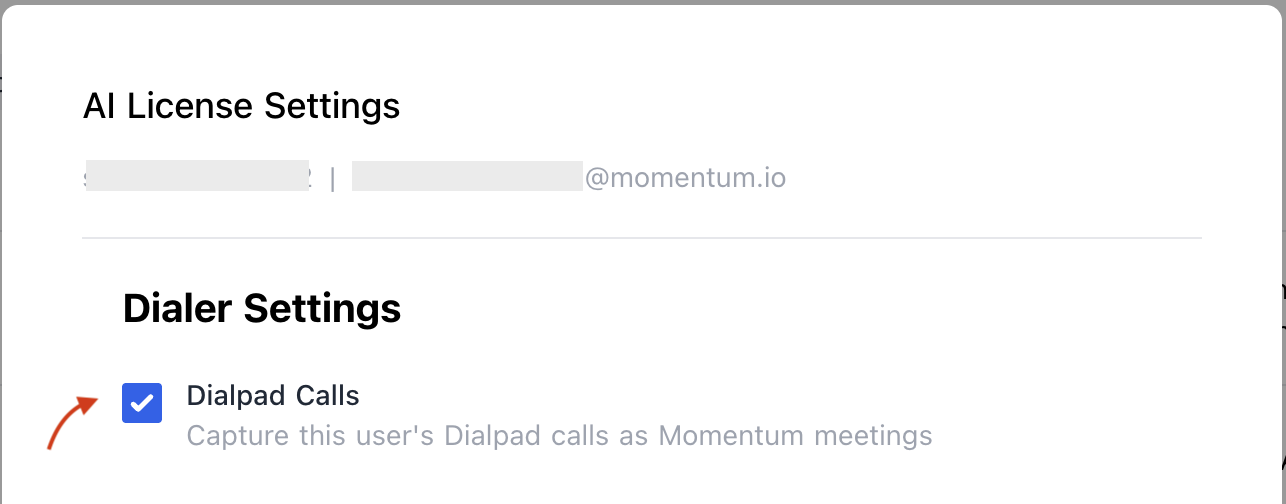
-
Enable Dialpad calls to sync that user’s calls.
Troubleshooting
- Calls may be missing if:
- Automatic Call Recording is not enabled for that user.
- The call does not have external contact information associated with it.
- The API key is missing the required scopes (
Recordings export,List calls). - Allow up to 15 minutes for the next sync cycle.
- Slack: Use your shared Momentum channel
- Email: support@momentum.io
FAQs
Do you support historical backfill?
Do you support historical backfill?
By default, ingestion starts after connection. Contact Momentum support for historical backfill requests.
How often are calls imported?
How often are calls imported?
Every 15 minutes, subject to Dialpad API rate limits.
What happens if I regenerate my API key?
What happens if I regenerate my API key?
You’ll need to update the API key in Momentum’s integration settings to maintain the connection.
Which Dialpad plans support API access?
Which Dialpad plans support API access?
API access is typically available on Dialpad Pro and Enterprise plans. Contact Dialpad support to confirm API availability for your specific plan.