

Prerequisites
You’ll need Aircall administrator access and a Momentum admin account.
Ensure users exist in both systems with matching work emails.
- Momentum workspace permissions to install and manage integrations.
- Calls must have recordings available and accessible in Aircall.
- Salesforce integration recommended: One of the following Aircall Salesforce packages should be installed for optimal call attribution:
- Aircall for Sales Engagement (V4) – Recommended. Includes Aircall Voice custom object (
aircall2gp__Aircall_Voice__c) for reliable call mapping. - Aircall CTI (V3) – Logs calls to Tasks with custom Aircall fields(
aircall__CallId__c,aircall__Call_Recording__c).
- Aircall for Sales Engagement (V4) – Recommended. Includes Aircall Voice custom object (
Aircall - Salesforce Configuration
Proper Salesforce configuration ensures accurate mapping between Aircall calls and Salesforce records.For Aircall Sales Engagement (V4) Users
The Sales Engagement package creates an Aircall Voice custom object (aircall2gp__Aircall_Voice__c) with direct lookup relationships to Contact, Lead, and Account records.
Required Setup:
- Install the Aircall for Sales Engagement package from AppExchange
- Ensure Field-Level Security grants Read access to the Aircall Voice object and its relationship fields
- Verify the package’s Permission Set is assigned to relevant users
For Aircall CTI (V3) Users
The CTI package logs calls to standard Task records with custom Aircall fields. Required Setup:- Install the Aircall CTI package from AppExchange
- Configure Field-Level Security for custom Task fields:
- Navigate to Setup → Permission Sets → [Aircall Permission Set] → Object Settings → Task
- Enable Read and Edit access for:
aircall__CallId__c(Call ID)aircall__Call_Recording__c(Call Recording)
- Ensure the Type field is visible on the Task object (calls won’t log if not configured)
- Reference: Aircall Field-Level Security Guide
Aircall Dashboard Settings (All Versions)
- Go to Integrations & API → Salesforce in your Aircall Dashboard
- Verify call logging is enabled for desired call types (inbound, outbound, missed)
- Ensure call types are set to “completed” or “in progress” (not “do nothing”)
Generate your Aircall API Credentials
- Sign in to your Aircall Dashboard with an administrator account.
- Navigate to Integrations & API.
- Select API keys.
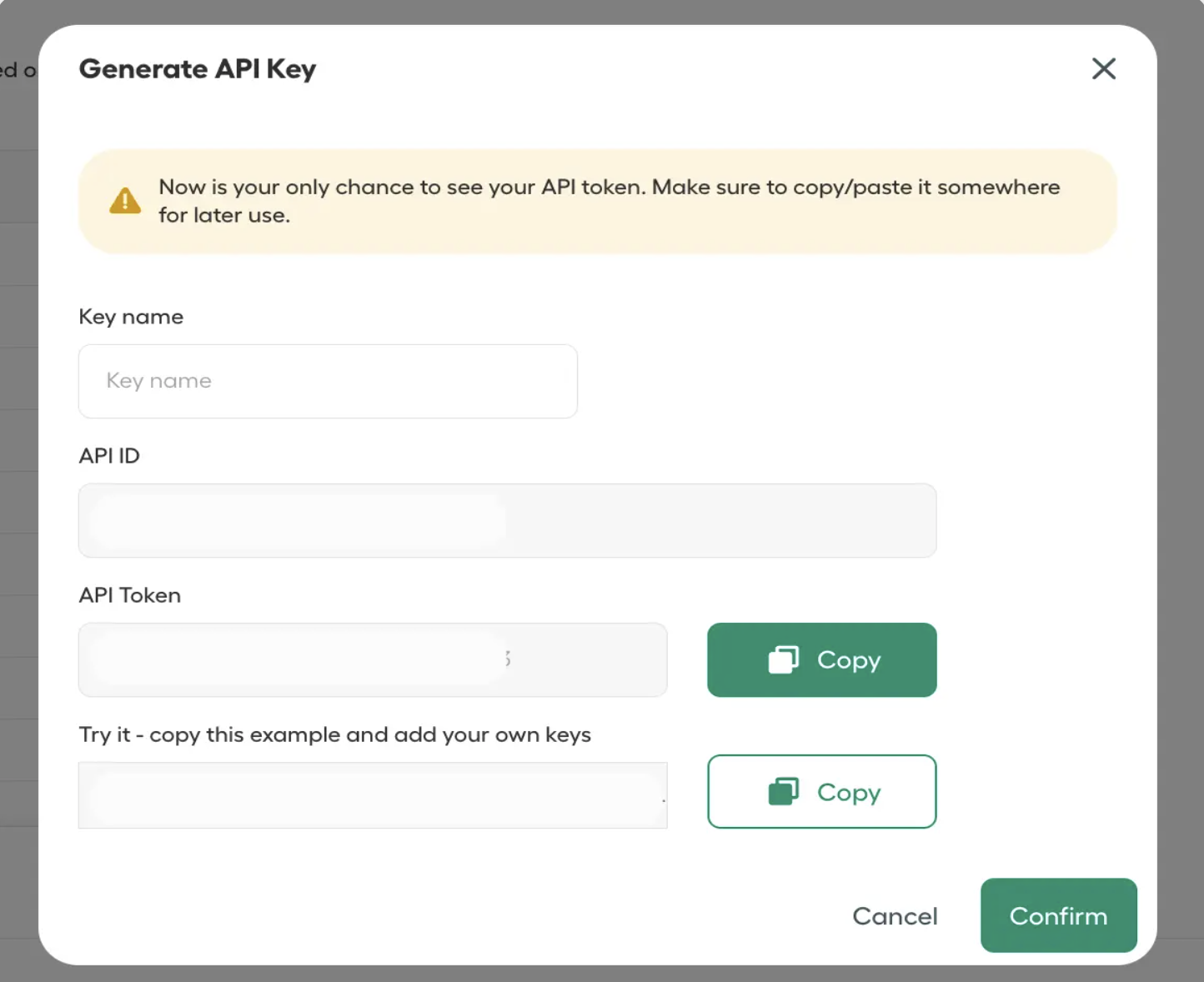
- Click Generate an API key (a popup window will appear).
- Enter a key name and copy the API ID and API Token.
Add API Credentials to Momentum
- Copy the generated API Credentials from Aircall.
- Switch to your Momentum admin dashboard.
-
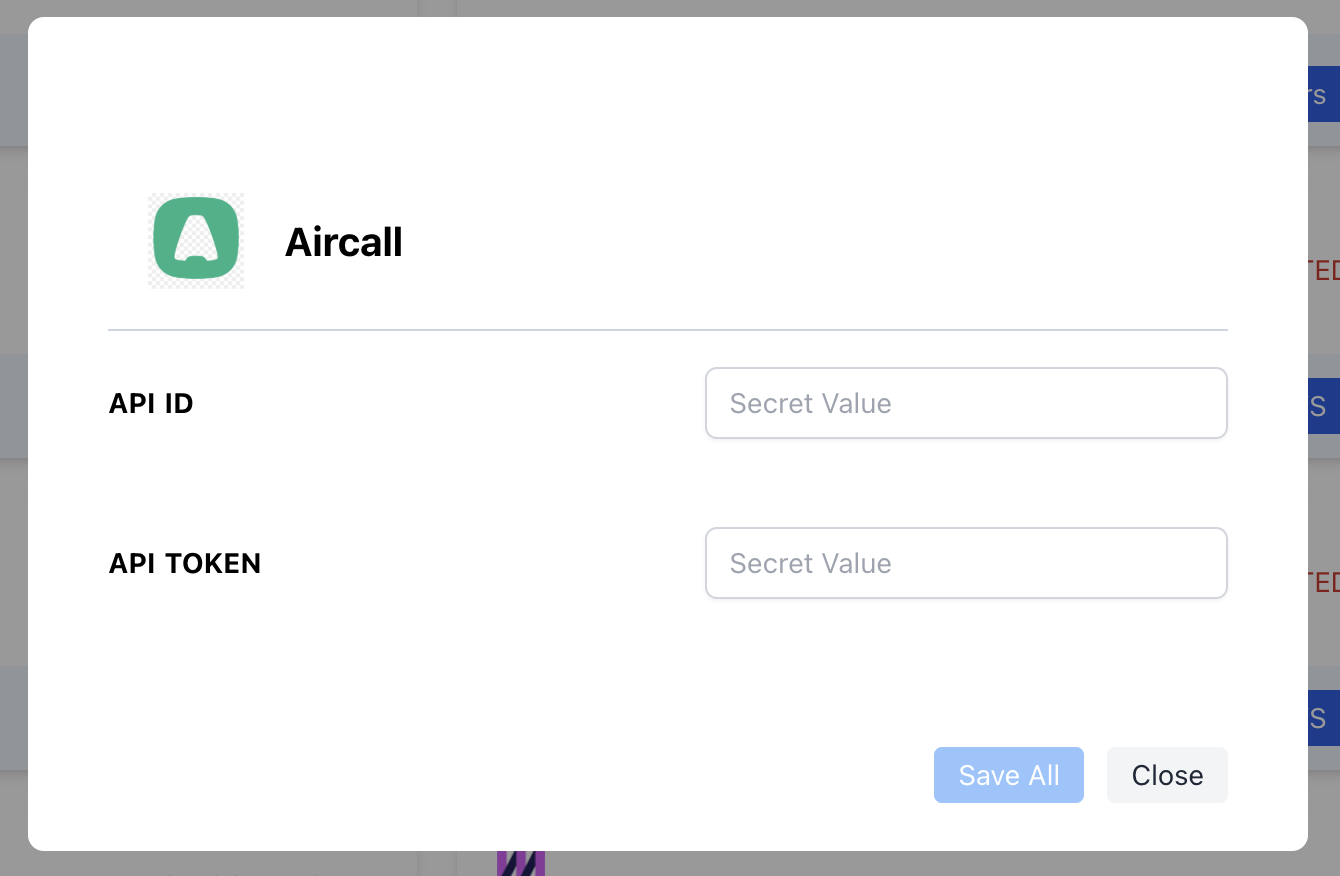
Find the Aircall integration tile, paste the API ID and API Token and save.
Where to Find Calls
- Open the Call Library in Momentum to browse and search Aircall calls.
Assign AI License Seats
To add users to the AI license seats setting in Momentum:- Log in to the Momentum admin page.
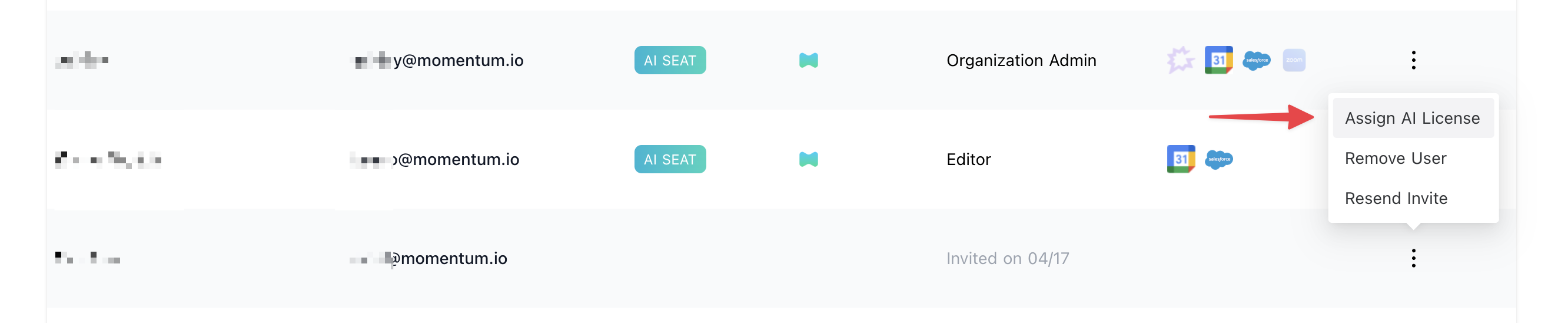
- In the Team section, invite or locate users to license.
- Click Assign AI License for each user.
-
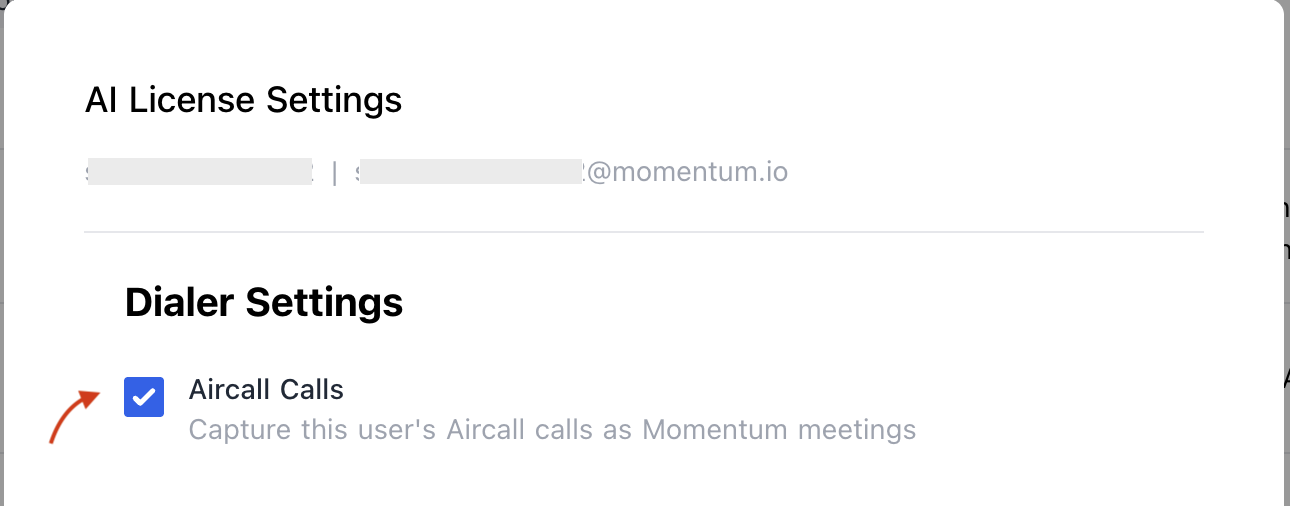
Enable Aircall calls to sync calls of the user.
Troubleshooting
If you encounter issues, contact our support team:- Slack: Use your shared Momentum channel
- Email: support@momentum.io
FAQs
What happens if I regenerate my API credentials?
What happens if I regenerate my API credentials?
You’ll need to update the credentials in Momentum’s integration settings to maintain the connection.
Do you support historical backfill?
Do you support historical backfill?
By default, ingestion starts after connection. Contact Momentum support for historical backfill requests.
Do I need Salesforce package for Aircall integration with Momentum?
Do I need Salesforce package for Aircall integration with Momentum?
Salesforce integration is strongly recommended. While calls are ingested directly from Aircall’s API, Momentum uses Salesforce records (Tasks or Aircall Voice objects) to map calls to the correct accounts, contacts, and opportunities. Without Salesforce, calls will still appear in your Call Library but won’t be attributed to CRM records.
Why aren't my calls appearing in Salesforce Tasks?
Why aren't my calls appearing in Salesforce Tasks?
Check that your Aircall integration settings have call types set to “completed” or “in progress”, and ensure the Type field is visible on the Task object.