

Prerequisites
You’ll need Outreach administrator access and a Momentum admin account.
Ensure users exist in both systems with matching work emails.
- Momentum workspace permissions to install and manage integrations.
- Outreach Voice enabled: Your Outreach account must have Voice/Dialer functionality enabled.
Outreach Configuration
Enable Call Recording
To ensure Momentum can access your call recordings:- Sign in to your Outreach Admin Portal
- Navigate to Administration → Org Info → Voice
- Enable call recording for the desired users or teams
- Ensure users have the appropriate voice recording permissions
Only calls with recordings will be imported into Momentum. Calls without recordings, or calls in “ringing”, “no_answer”, or “canceled” states are automatically excluded.
Salesforce Sync for Prospects
For optimal call attribution in Momentum, ensure your Outreach prospects are synced from Salesforce:- In Outreach, navigate to Administration → Integrations → CRM
- Select your Salesforce integration
- Verify that prospect sync is enabled
Connect Outreach to Momentum
Outreach uses OAuth 2.0 authentication. To connect: From the Momentum web app:- Click on your profile icon and select Integrations.
- Find the Outreach integration from Browse integrations and click Sign in.
- Type
/configureto open Momentum’s Integrations menu. - Find the Outreach integration and click Authorize.
- You’ll be redirected to Outreach to authorize the connection.
- Sign in with your Outreach account.
- Review and approve the requested permissions.
- When connected, the status will show as Connected.
Momentum requests read-only access to your Outreach calls, prospects, and users. No data is written back to Outreach.
Where to Find Calls
Open the Call Library in Momentum to browse and search Outreach calls.Assign AI License Seats
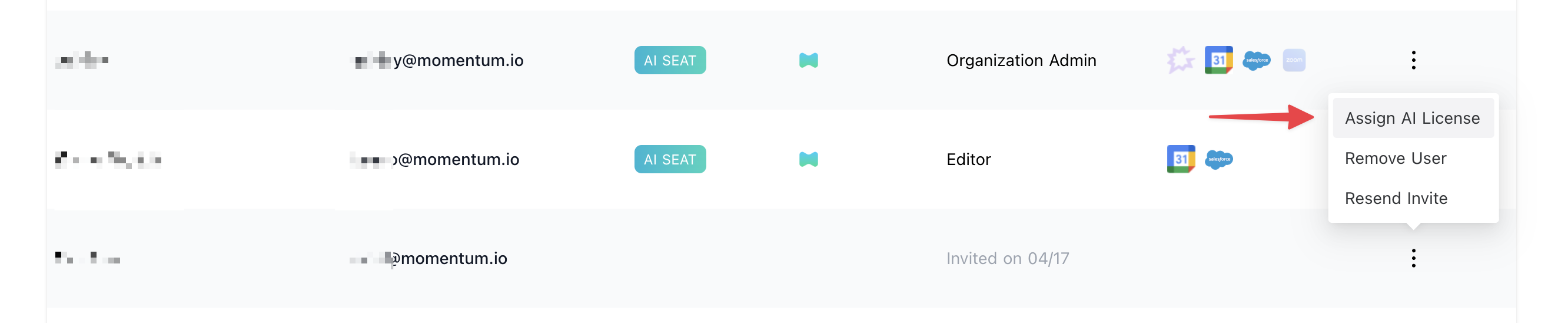
To enable Outreach call sync for users:- Log in to the Momentum admin page.
- In the Team section, invite or locate users to license.
- Click Assign AI License for each user.
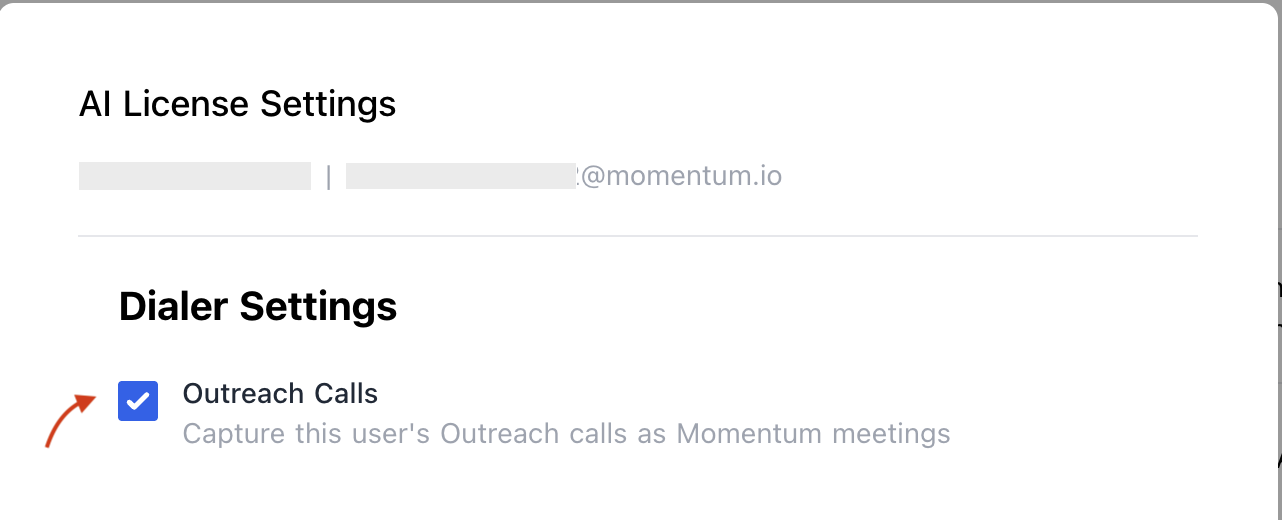
-
Enable Outreach calls to sync that user’s calls.
Troubleshooting
- Calls may be missing if:
- Call recording is not enabled for that user
- The call state is “ringing”, “no_answer”, or “canceled”.
- The call has no associated prospect
- Allow up to 15 minutes for the next sync cycle.
- Slack: Use your shared Momentum channel
- Email: support@momentum.io
FAQs
Do you support historical backfill?
Do you support historical backfill?
By default, ingestion starts after connection. Contact Momentum support for historical backfill requests.
How often are calls imported?
How often are calls imported?
Every 15 minutes.