

Prerequisites
You’ll need Apollo administrator access and a Momentum admin account.
Ensure users exist in both systems with matching work emails.
- Momentum workspace permissions to install and manage integrations.
- Call recording enabled in Apollo for the users whose calls should be synced.
- Optional, for Salesforce linking: Apollo is already synced with your Salesforce instance. See Salesforce Linking.
Generate your Apollo API Key
- Sign in to Apollo with an administrator account.
- Navigate to Settings → Integrations → API.
- Create a new API key. Calls and users are read through Apollo’s API, so use a key with access to phone calls and users.
- Copy the API Key.
Add API Key to Momentum
- Copy the generated API key from Apollo.
- In Momentum, open the organization Integrations page and stay on the Connected tab.
- Select the Apollo card and paste the API Key.
Apollo connects with an API key, not a sign-in. Do not use a Sign in or Connect button for Apollo from the onboarding flow or the My Integrations page. Those buttons are for sign-in based integrations and will not work for Apollo. The API Key tab on the Integrations page is for Momentum’s own API keys, not for Apollo’s key.
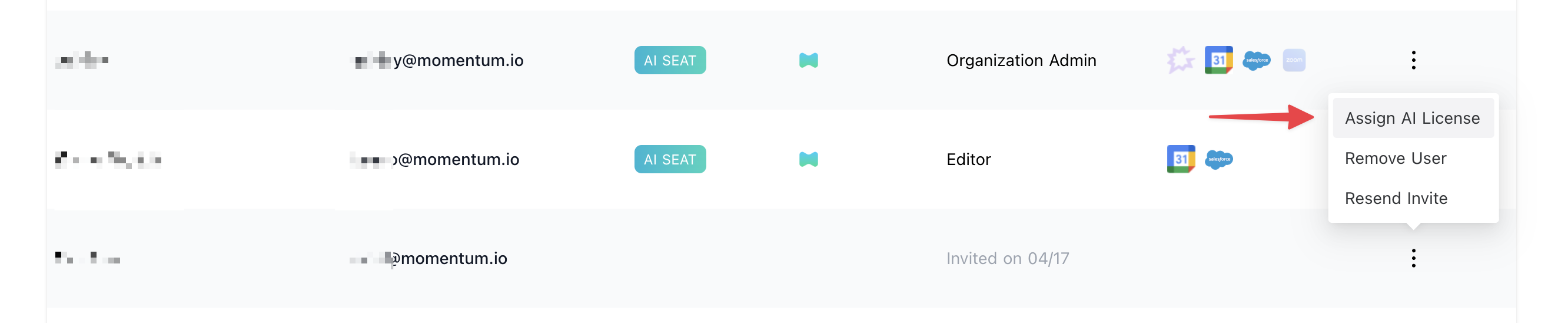
Assign AI License Seats
Calls are only synced for users who have Apollo call import enabled. The Apollo Calls option appears on the AI license only after Apollo call import is enabled for your organization.- Log in to the Momentum admin page.
- In the Team section, invite or locate users to license.
- Click Assign AI License for each user.
-
Enable Apollo Calls to sync that user’s calls.
How Users Are Matched
Momentum imports your Apollo users automatically (hourly) and matches each one to a Momentum user by email address. A user whose Apollo email differs from their Momentum email is not matched, and their calls are not imported.Where to Find Calls
Open the Call Library in Momentum to browse and search Apollo calls.Salesforce Linking
No Apollo-to-Salesforce mapping needs to be configured in Momentum. When Apollo is synced with your Salesforce instance, Apollo’s call data includes the related Salesforce Contact, Lead, and Account IDs, and Momentum uses them to link the call to the right Salesforce records. If those IDs are not available, Momentum falls back to matching the prospect’s email address or phone number against Salesforce Contacts and Leads.Which Calls Are Imported
Momentum imports an Apollo call when it is:- Completed
- Recorded
- Associated with a contact
Troubleshooting
- Calls may be missing if:
- Apollo Calls is not enabled on the user’s AI license.
- The user’s Apollo email does not match their Momentum email.
- The call was not recorded, was a voicemail, or has no contact associated with it.
- The API key is invalid or has been regenerated.
- Allow up to 15 minutes for the next sync cycle.
- Slack: Use your shared Momentum channel
- Email: support@momentum.io
FAQs
Do you support historical backfill?
Do you support historical backfill?
By default, ingestion starts after connection. Contact Momentum support for historical backfill requests.
How often are calls imported?
How often are calls imported?
Every 15 minutes, subject to Apollo API rate limits.
What happens if I regenerate my API key?
What happens if I regenerate my API key?
You’ll need to update the API key in Momentum’s integration settings to maintain the connection.
Do I need to map Apollo fields to Salesforce in Momentum?
Do I need to map Apollo fields to Salesforce in Momentum?
No. Momentum reads the Salesforce IDs that Apollo already stores on each call. Make sure Apollo is synced with Salesforce on the Apollo side.