

Overview
Smart Tags automatically classify calls based on your prompts. They eliminate manual tagging and provide the foundation for intelligent automation across the Momentum platform. Smart Tags enable revenue teams to:- Easily identify important calls by filtering based on automatically detected themes like competitor mentions, objections, or feature requests
- Automate workflows with infinite flexibility by triggering actions when specific tags or combinations of tags are detected
- Analyze trends by correlating tags across calls at scale
How Smart Tags Work
When a conversation is analyzed, Momentum’s AI evaluates which of your configured Smart Tags apply and tags the conversation accordingly. Each tag includes the relevant context from the transcript, so you can always verify why a tag was applied. Example: If a prospect mentions “we’re currently evaluating Competitor X,” a competitors Smart Tag automatically tags the conversation with a “Competitor X” tag. That data can then be used to:- Filter calls in the Call Library to review all conversations where “Competitor X” emerged as a competitor
- Trigger Autopilot or AI Signal workflows (e.g., notify sales enablement or attach a battlecard)
Smart Tag Types
Create Smart Tags that match your specific business needs:The type dictates how the tag can be used for filtering and automation. For
example, a Boolean tag can trigger an action when true, while a Picklist tag
can trigger different actions based on the selected value.
Key Features
Meaningful Detection
Smart Tags go beyond simple keyword matching:- Contextual Understanding: Momentum analyzes meaning and intent, not just exact phrases
- Evidence Capture: Every tag includes supporting quotes from the transcript for verification
- Dynamic Discovery: Optionally allow Momentum to detect new values beyond your predefined keywords
Call Library Filtering
Find the calls you need instantly:- Multi-Tag Filtering: Combine multiple Smart Tags to narrow results
- Keyword-Specific Search: Filter by specific tag values (e.g., a particular competitor name)
- Cross-Reference: Combine with other filters like date range, owner, and deal stage
Use Cases
Competitive Intelligence
Track competitor mentions and understand win/loss drivers. Example Tag: Competitors Discussed (Multi-picklist)- Keywords: “Competitor X”, “Competitor Y”, “Competitor Z”
- Allow others: Yes (to discover new competitors)
Enablement and Coaching - Objection Handling
Identify and categorize common objections to improve coaching. Example Tag: Primary Objection (Picklist)- Keywords: Pricing, Timeline, Competition, Internal Buy-in, Technical Concerns
Product Feedback
Capture feature requests and product insights from customer conversations. Example Tag: Feature Request (Multi-picklist)- Keywords: Reporting, Integrations, Mobile App, API, Automation
- Allow others: Yes
Deal Risk Indicators
Identify calls that signal deal risk for proactive intervention. Example Tag: Risk Indicator Detected (Boolean)- Prompt: “Identify if the customer expressed concerns about budget, timeline, decision-making authority, or mentioned evaluating alternatives”
Sales Methodology Adherence
Ensure reps follow your sales process and identify coaching opportunities. Example Tag: MEDDPICC Coverage (Multi-picklist)- Keywords: Metrics, Economic Buyer, Decision Criteria, Decision Process, Identify Pain, Champion, Competition
Setting Up a Smart Tag
Admins can create and configure Smart Tags to capture the signals that matter most to your organization.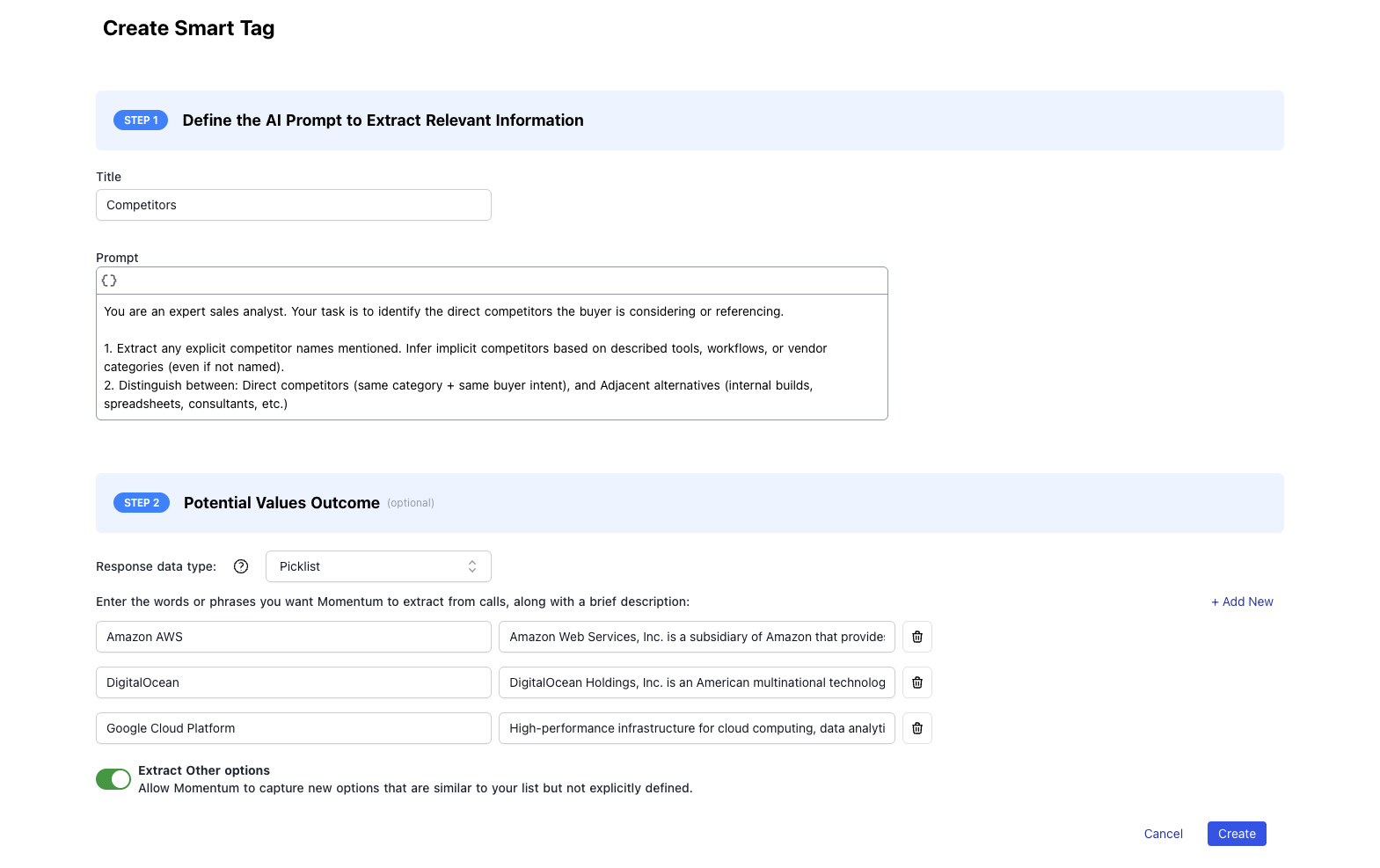
- Navigate to Admin > Smart Tags and select Create Smart Tag
- Enter a Title for your tag (e.g., “Competitor Mentioned”)
- Select a Data Type: Boolean, Picklist, Multi-picklist, or String
- Write your Prompt: Describe what Momentum should look for in the call
- Add Keywords (for picklist types): Define expected values like competitor names or objection categories
- Enable Allow Others (optional): Let Momentum discover new keywords not in your predefined list
- Click Save
Smart Tags apply to newly analyzed calls. Existing calls will not be
retroactively tagged unless you run a backfill.
Using Smart Tags in Automations
Once configured, Smart Tags can trigger automated workflows based on conversation content:- Using Smart Tags in Autopilot Classic — Trigger Salesforce field extractions when specific tags are detected
- Using Smart Tags in AI Signals — Route signals to teams based on what was said during calls
Best Practices
- Start Simple: Begin with a few high-value tags before expanding
- Iterate on Prompts: Refine your prompts based on initial results
- Use Specific Keywords: For picklists, include known values to ensure consistent tagging
- Enable Discovery: Use “Allow Others” to catch unexpected patterns
- Review Regularly: Periodically review Smart Tag results and refine definitions
- Combine Tags: Use multiple Smart Tags together for powerful, hyper-specific filtering