

Go to app.momentum.io
1. Select the call
Go to the appropriate tab to locate the call that you would like to share. Click “View” to view the call.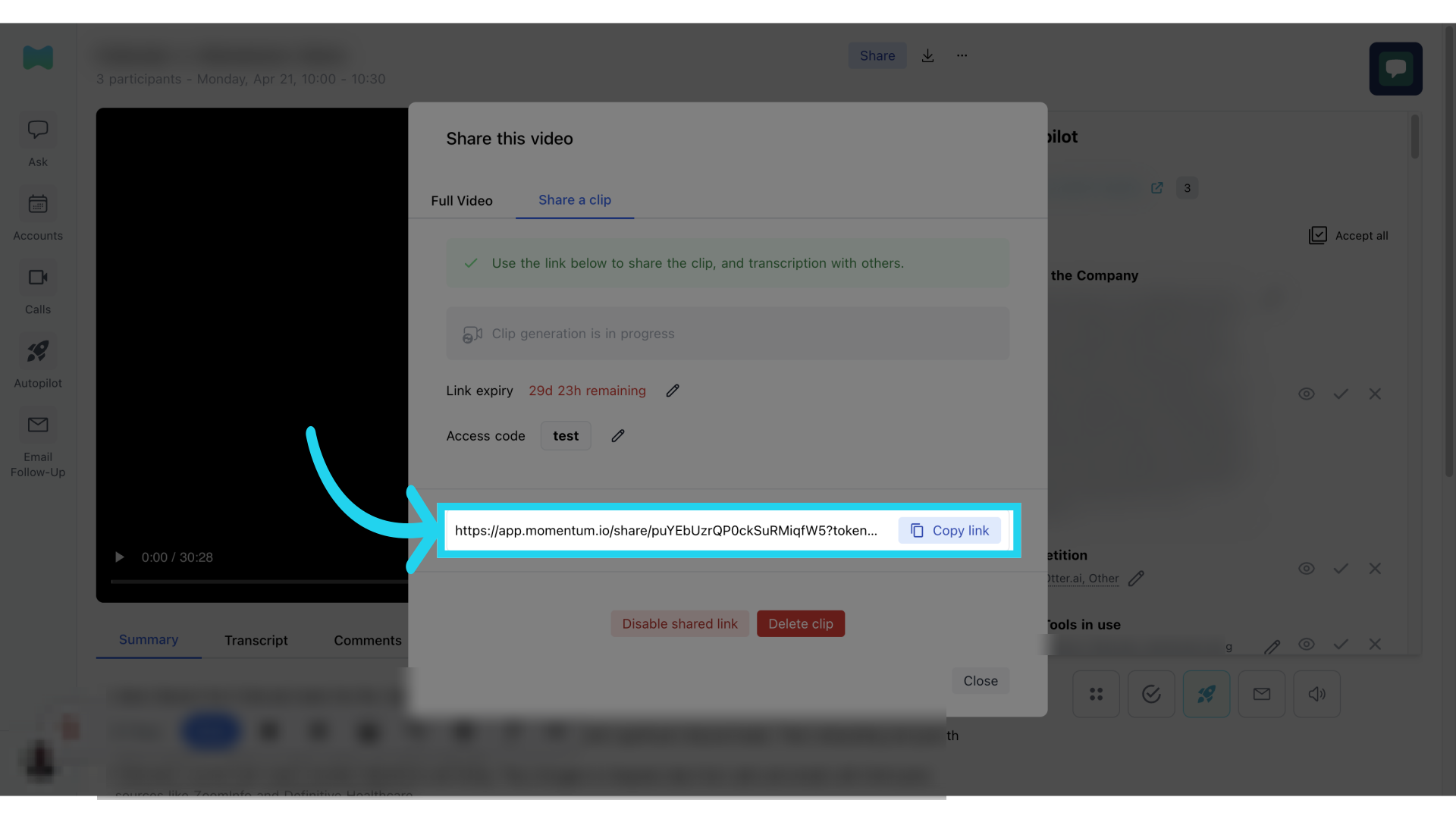
2. Access Share settings
In the call summary screen, click on the “Share” button on the top right to select the settings for sharing the call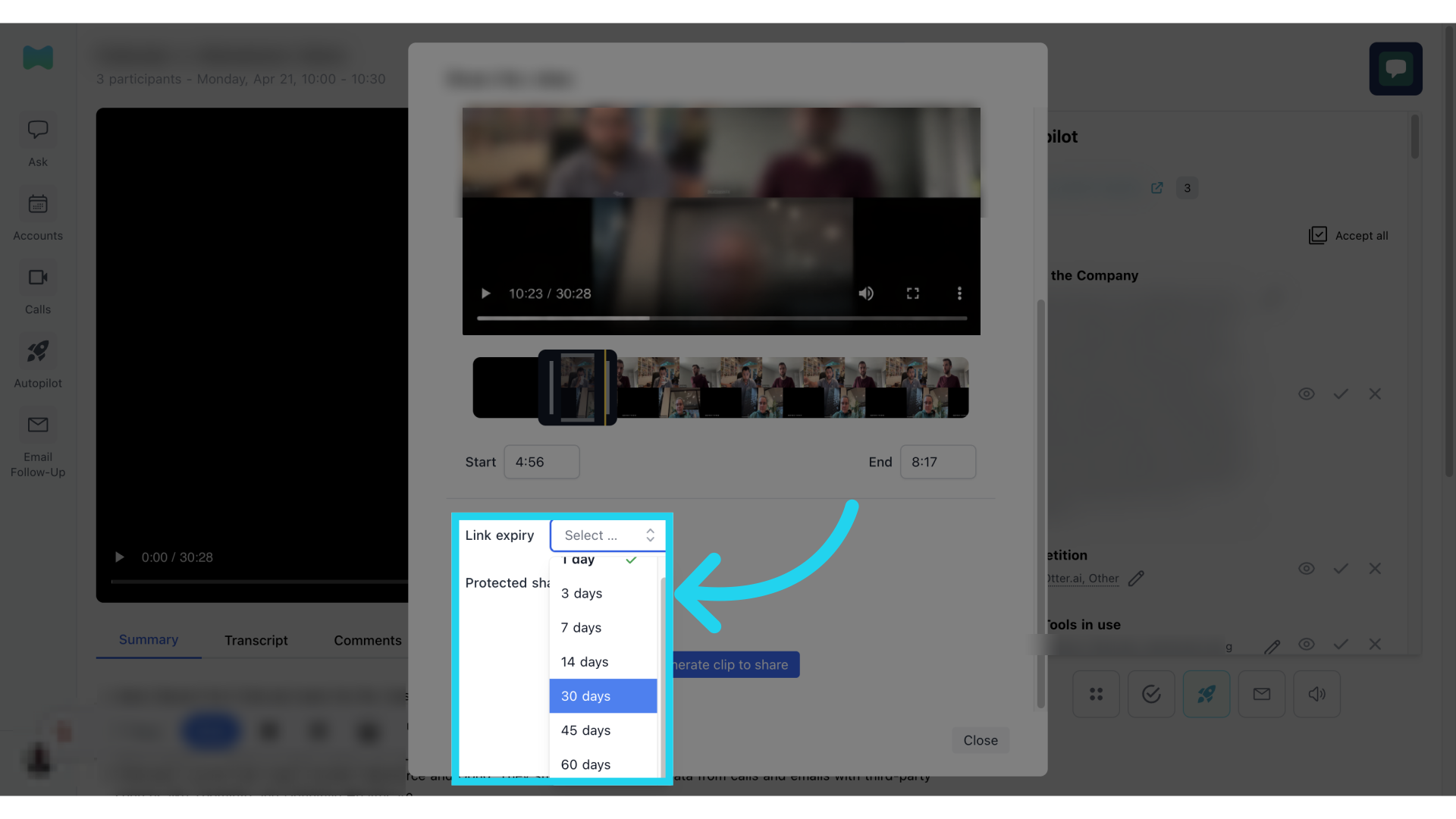
3. Sharing Full Video
Select the “Full Video” tab if you are planning to share out the full video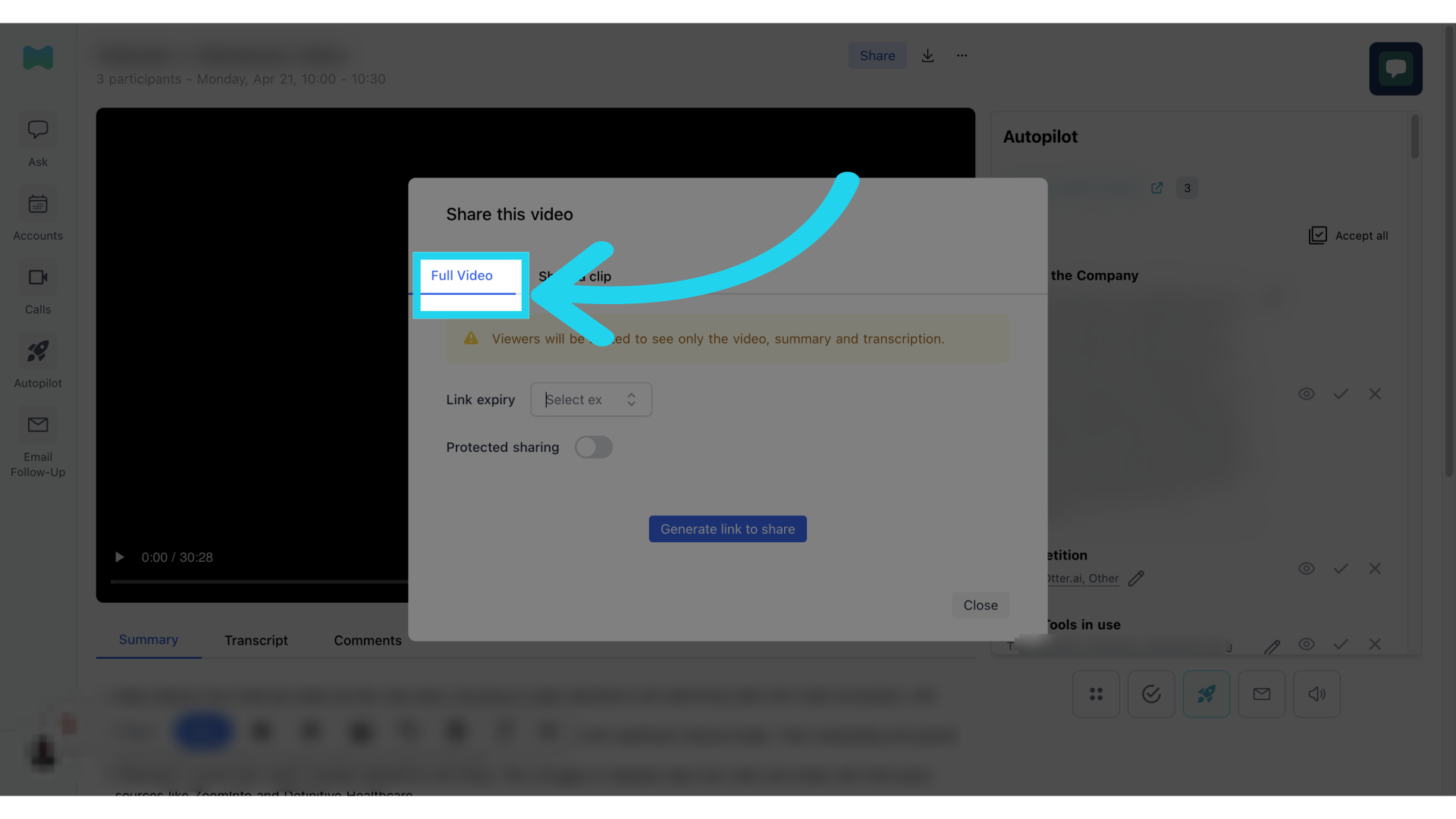
4. Set link expiry (full video)
Select from the drop down the link expiry for your shared call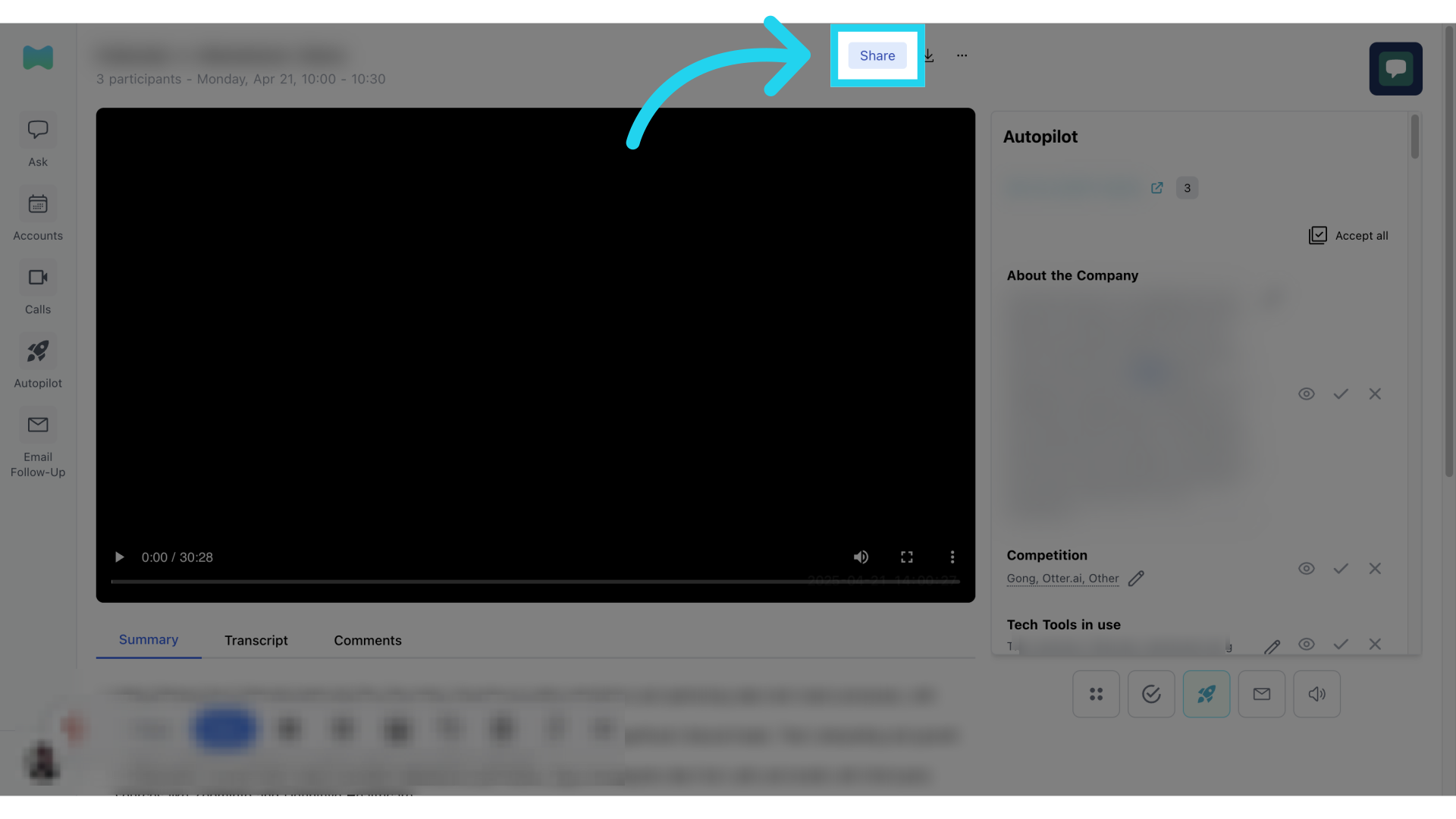
5. Enable protected sharing (full video)
Click on “Protected Sharing” if you would like to include a password for access to the link.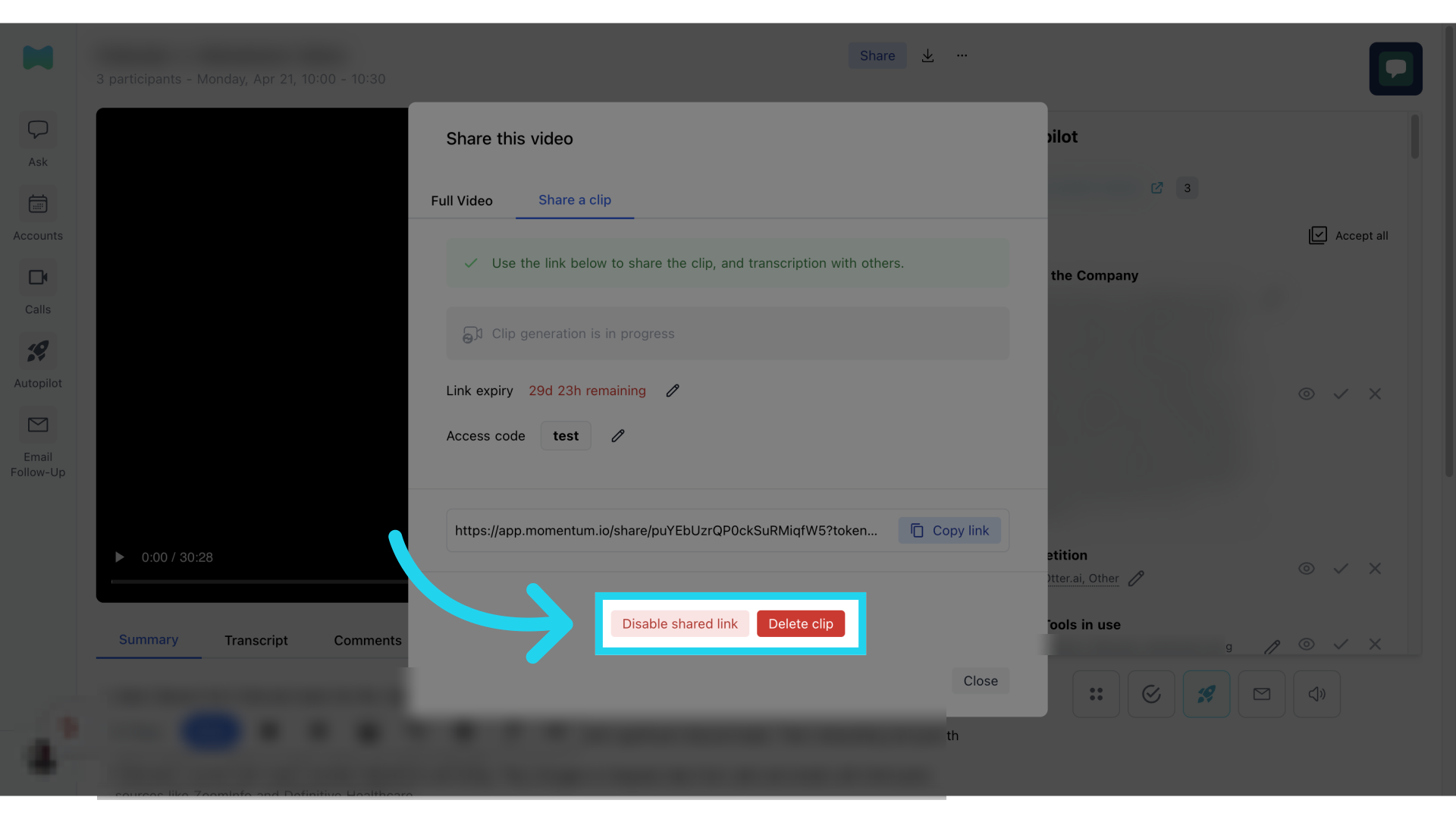
6. Set access code (full video)
Input your desired access code for call protection.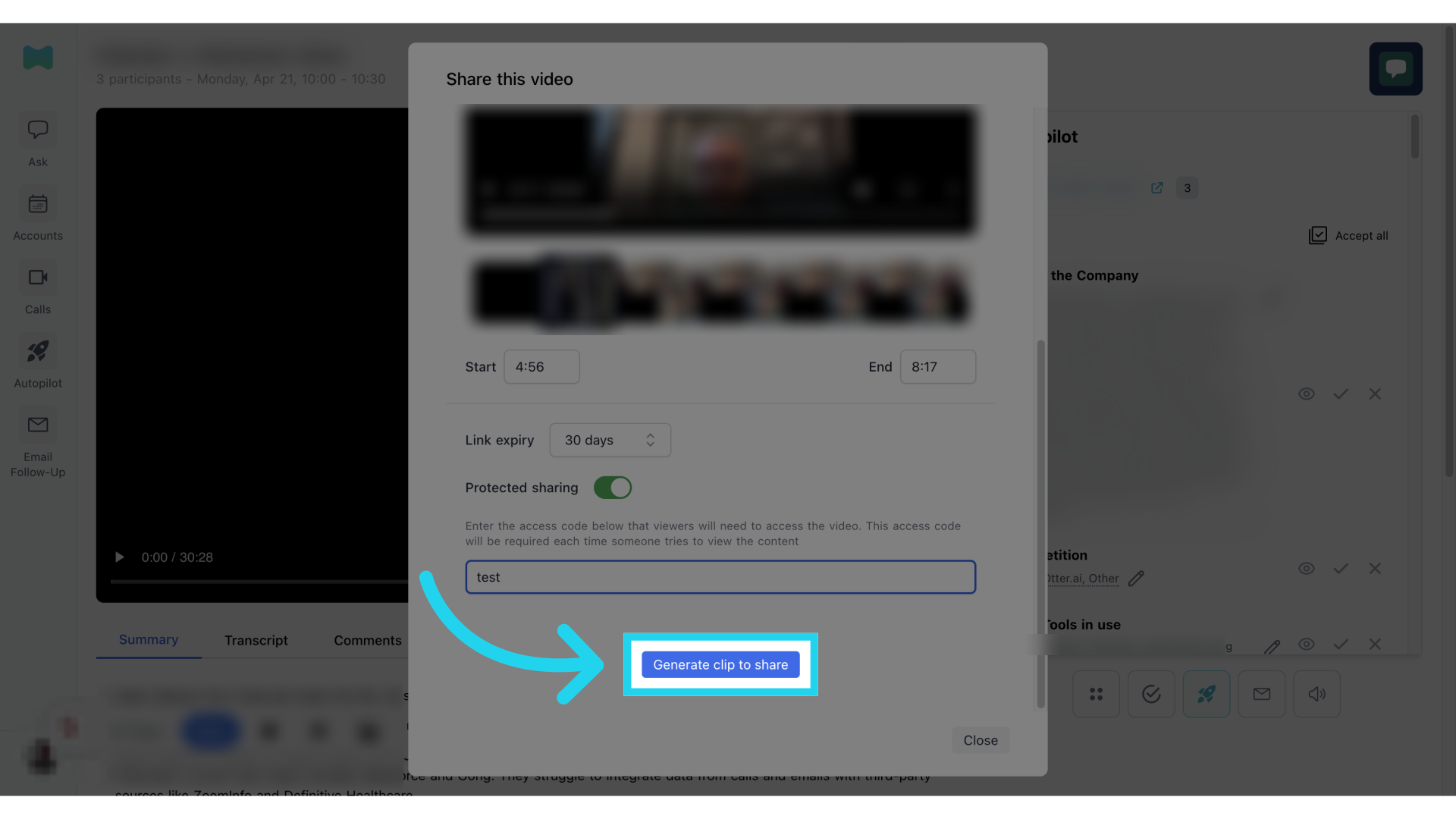
7. Generate link to share
Generate a shareable link by clicking the button.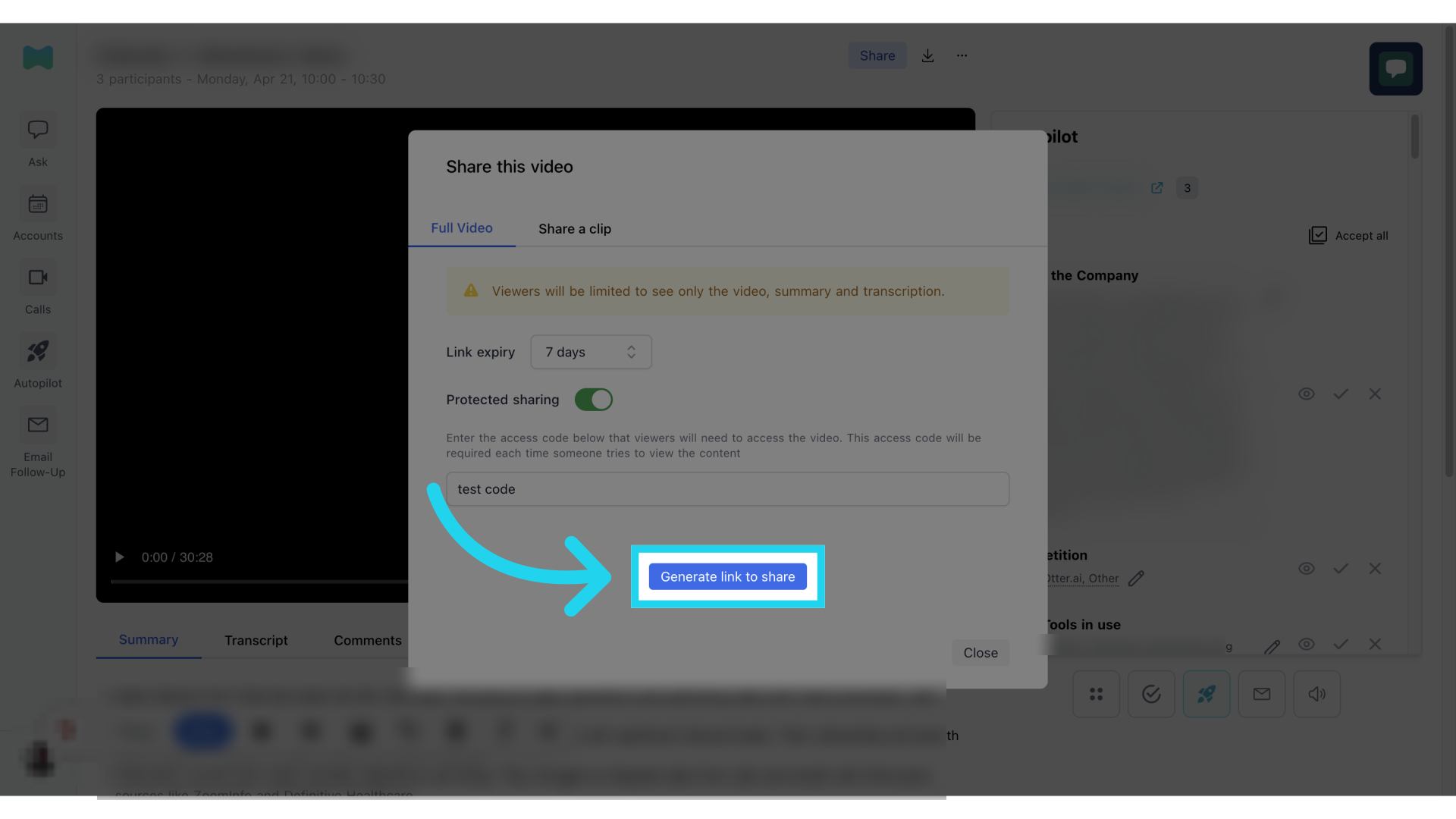
8. Confirm link generation (full video)
Confirm the link generation process.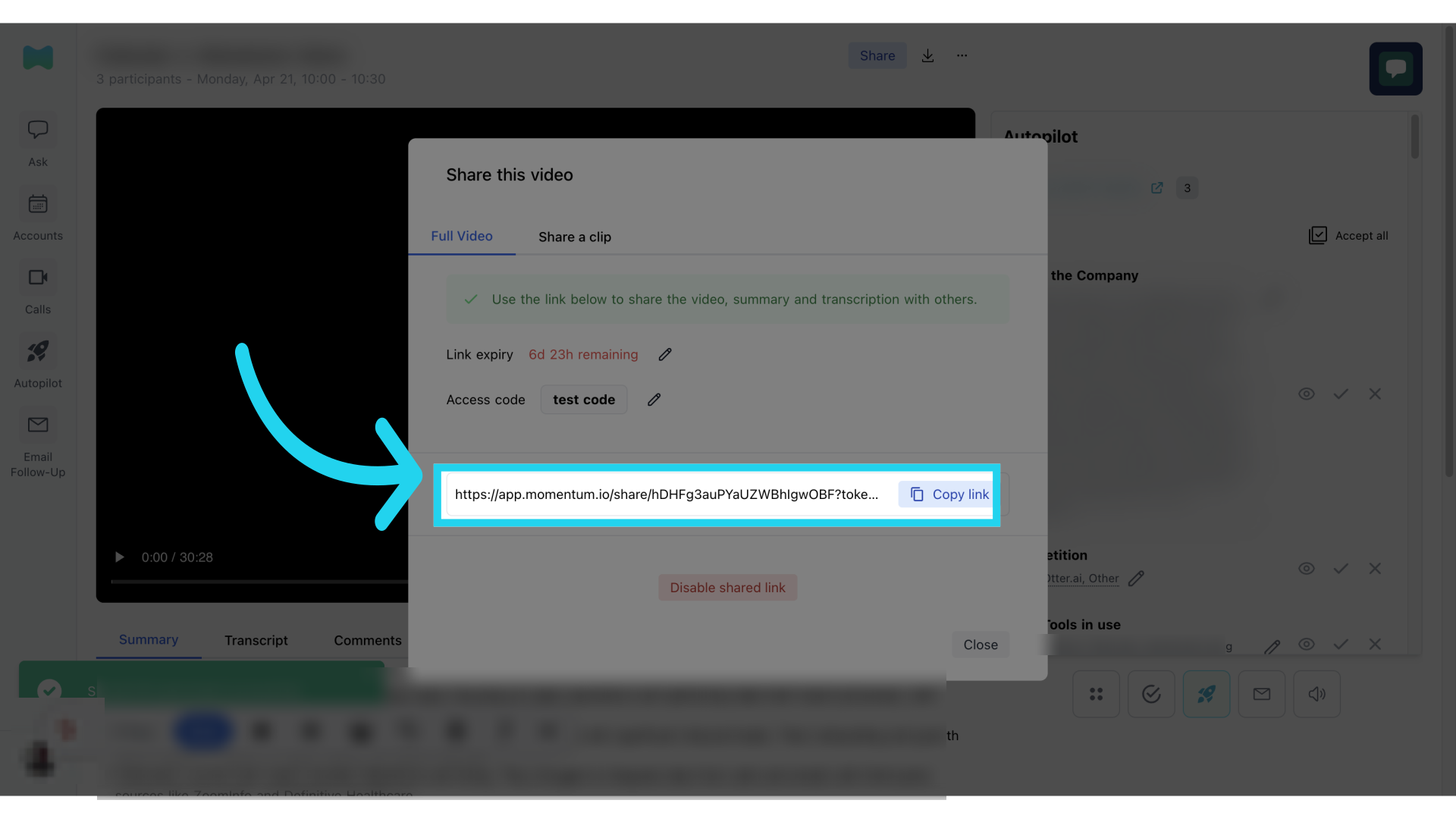
9. Copy share link (full video)
A link will be generated. You can click on the “copy link” button to copy and share the link together with the access code.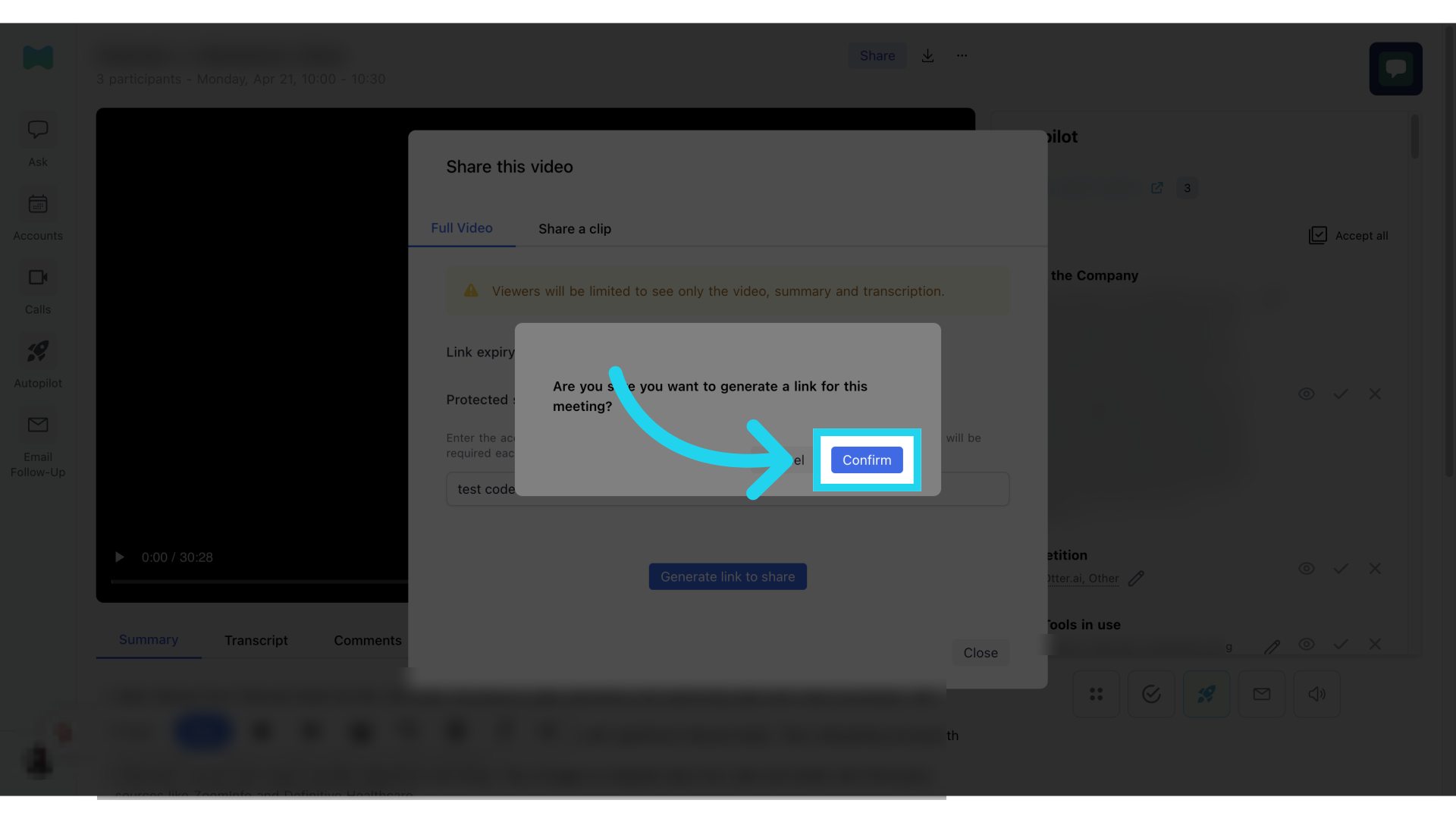
10. Disable share link (full video)
If you have generated this by mistake or would like to change any of the settings, you can click on the “Disable shared link” to start again.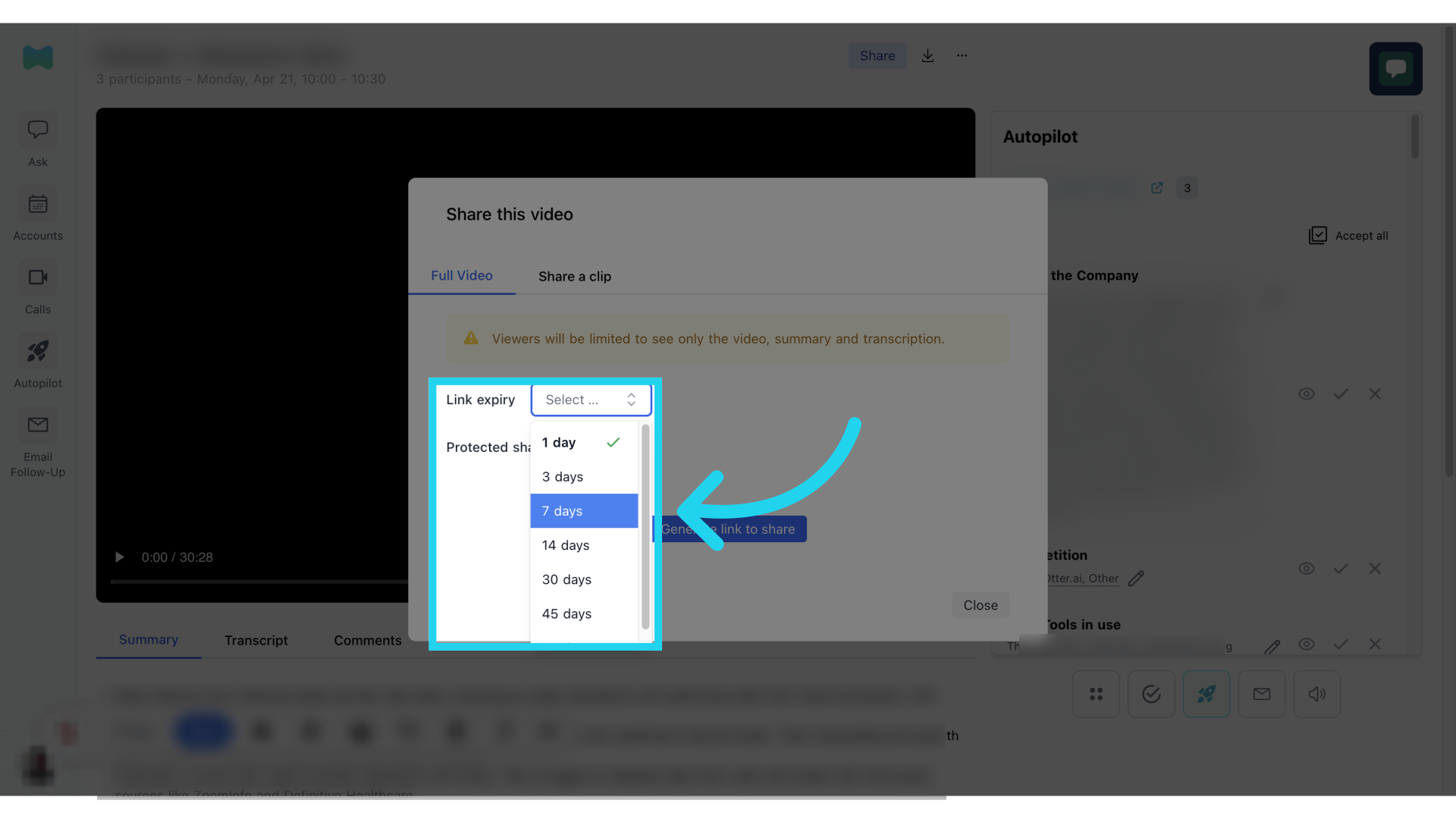
11. Confirm disabling link (full video)
Confirm the action to disable the shared link.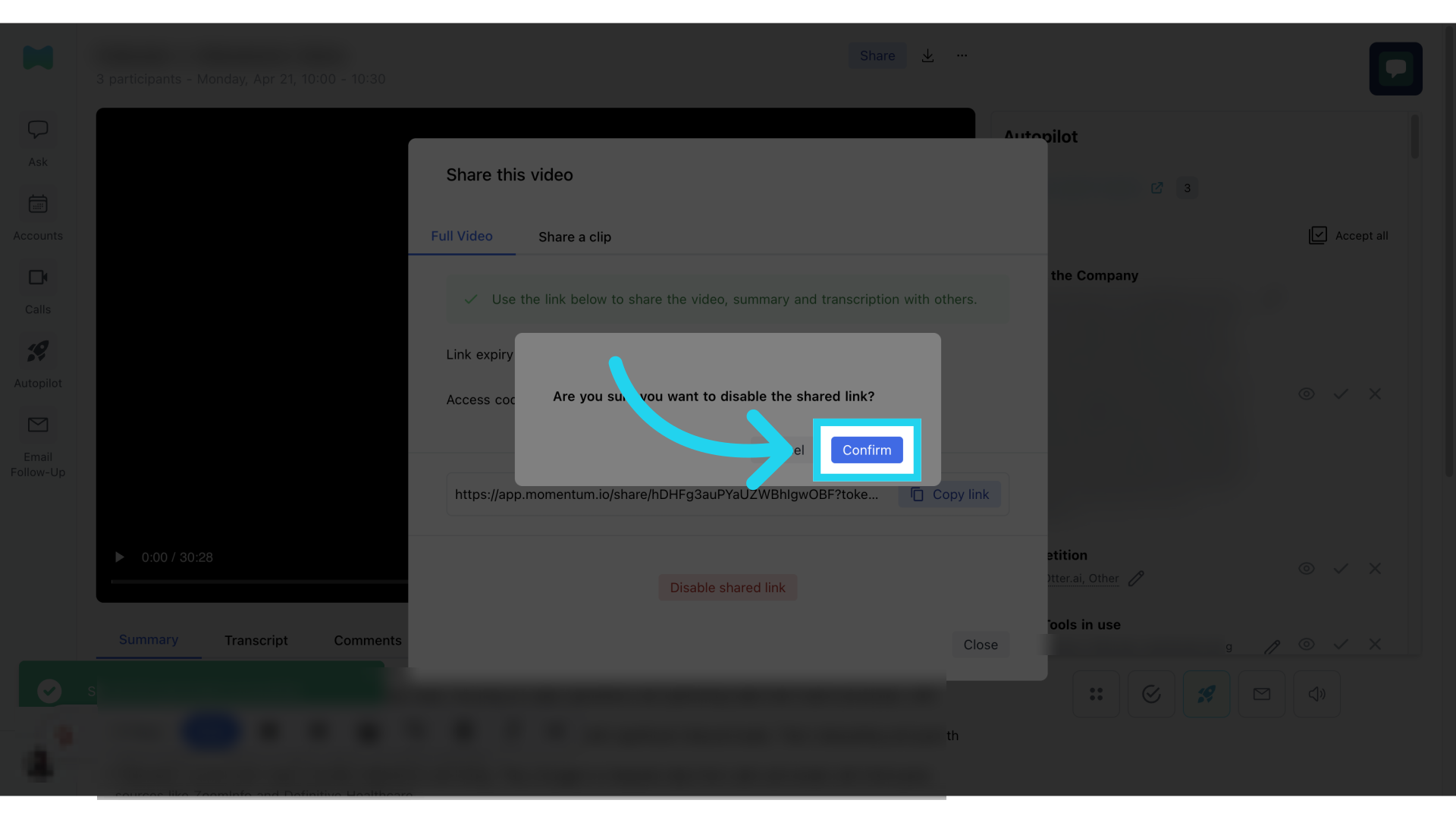
12. Share a clip
If you would like to share a clip instead, go back to the top tab and select the “Share a clip” tab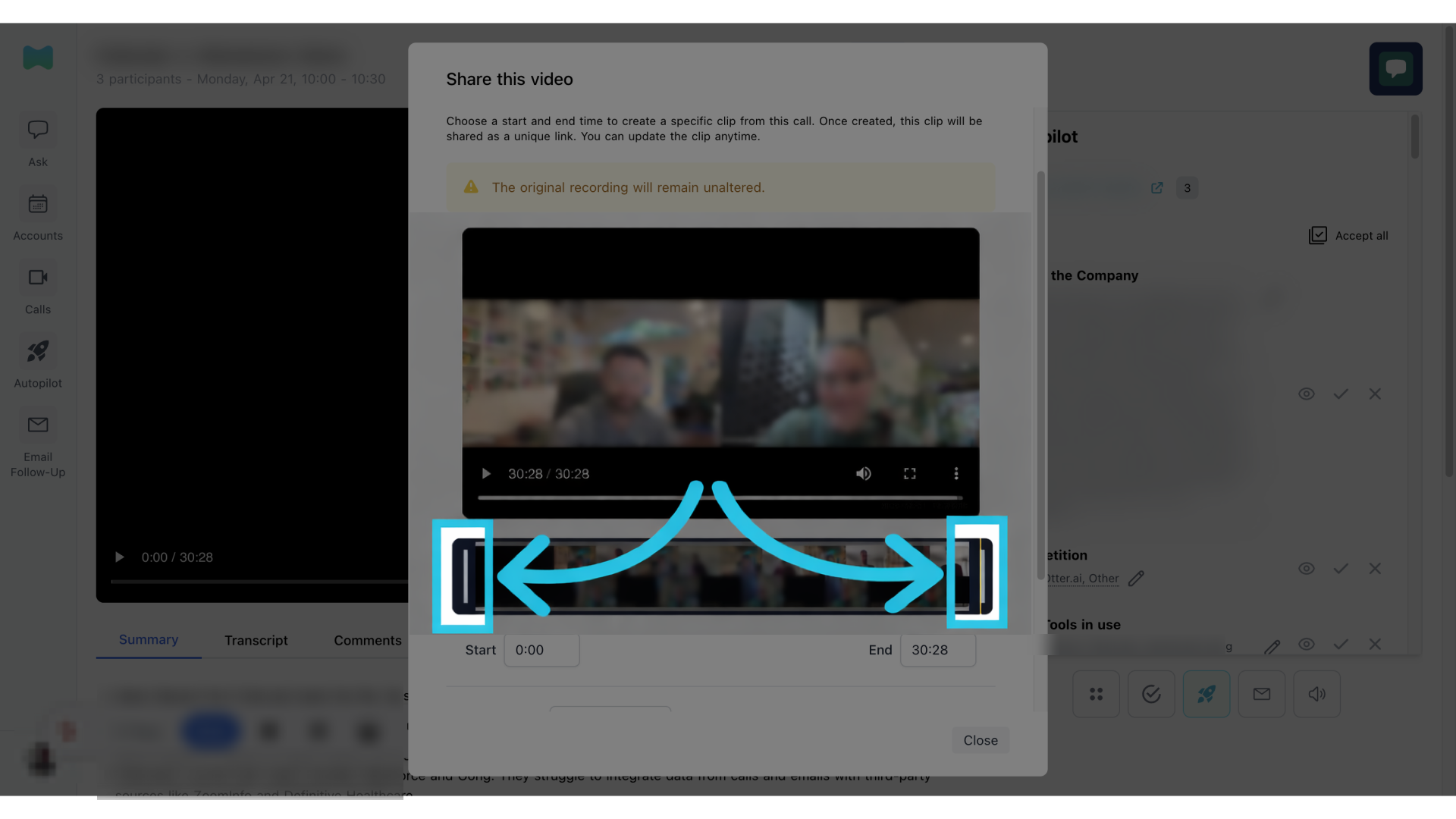
13. Adjust clip via timeline
You can select the start and end of the clip by adjusting the front and end of the video timeline.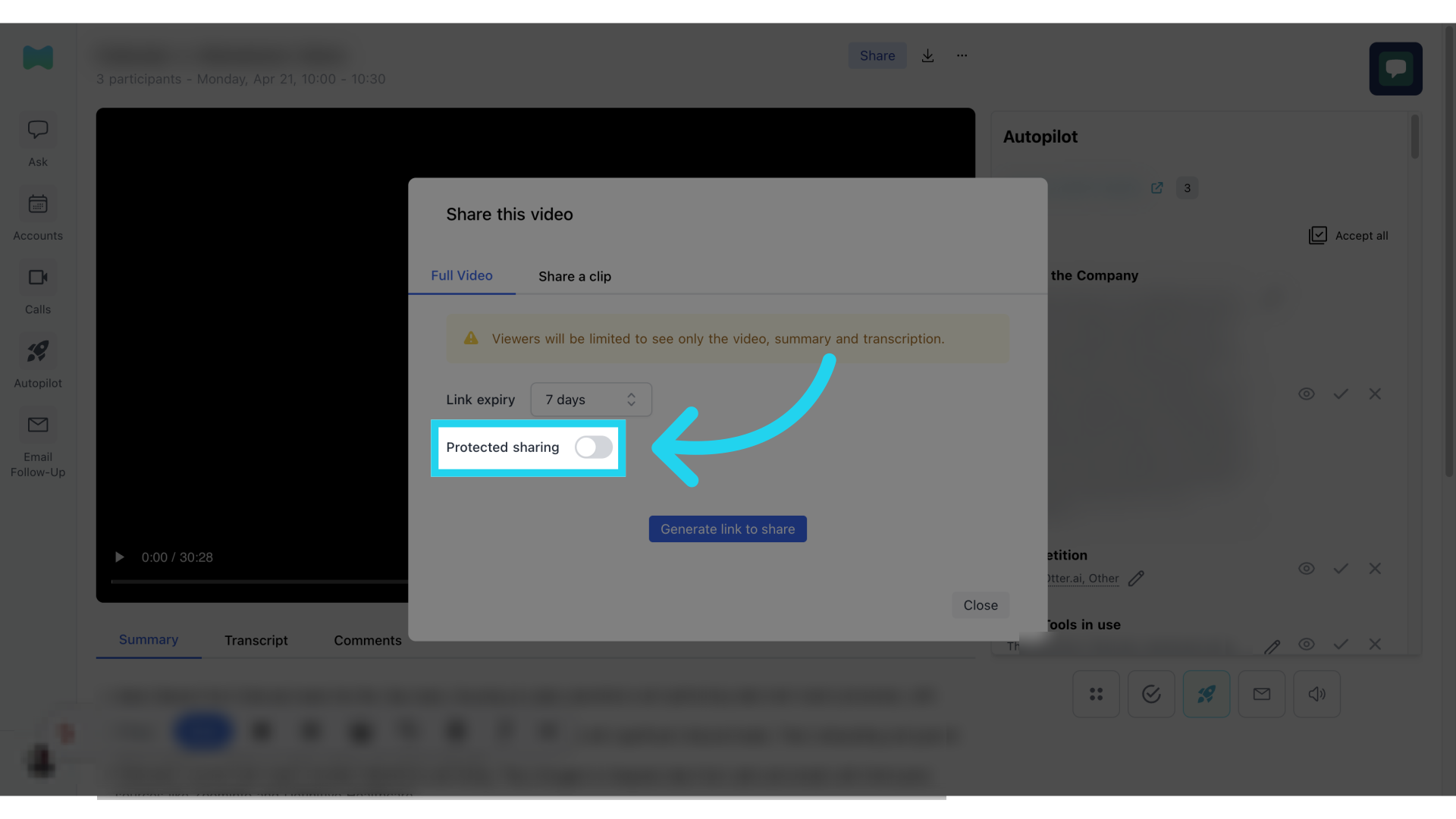
14. Adjust clip via timestamp
You can also adjust the clip by using a specific start and end timestamp.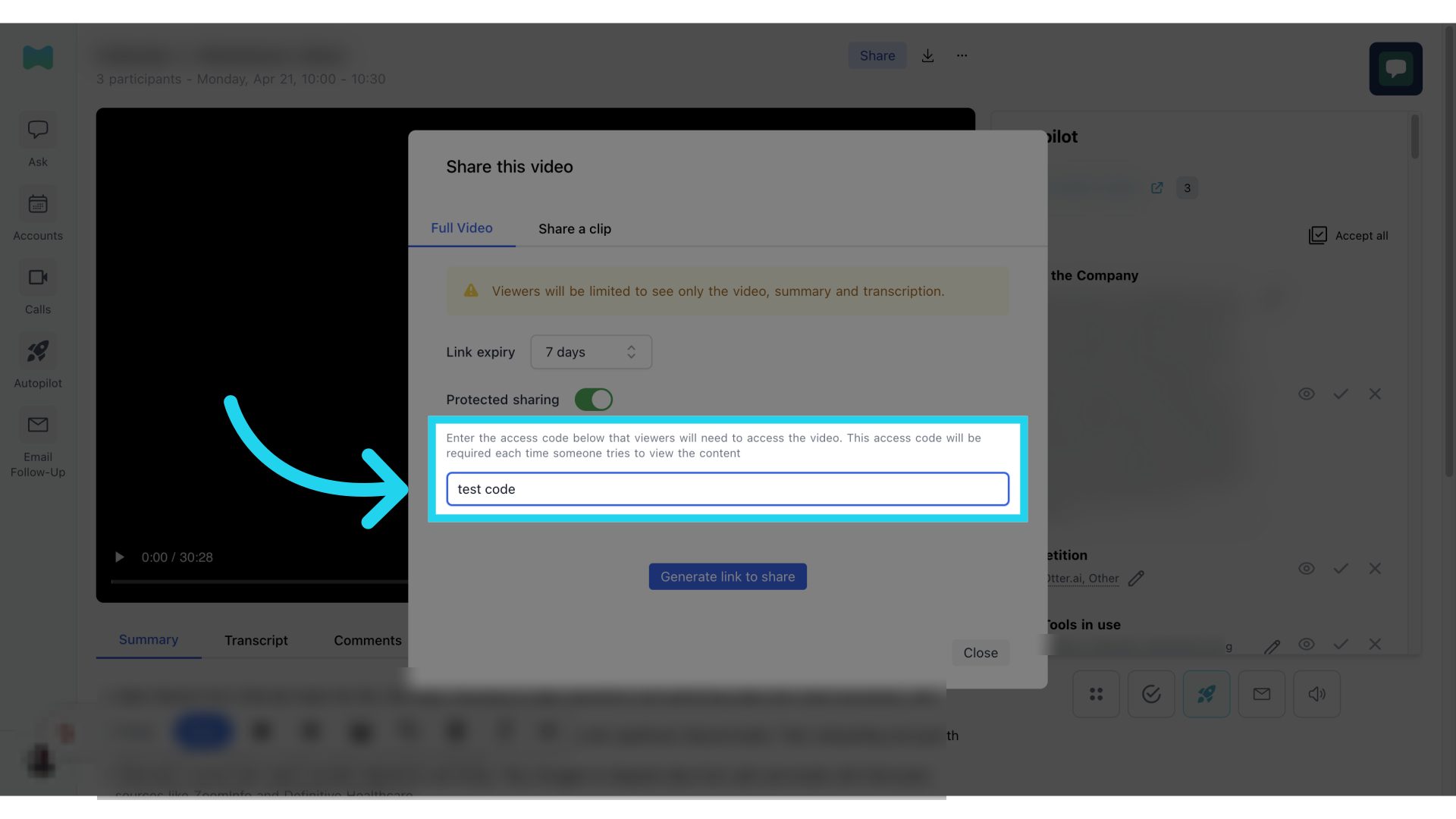
15. Set link expiry (clip)
Select from the drop down the link expiry for your shared call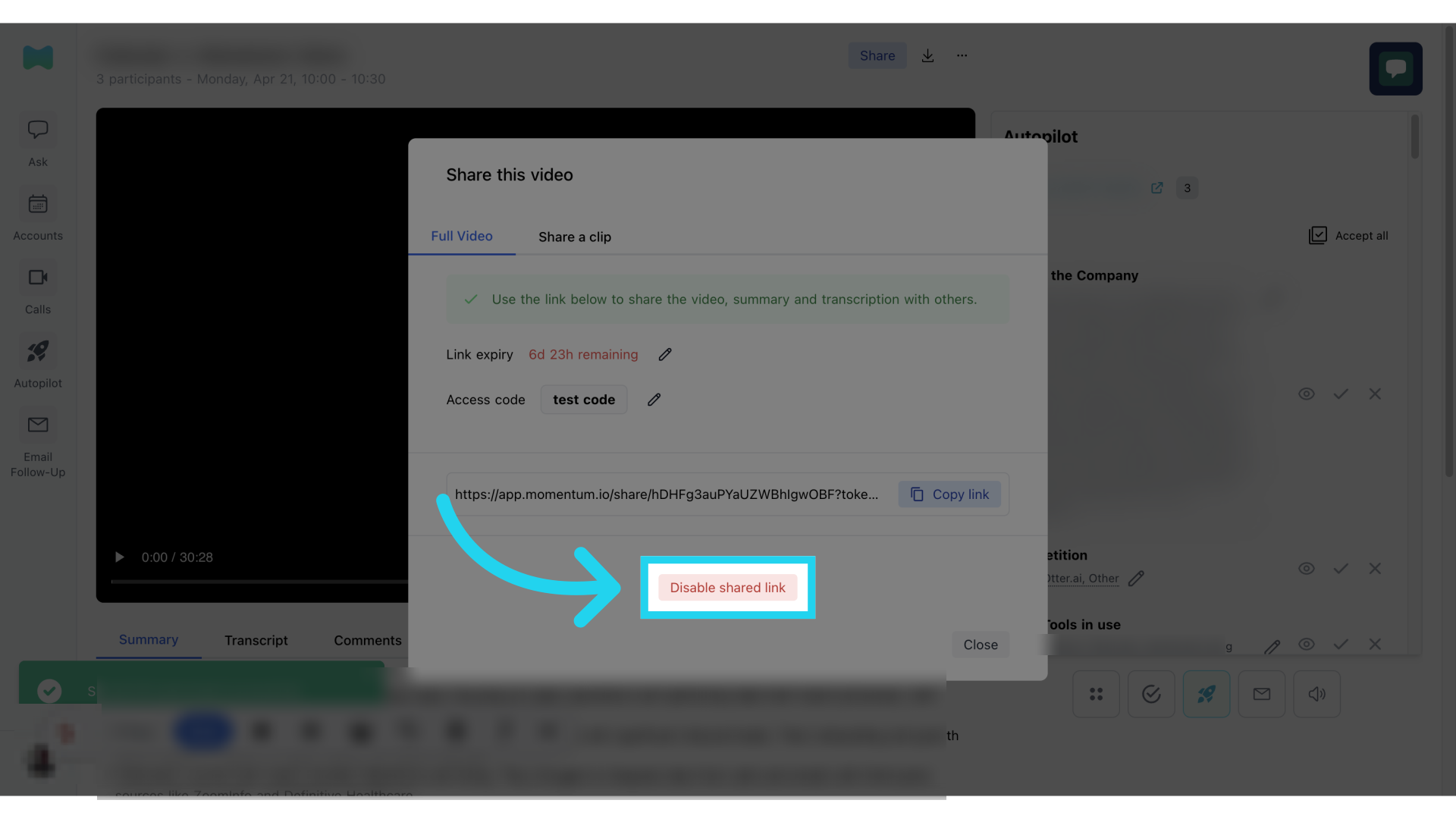
16. Enable protected sharing (clip)
Click on “Protected Sharing” if you would like to include a password for access to the link.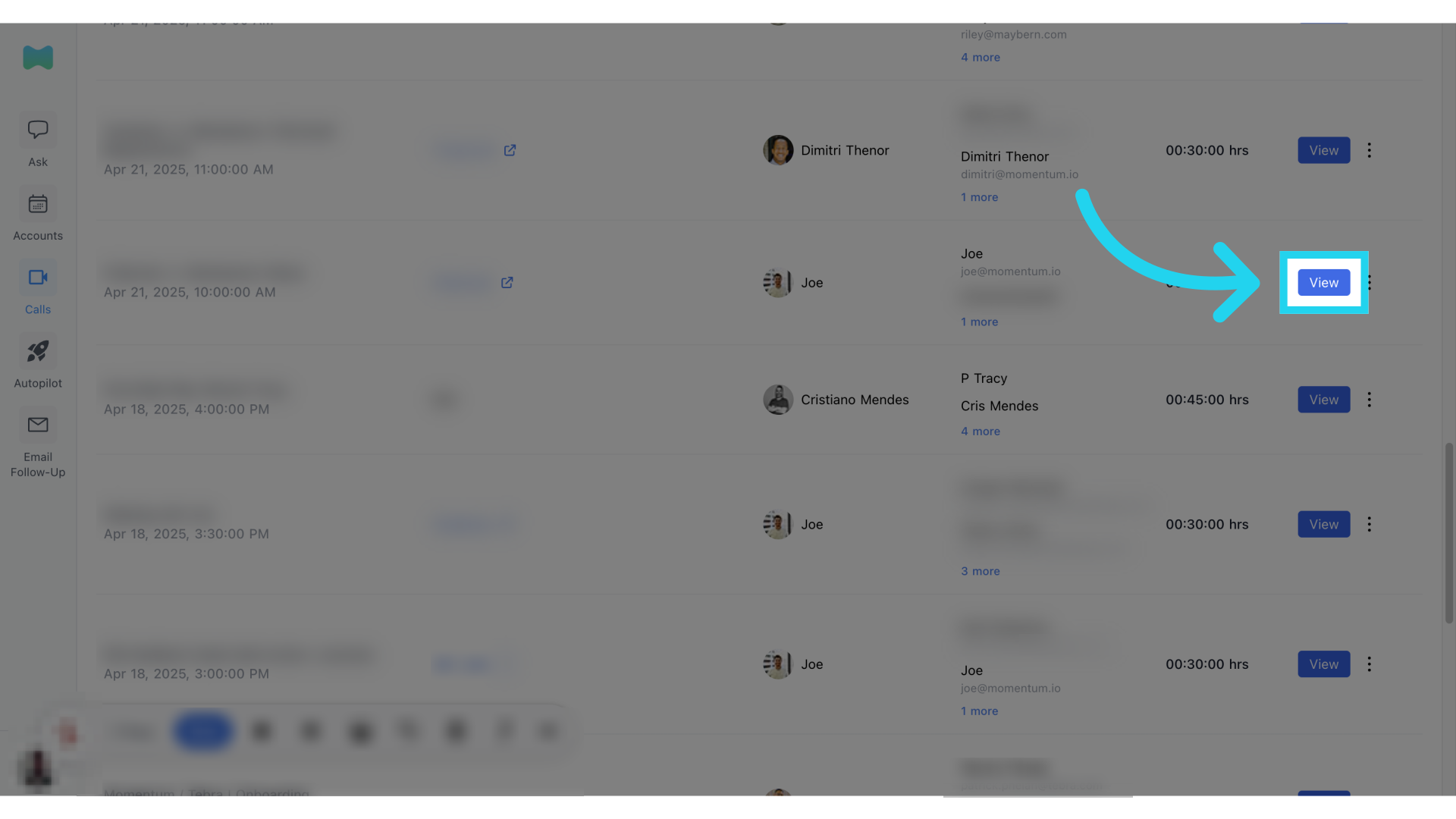
17. Set access code (clip)
Input your desired access code for call protection.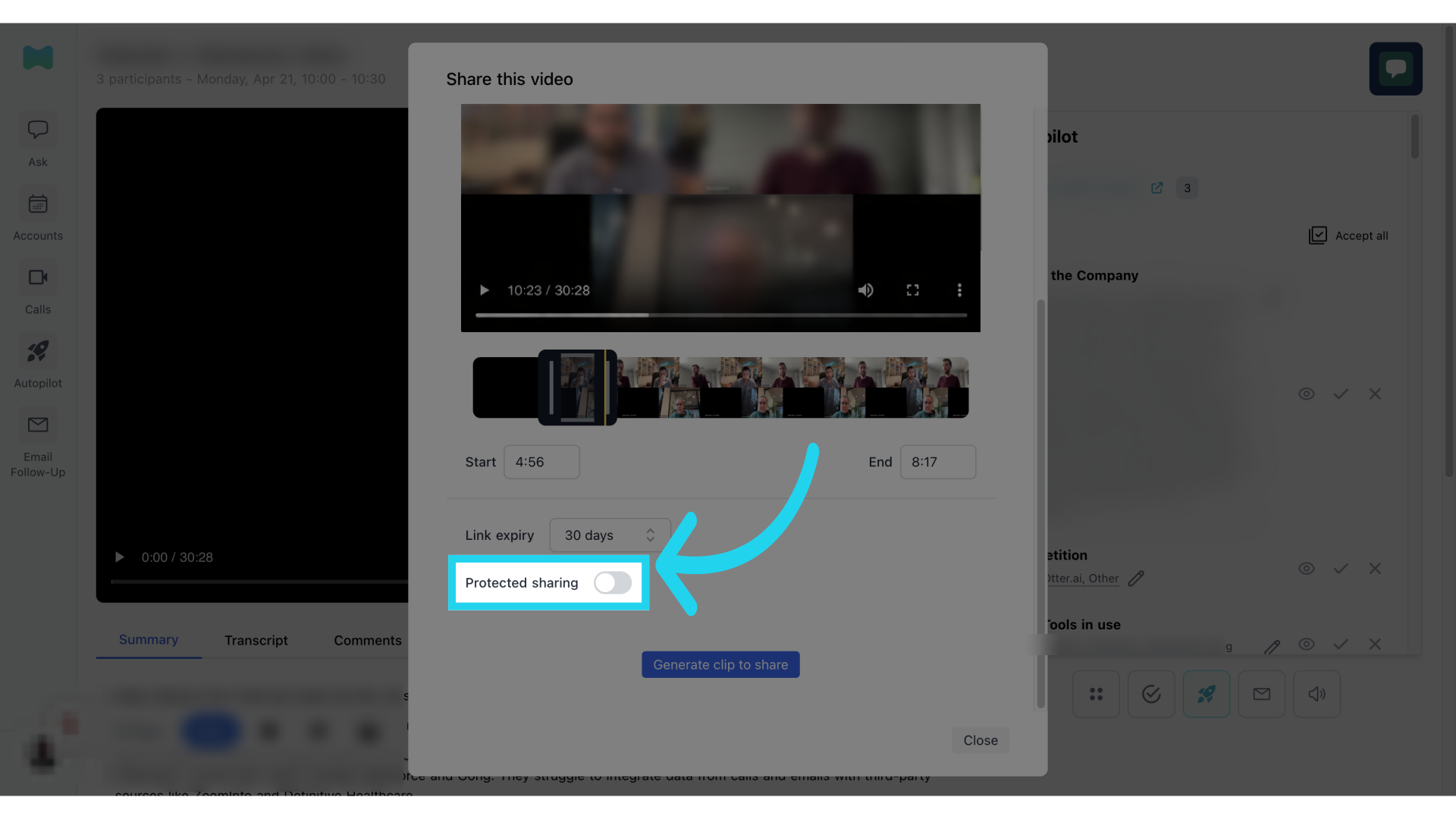
18. Generate clip to share
Generate a shareable clip by clicking the button.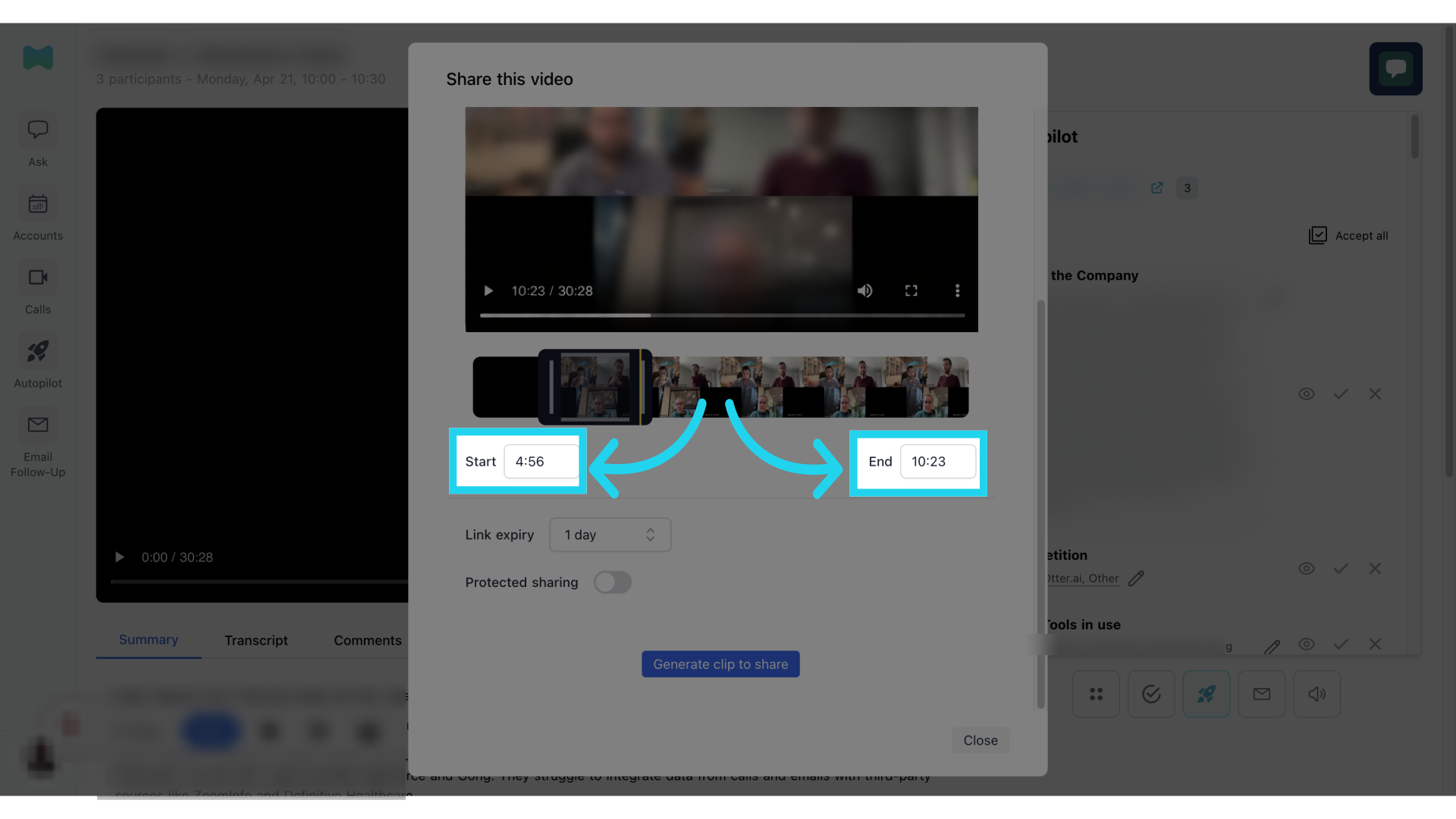
19. Confirm clip generation
Confirm the clip generation process.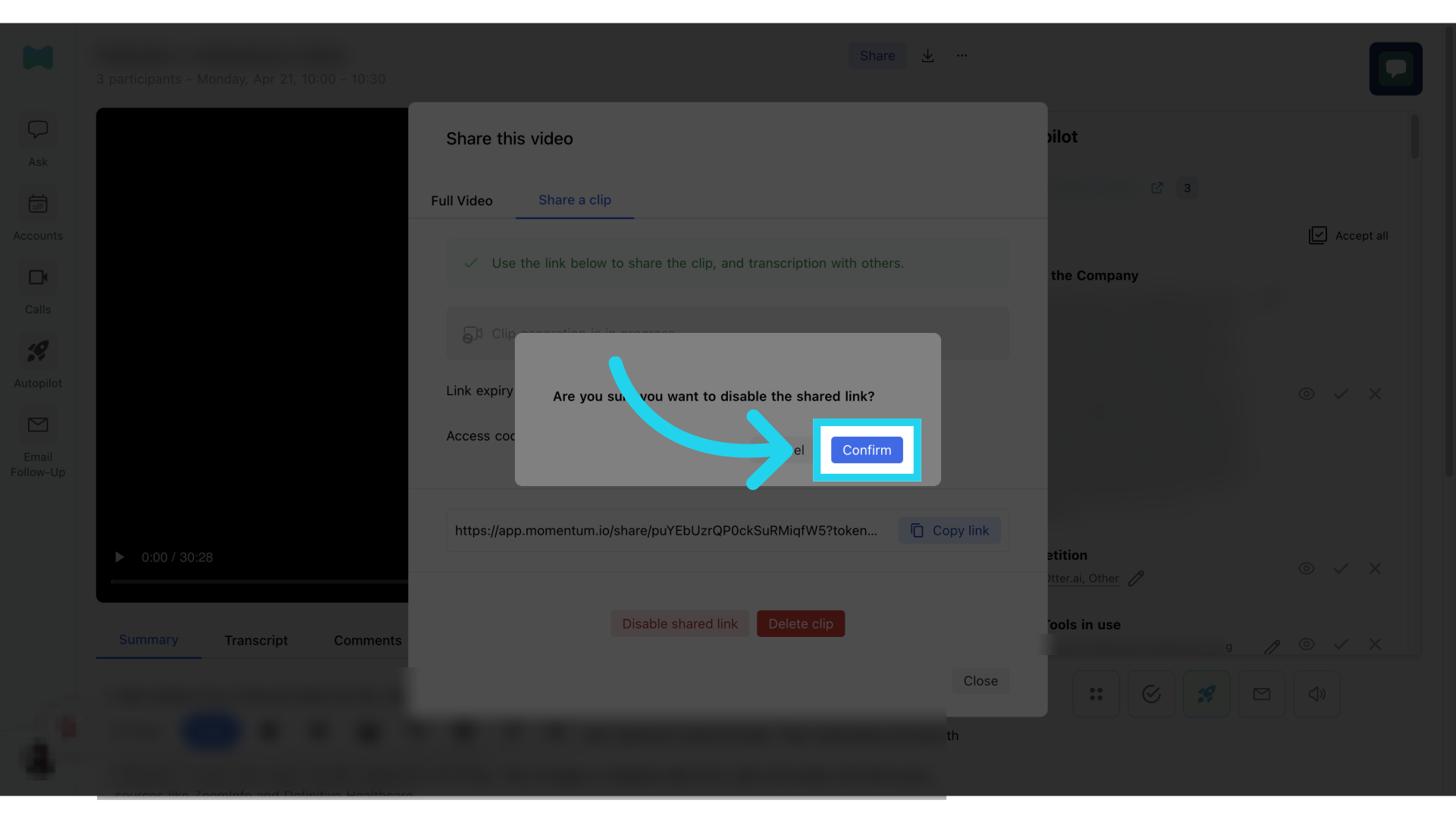
20. Copy share link (clip)
A link will be generated. You can click on the “copy link” button to copy and share the link together with the access code.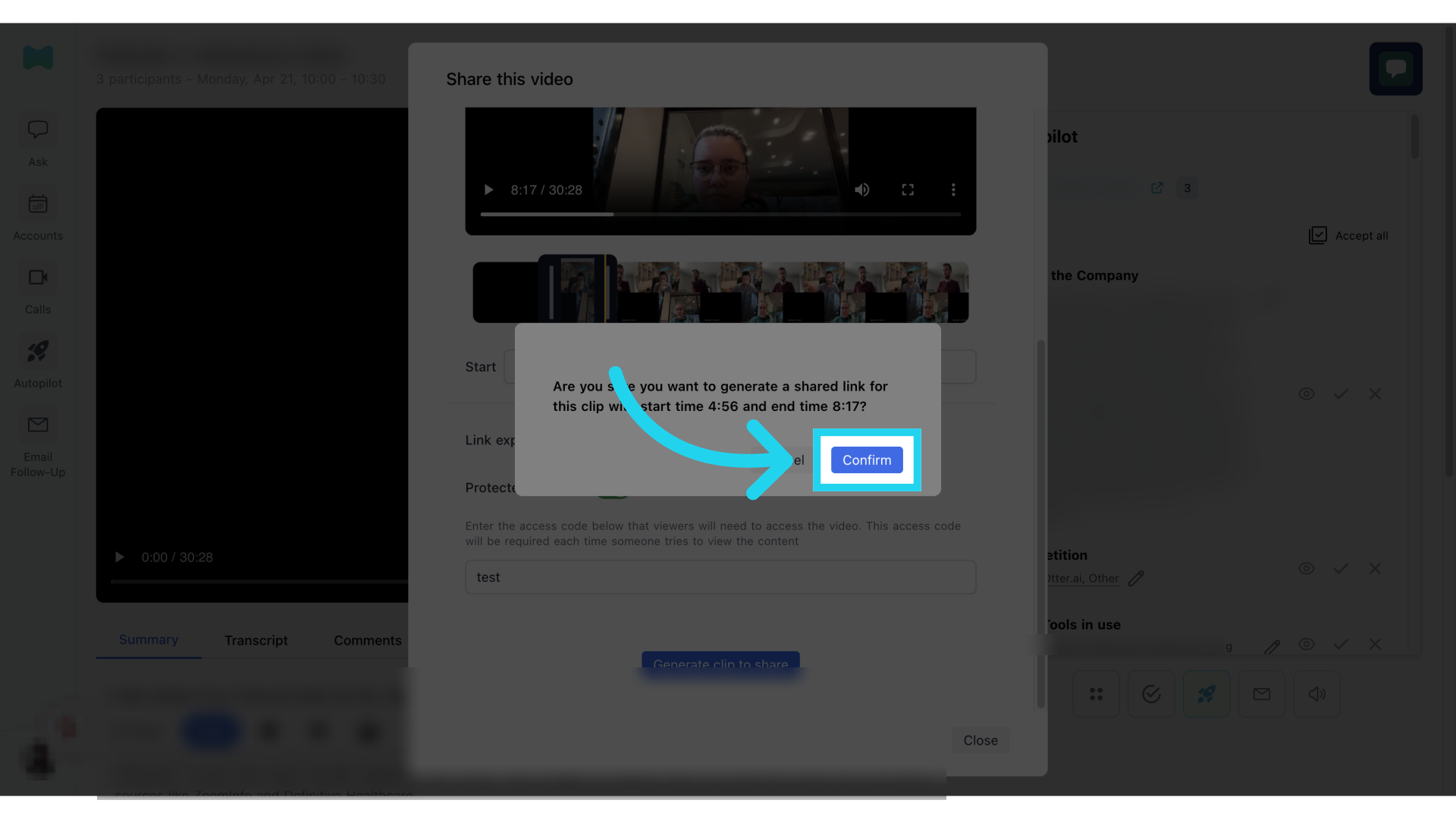
21. Disable or delete shared link
If you have generated this by mistake or would like to change any of the settings, or select a different section of the video to make a clip you can click on the “Disable shared link” or “Delete clip” to start again.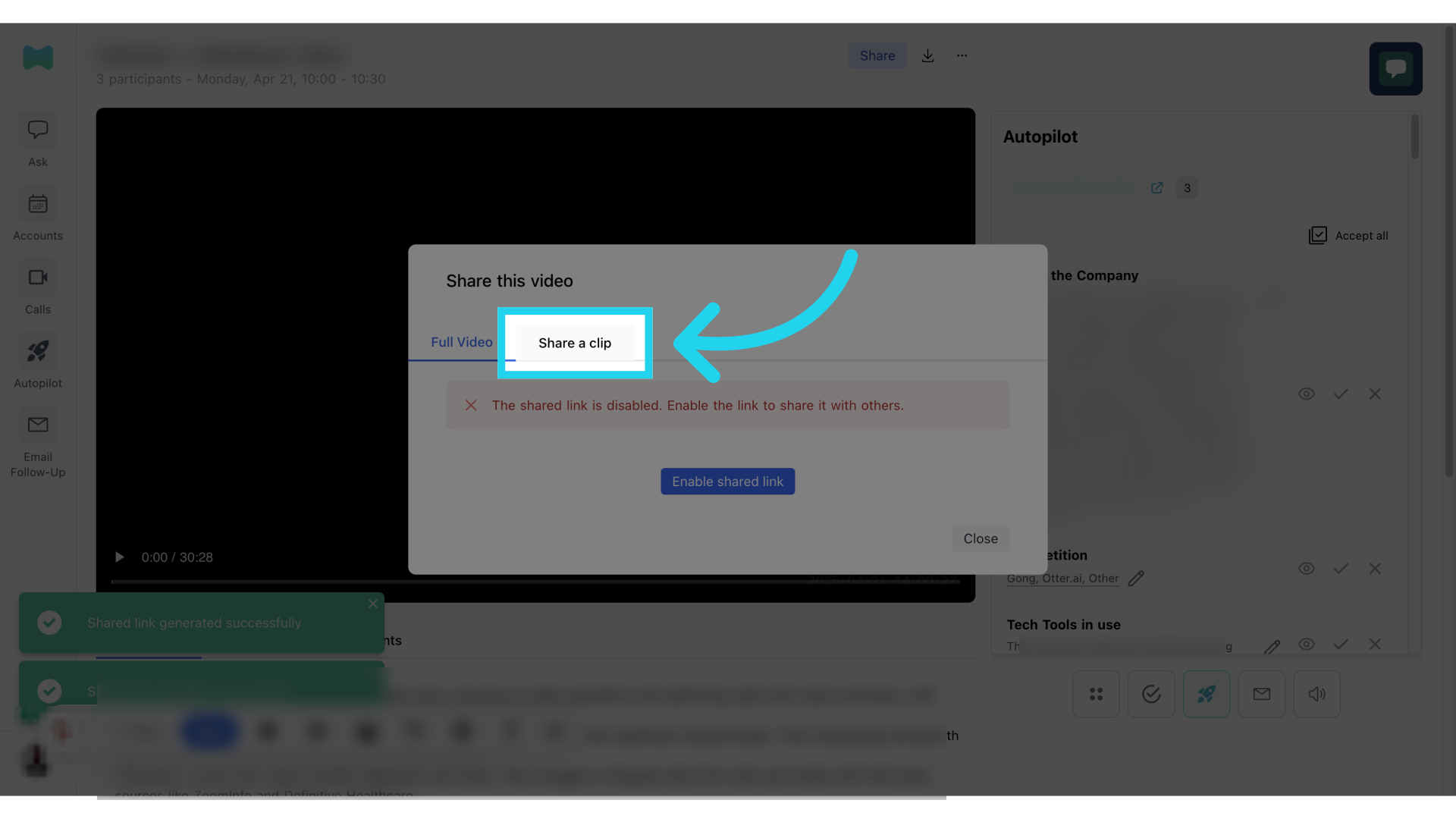
22. Confirm disable/delete (clip)
Confirm the action to disable/delete the shared link or clip.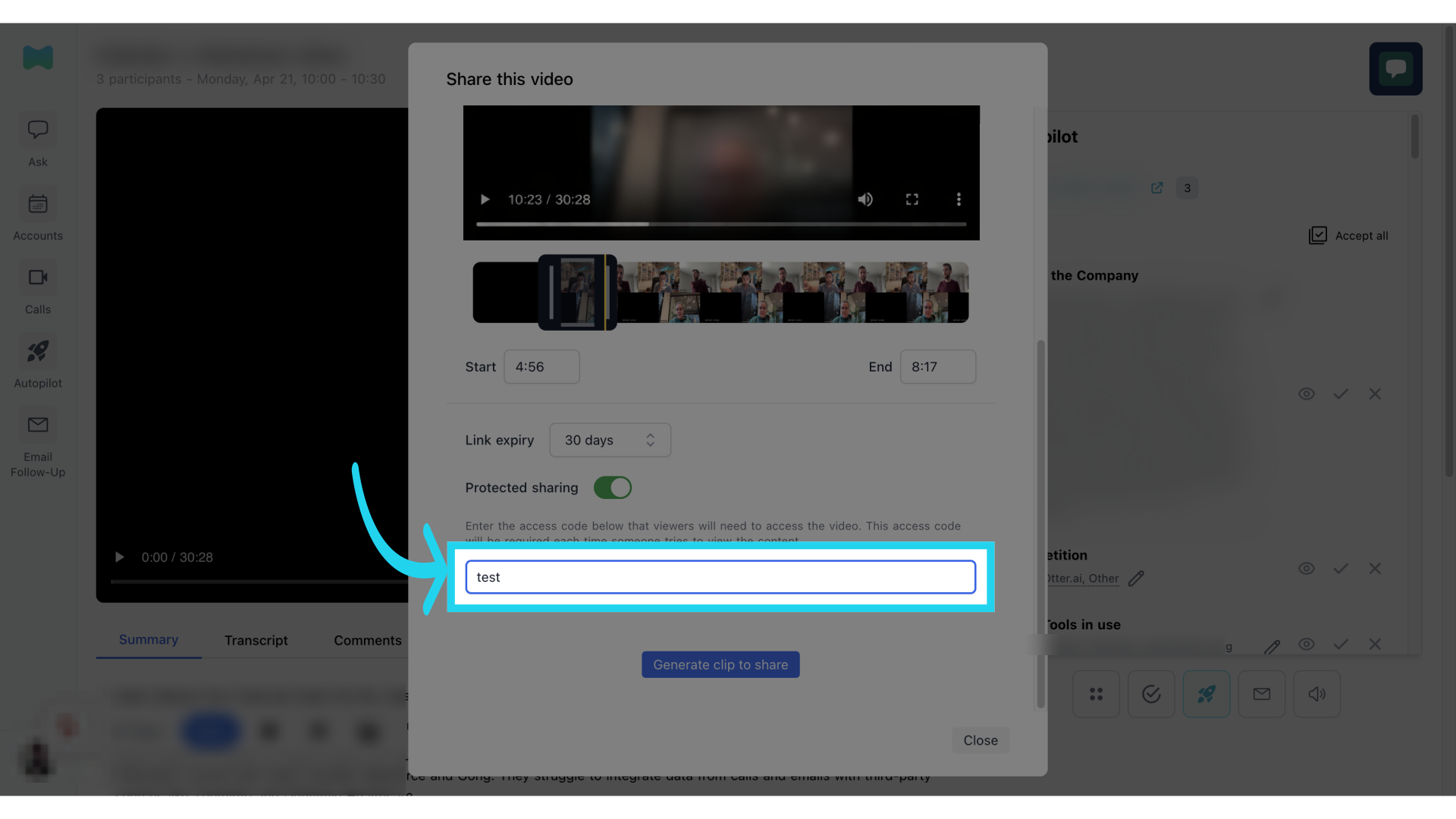 We hope you found this video simple to follow! Thank you for choosing Momentum!