

Go to app.momentum.io
1. Introduction
This guide will walk you through how to access your past call to rewatch it, review the transcript and add comments for your colleague’s calls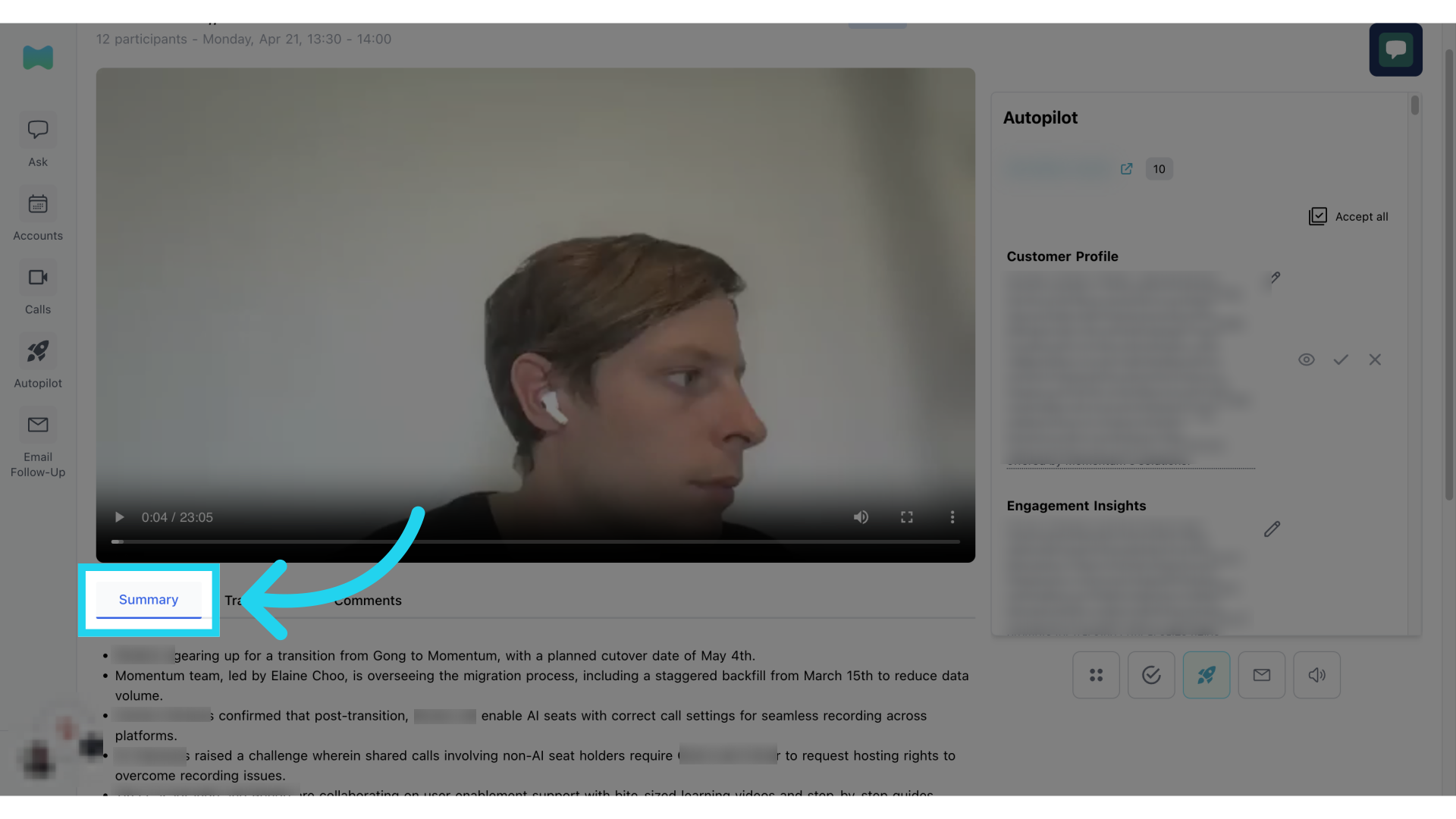
2. Select a Call
Start by selecting the call that you would like to review by clicking on the “View” option.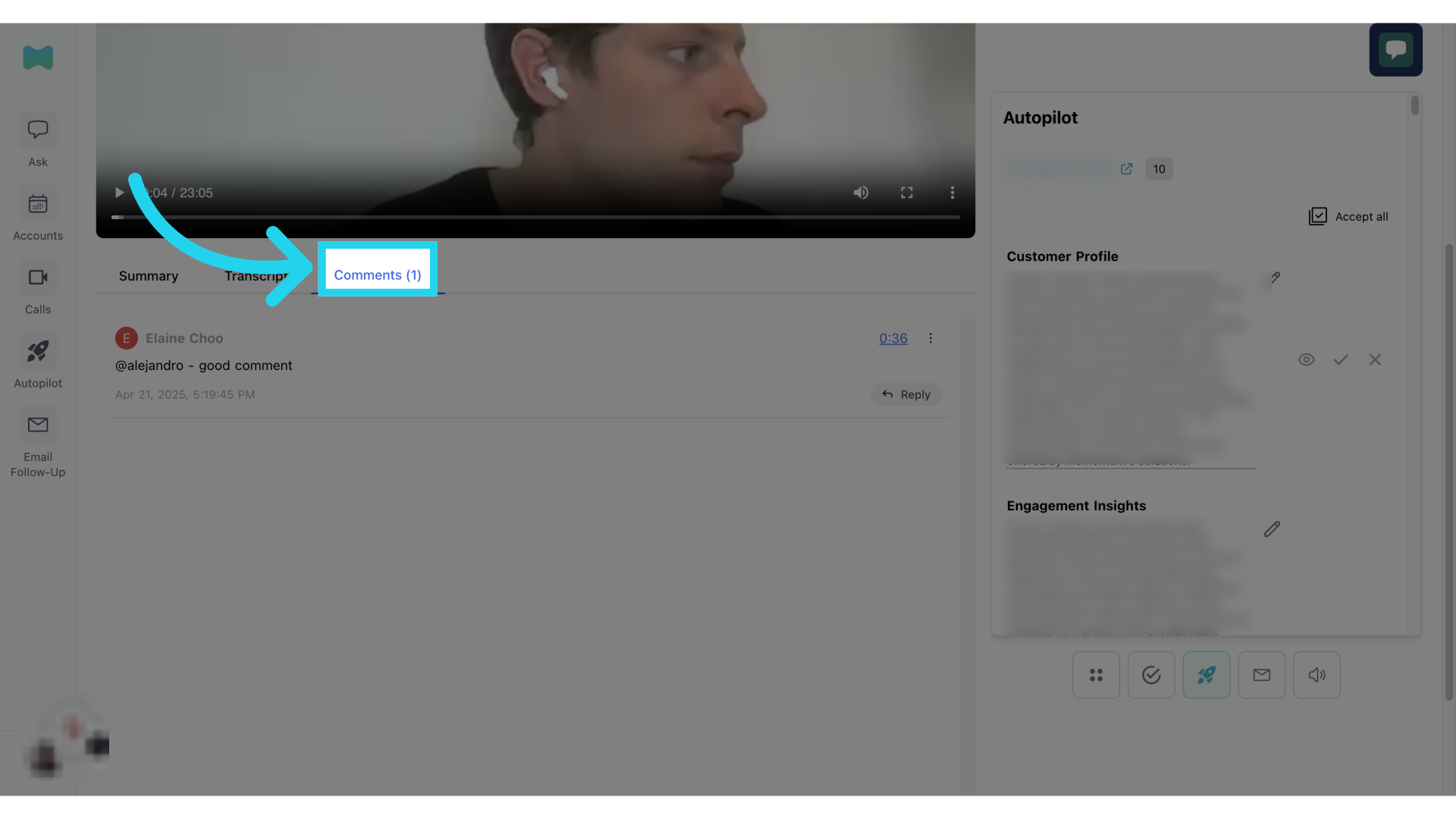
3. Watching the video
You can watch the video by clicking on play.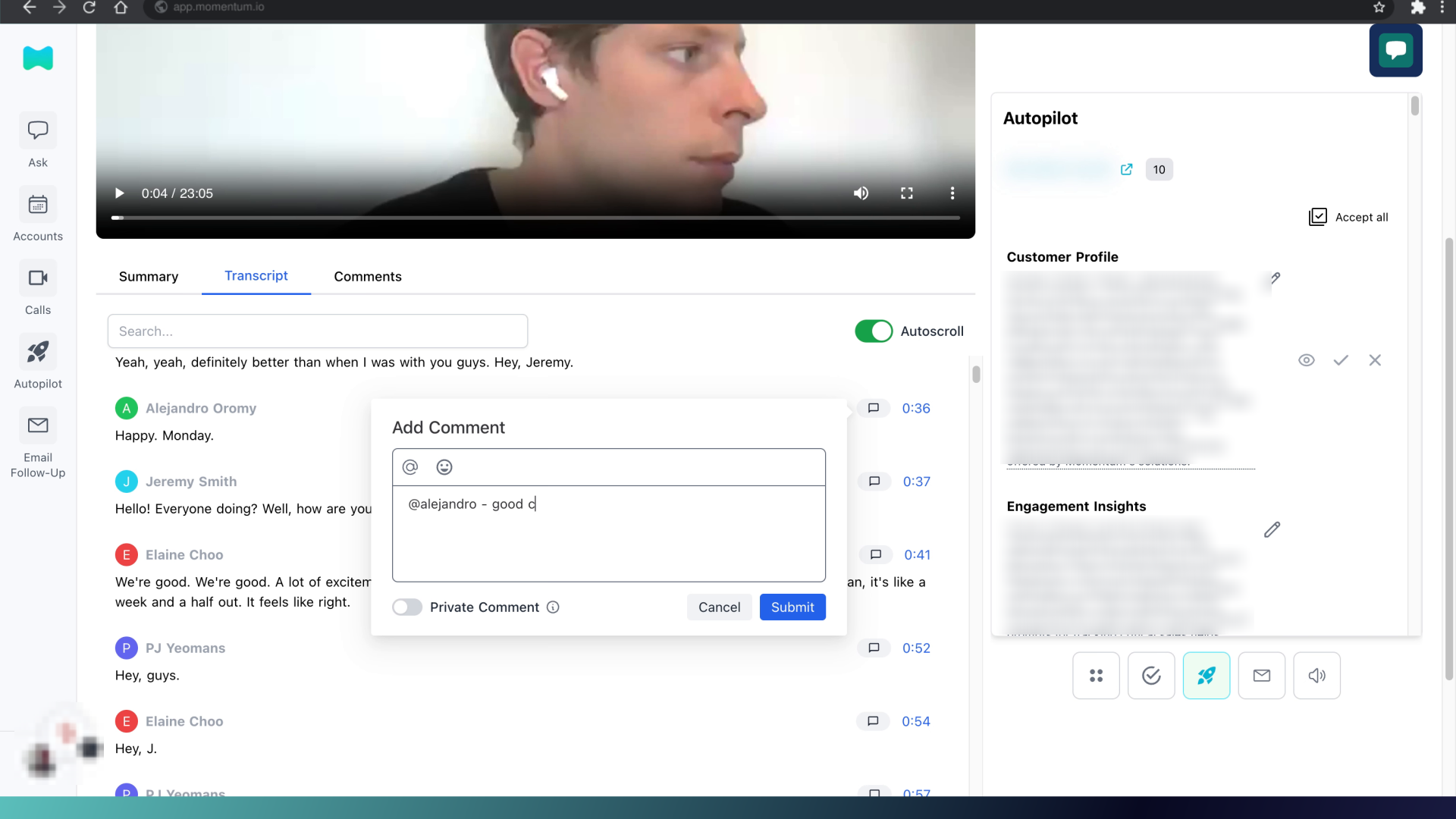
4. Review Summary of call
Select the “Summary” tab to read the key highlights of the call.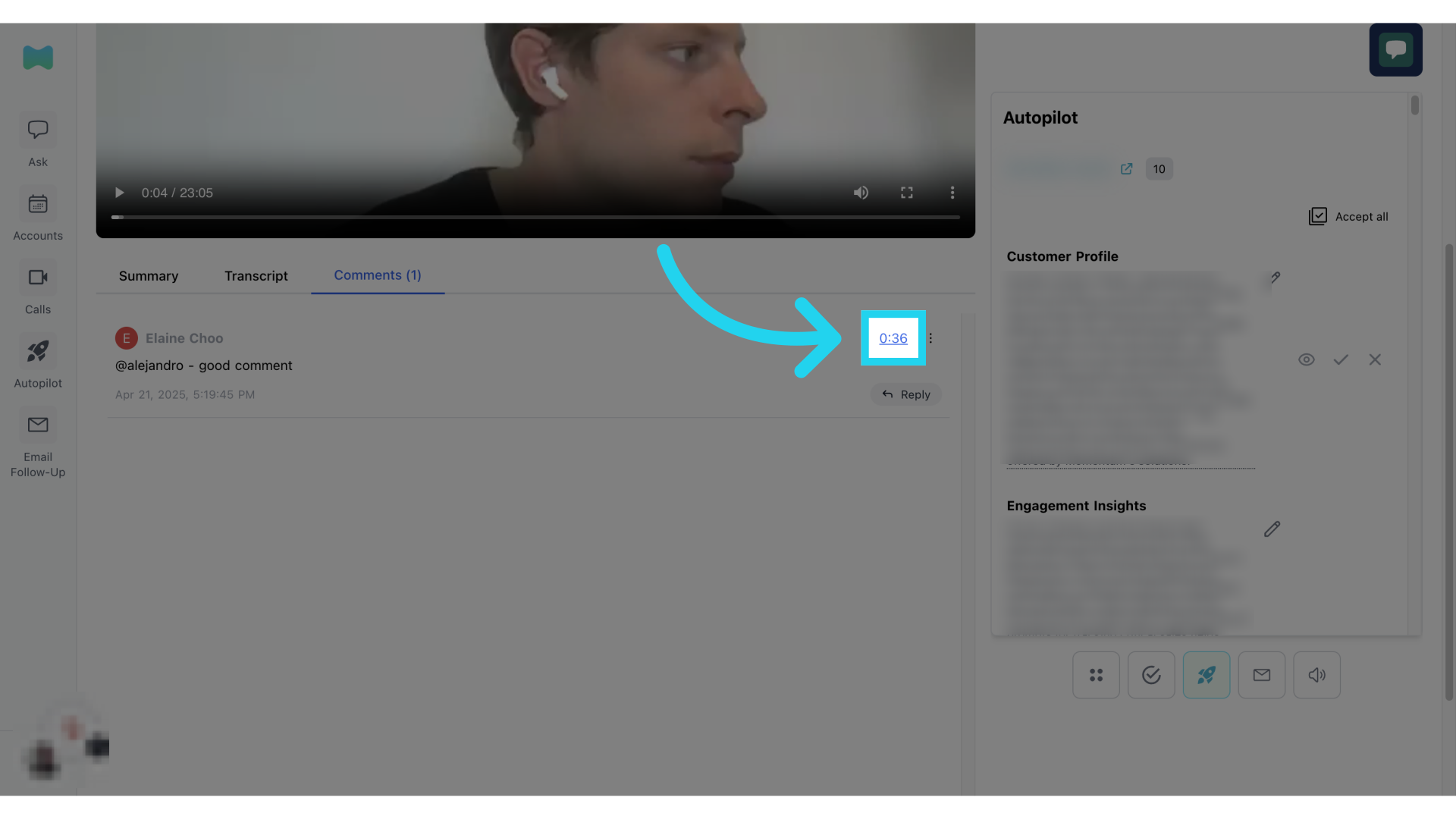
5. Review Transcript of call
Select the “Transcript” tab to read or follow along the conversation in the call.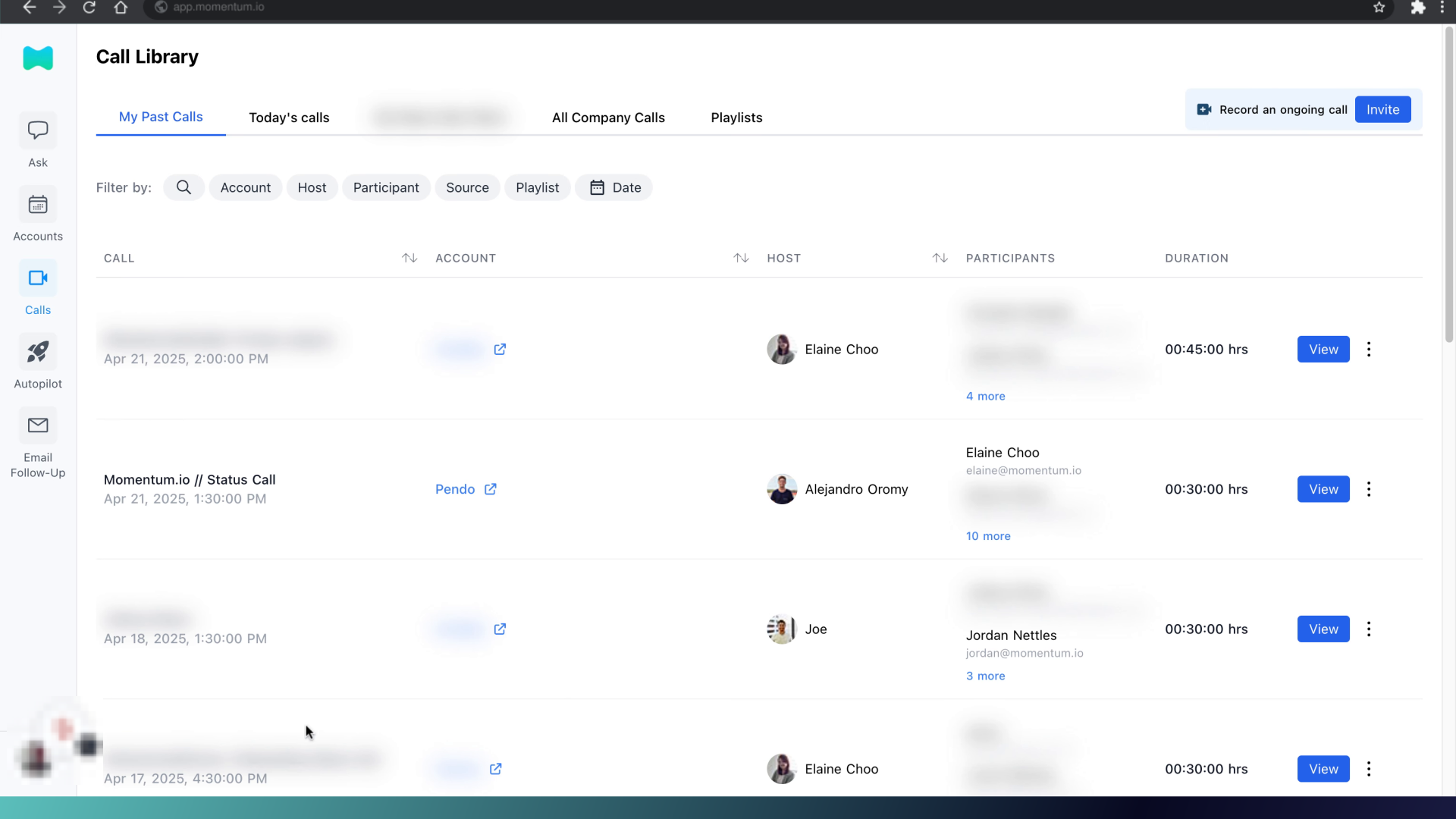
6. Add a comment
If you would like to add comments to a call for your colleague or yourself, you can click on the speech bubble icon.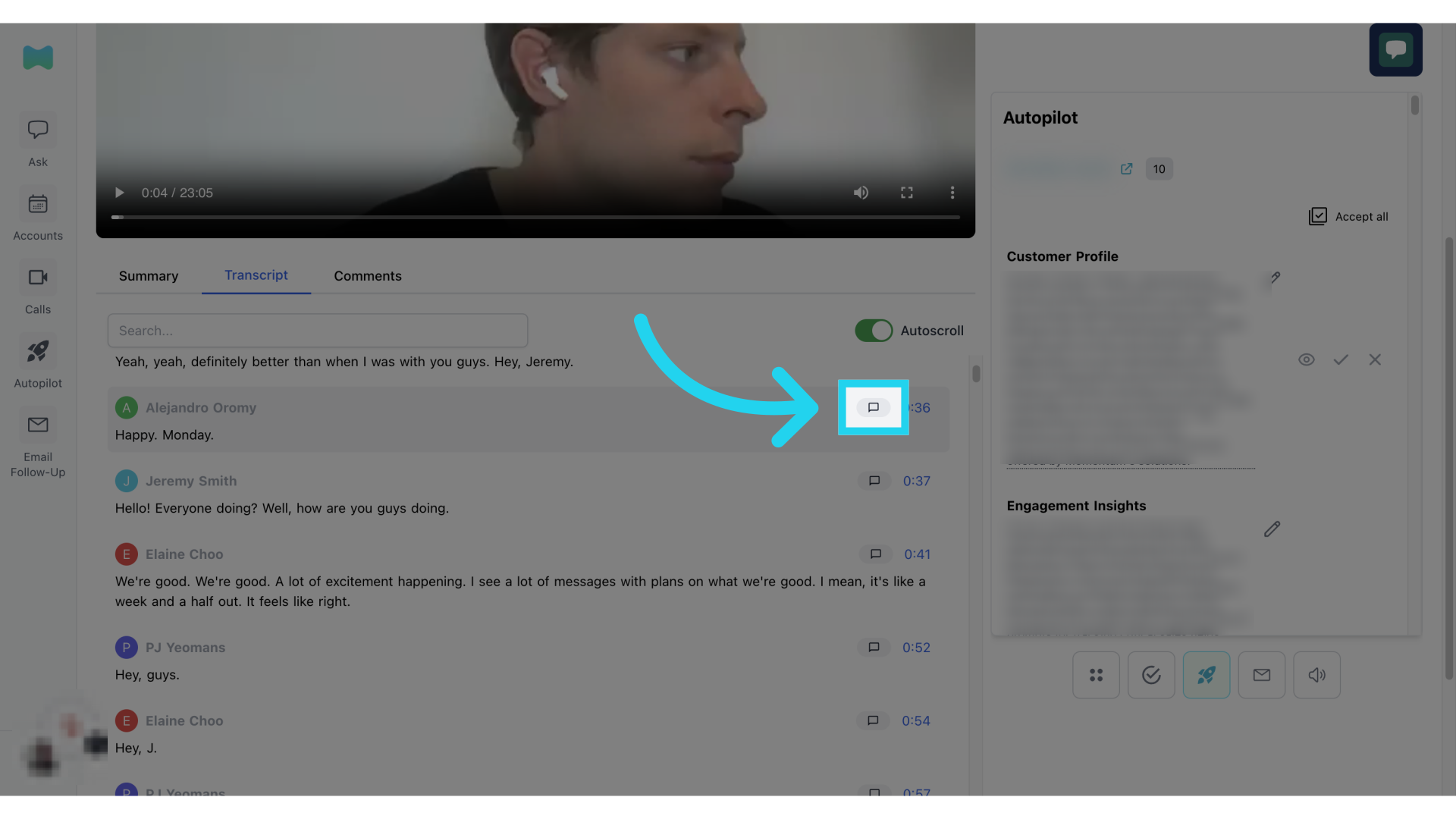
7. Write your comment
A pop up window will appear for you to add comments.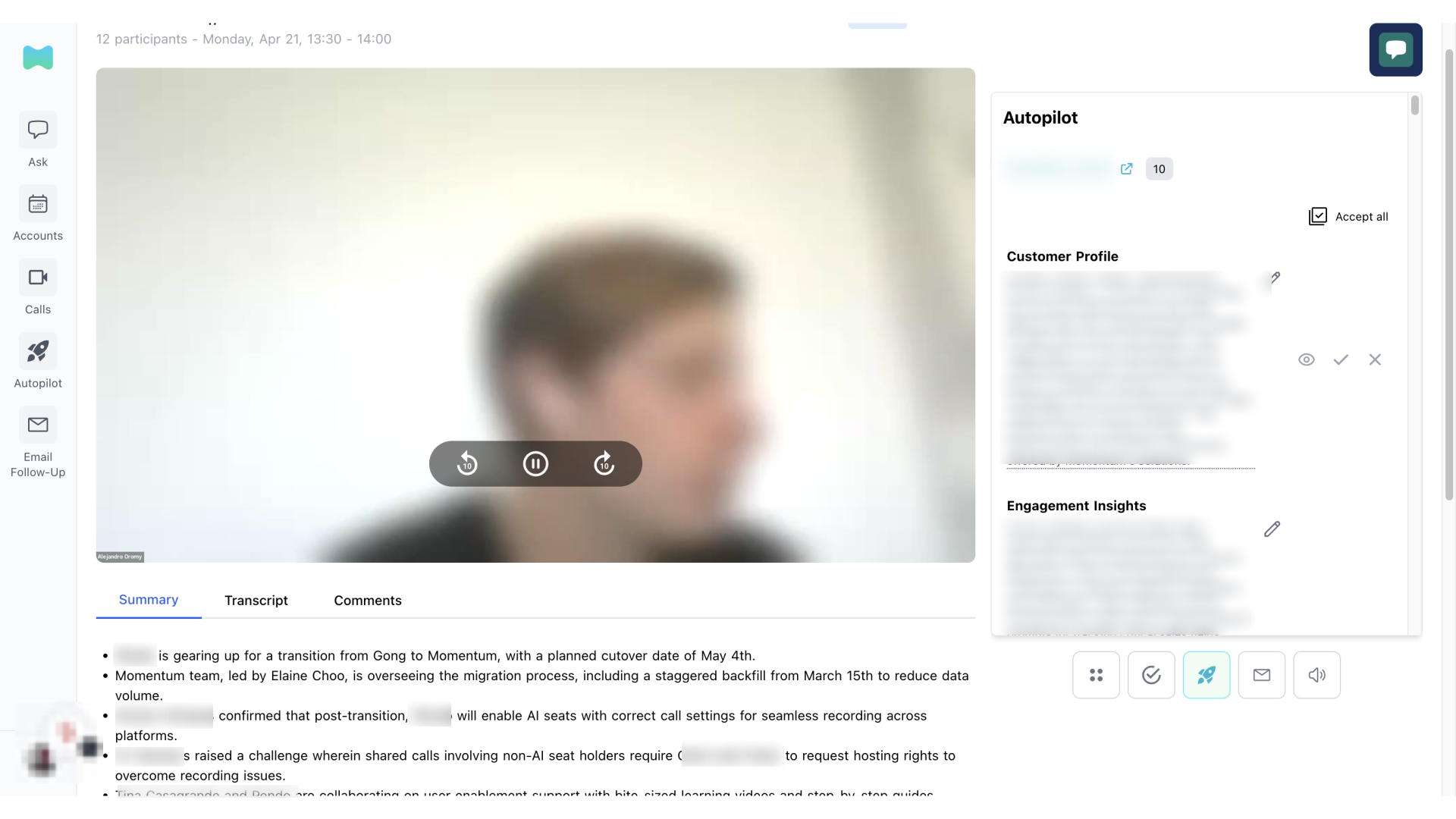
8. Submit your comment
Once you are ready with your comments, you can click on the “Submit” button.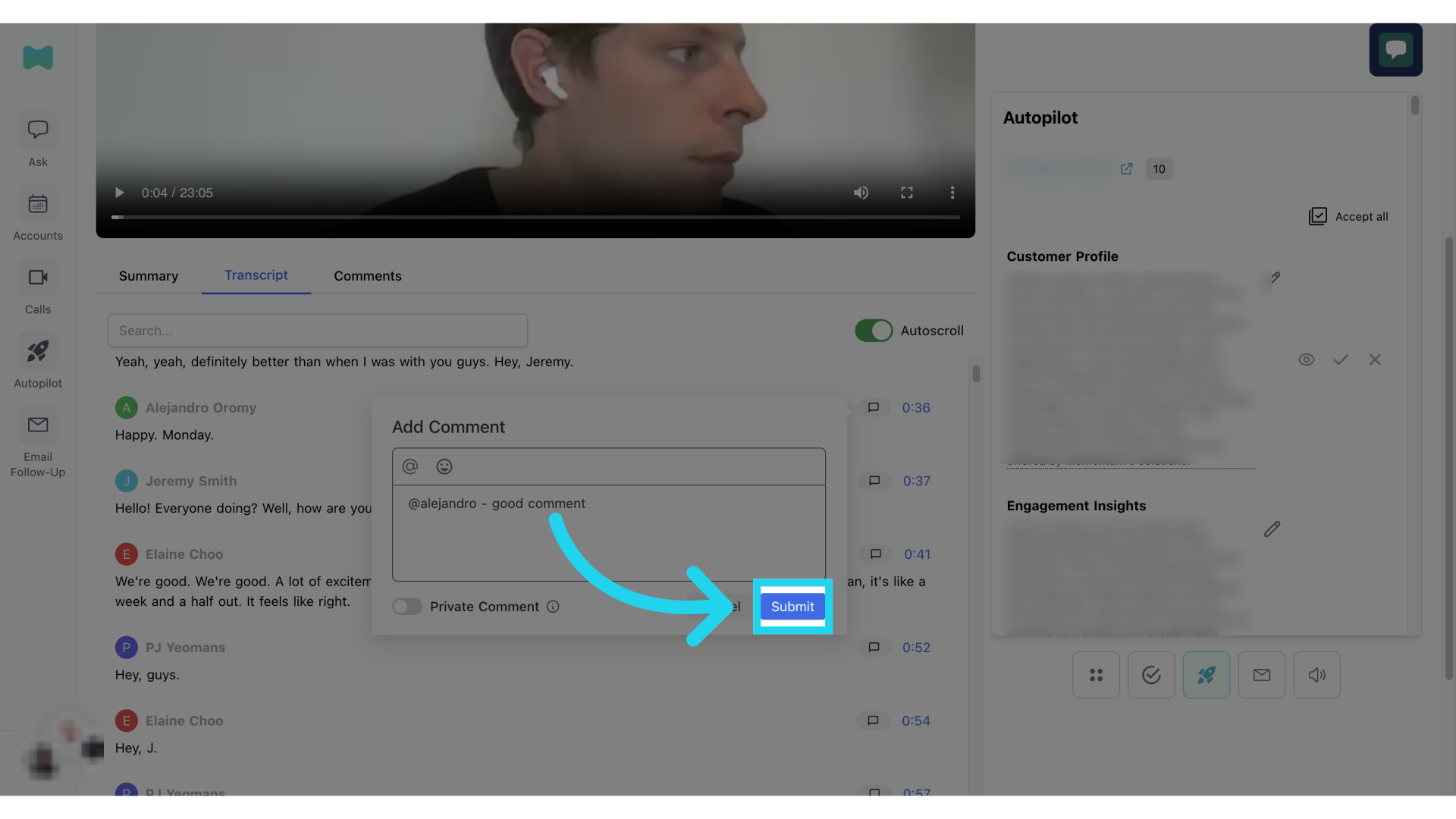
9. View comments
You can review all comments provided on a call by clicking on the “Comments” tabs.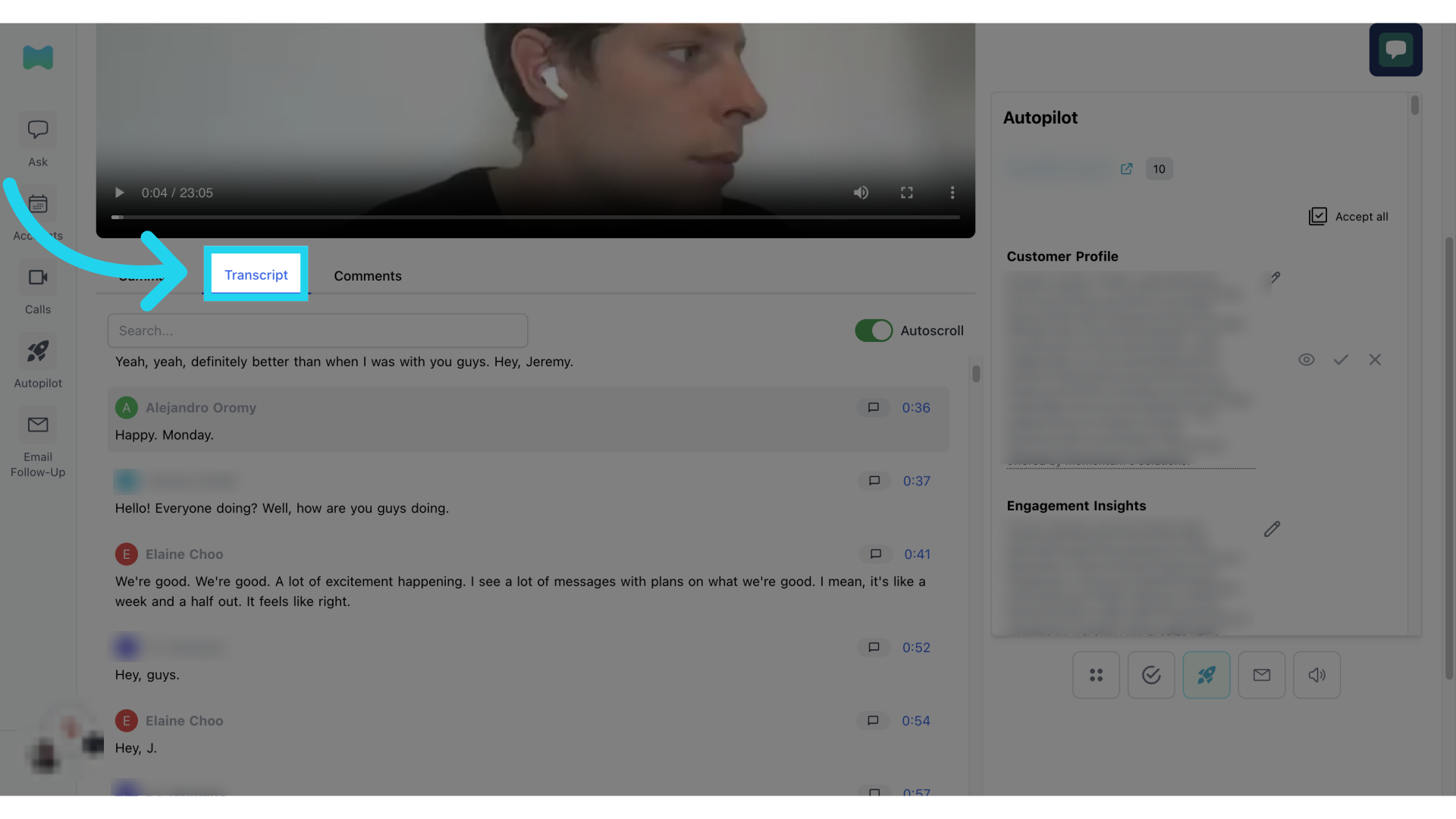
10. Jump to a comment timestamp
You can jump back to the specific point on the call by clicking on the timestamp.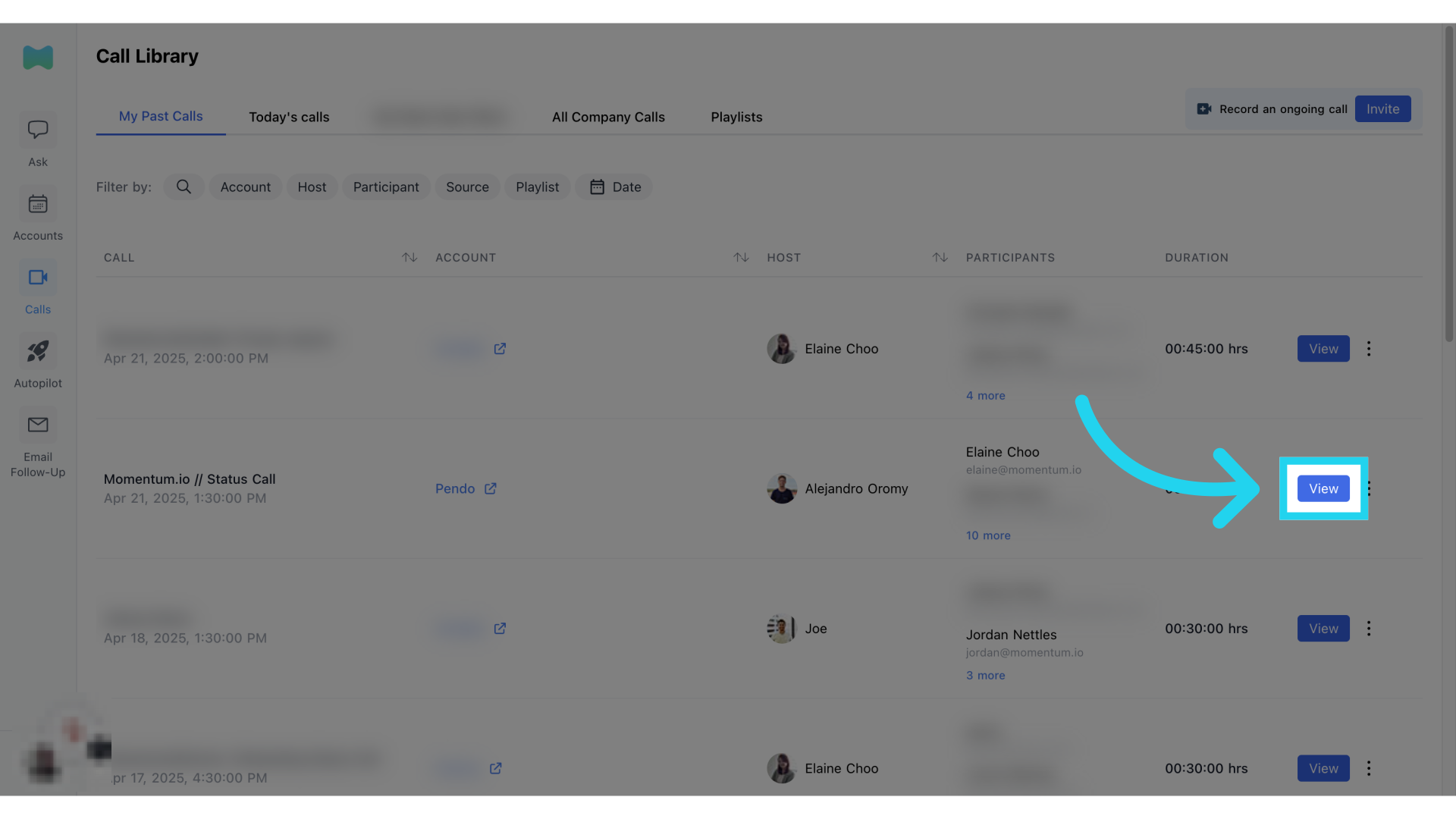 The guide covered the steps to review a call in the Momentum Webapp. Thank you for choosing Momentum!