

Go to app.momentum.io
1. Introduction
From accessing current calls to recording settings, this guide will walk you through the necessary steps for effective call management.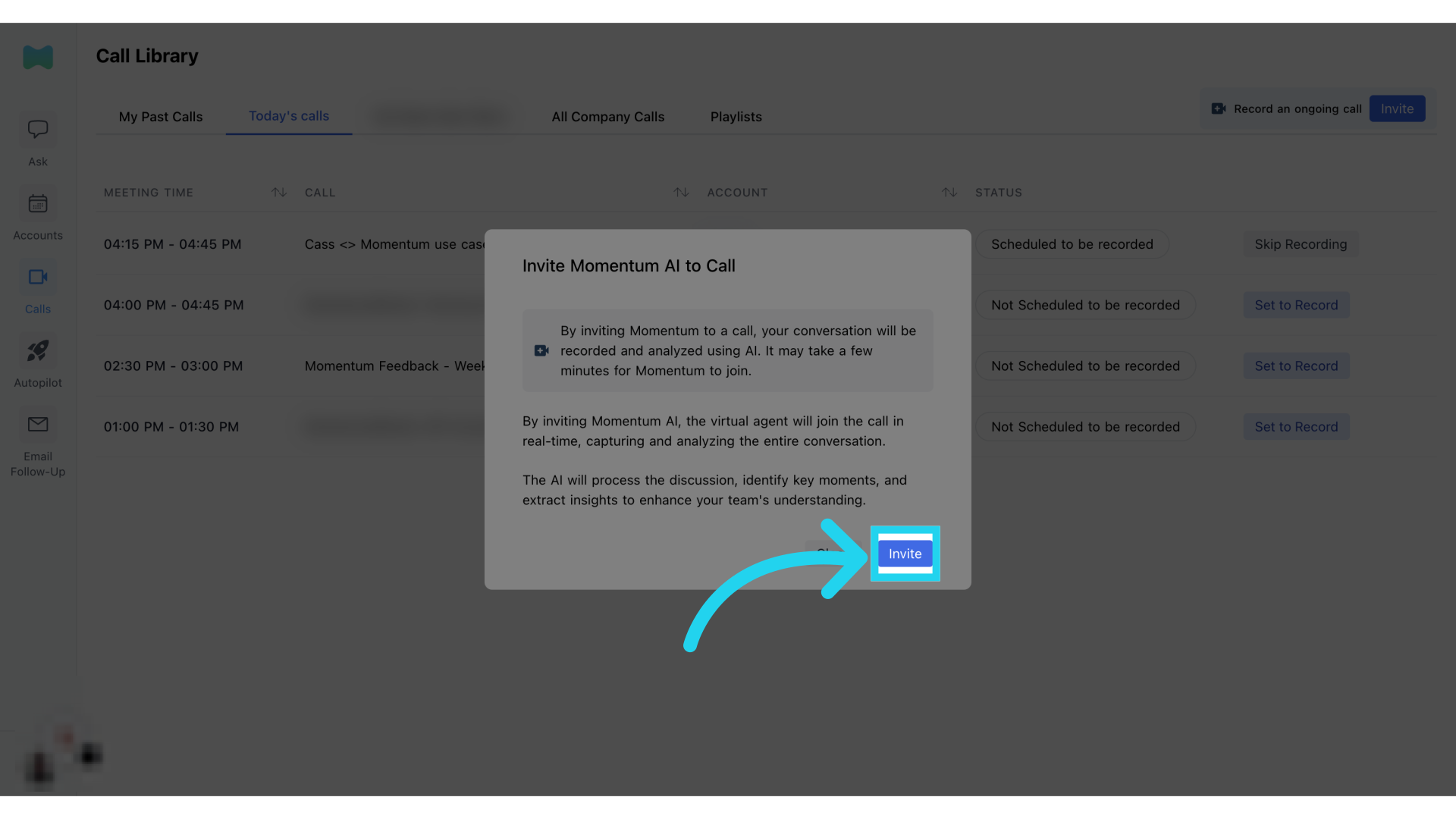
2. Today’s calls
Click on the Today’s calls tab to review the external calls that have been synced from your Google calendar.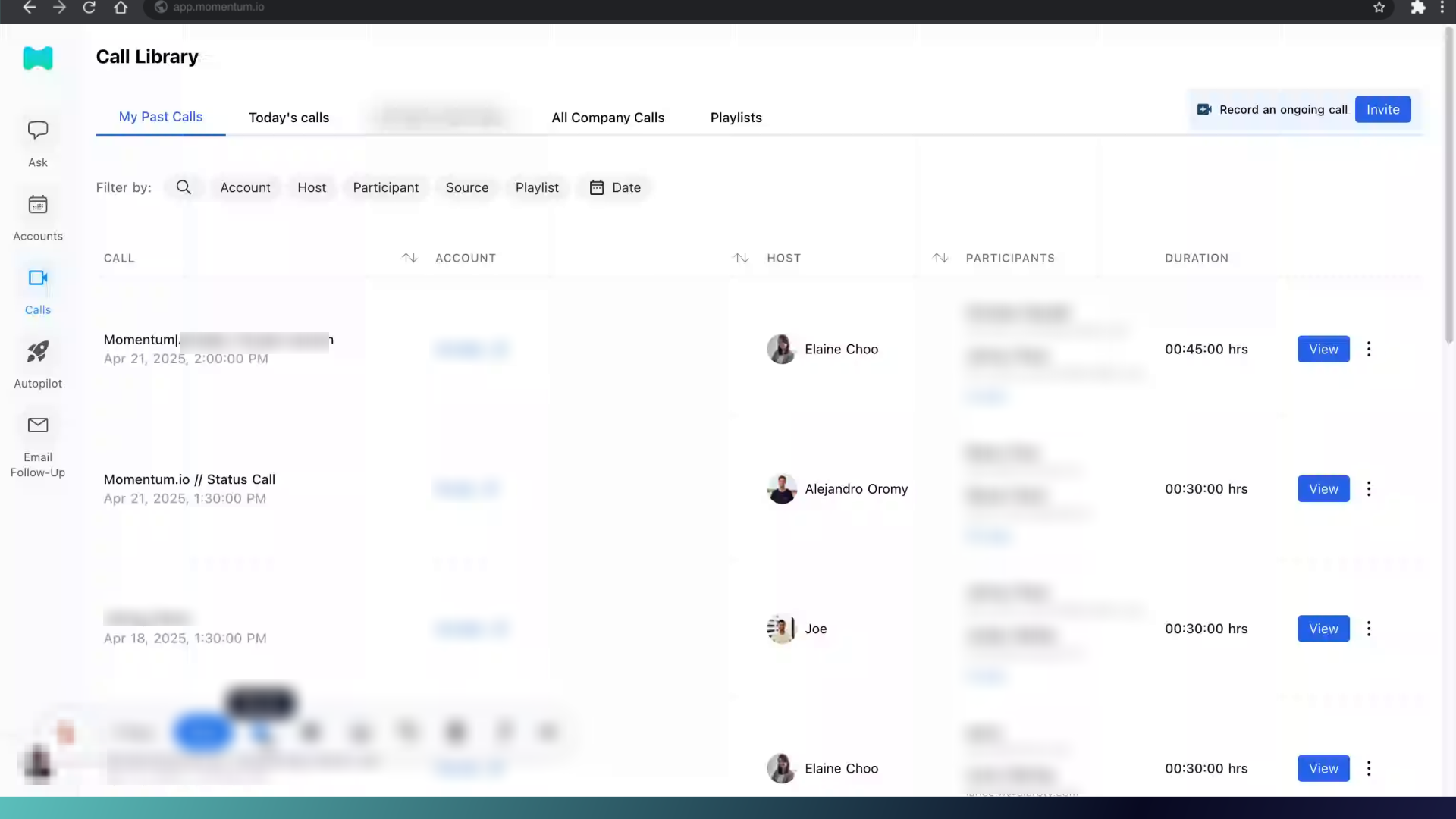
3. Enable Recording
On this page, you can select for calls to be recorded.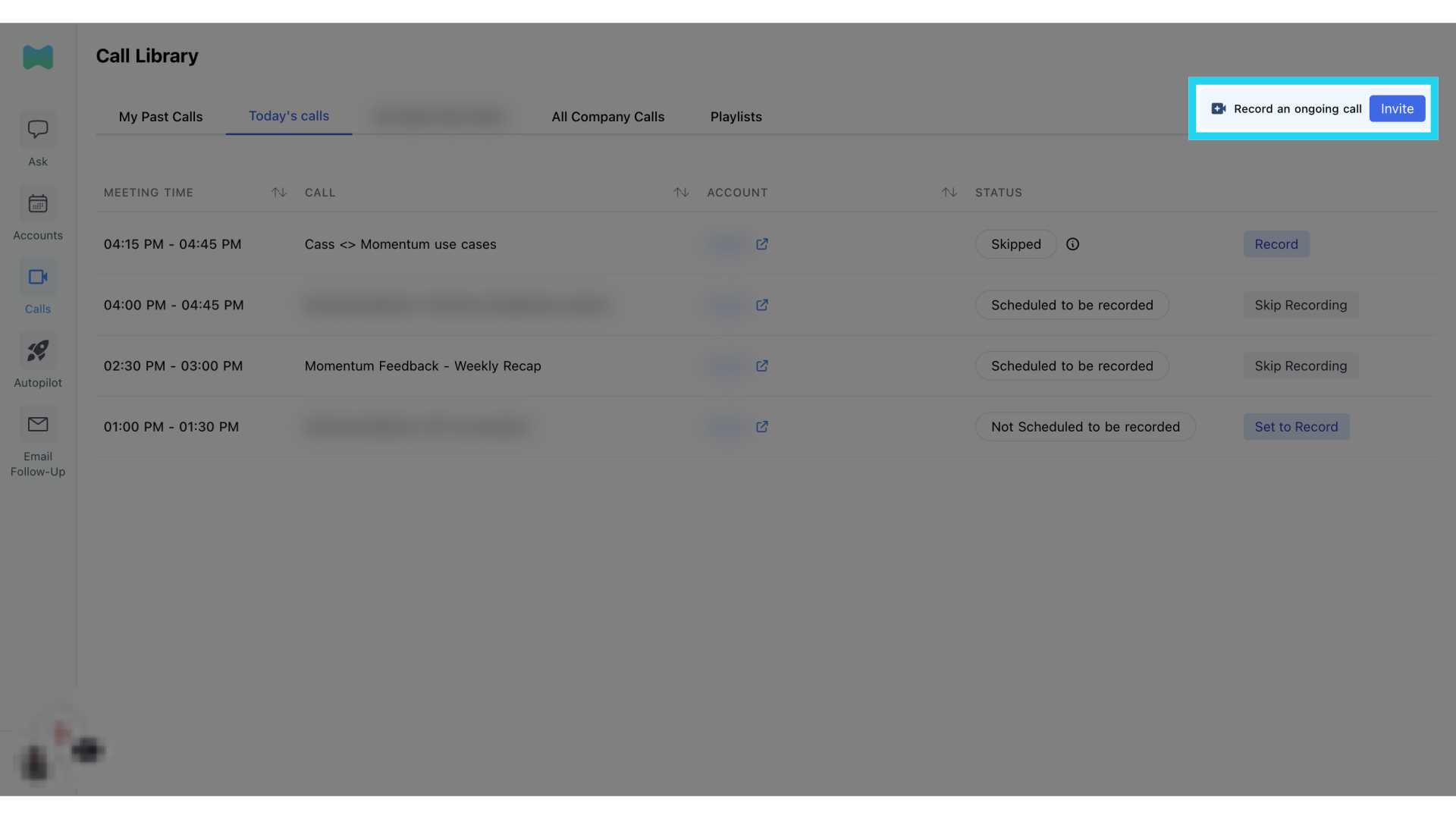
4. Confirm recording settings
Confirm action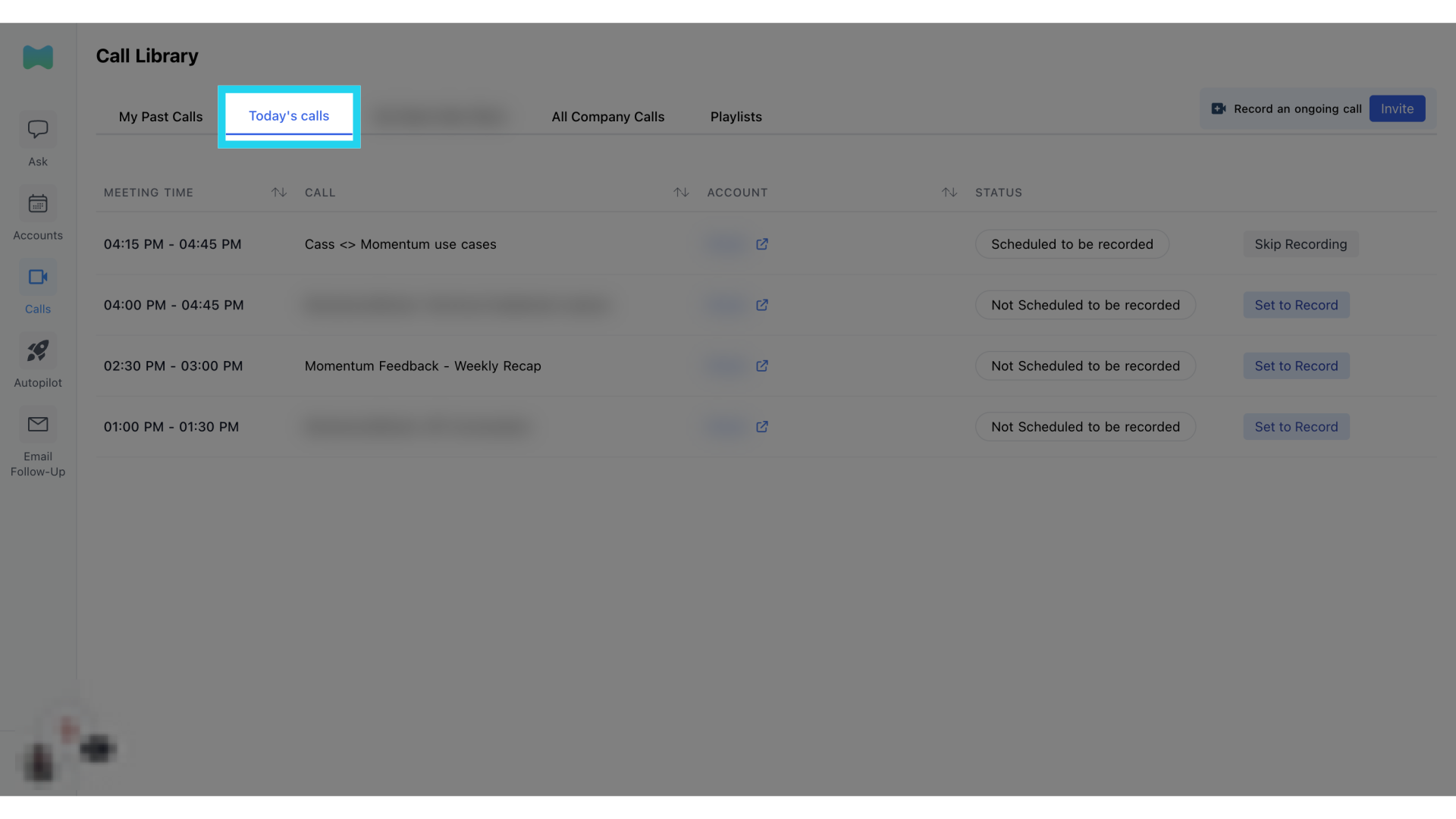
5. Skip Recording
You can select to skip recording for calls that should not be recorded.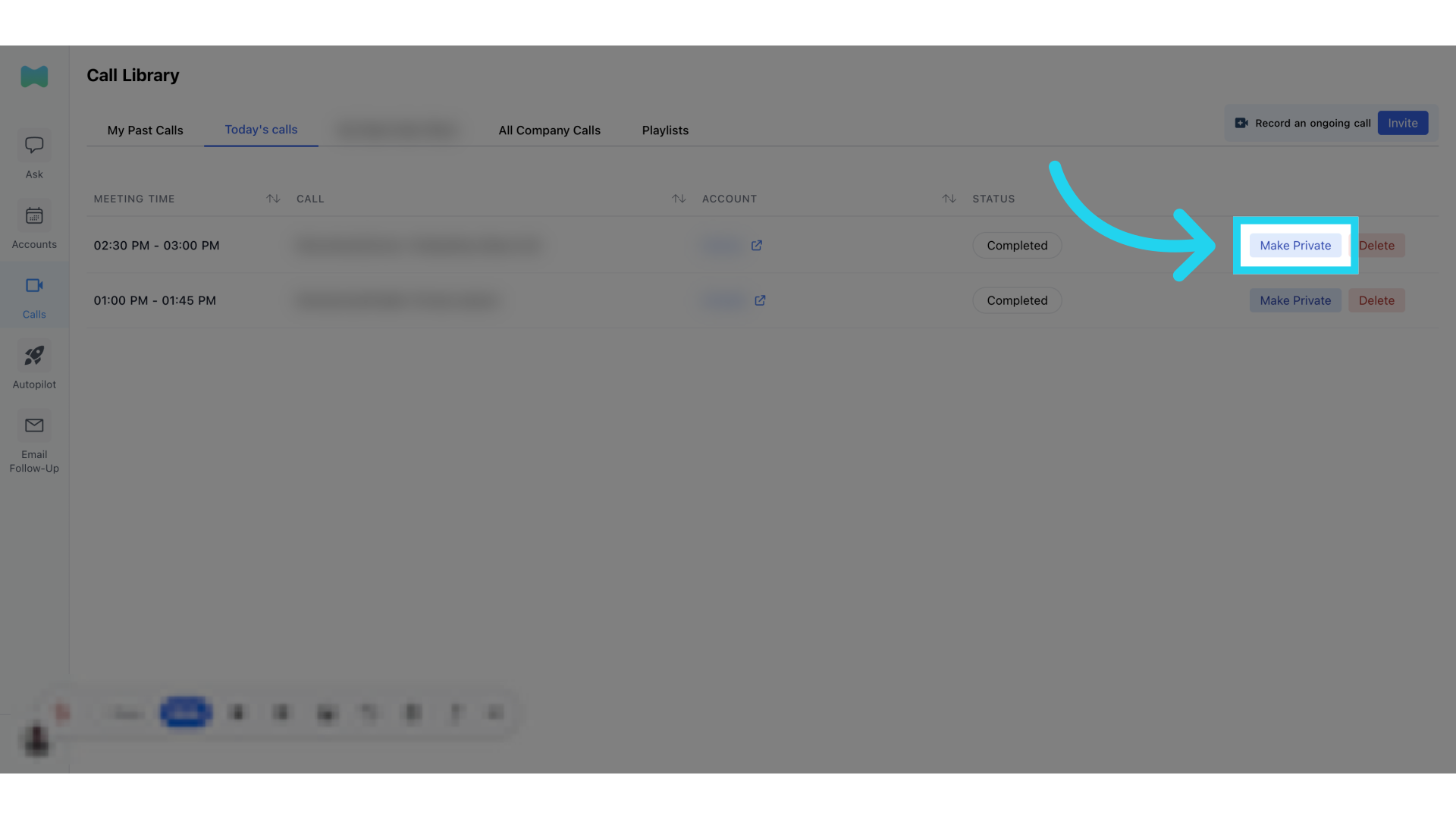
6. Confirm skip recording
Confirm action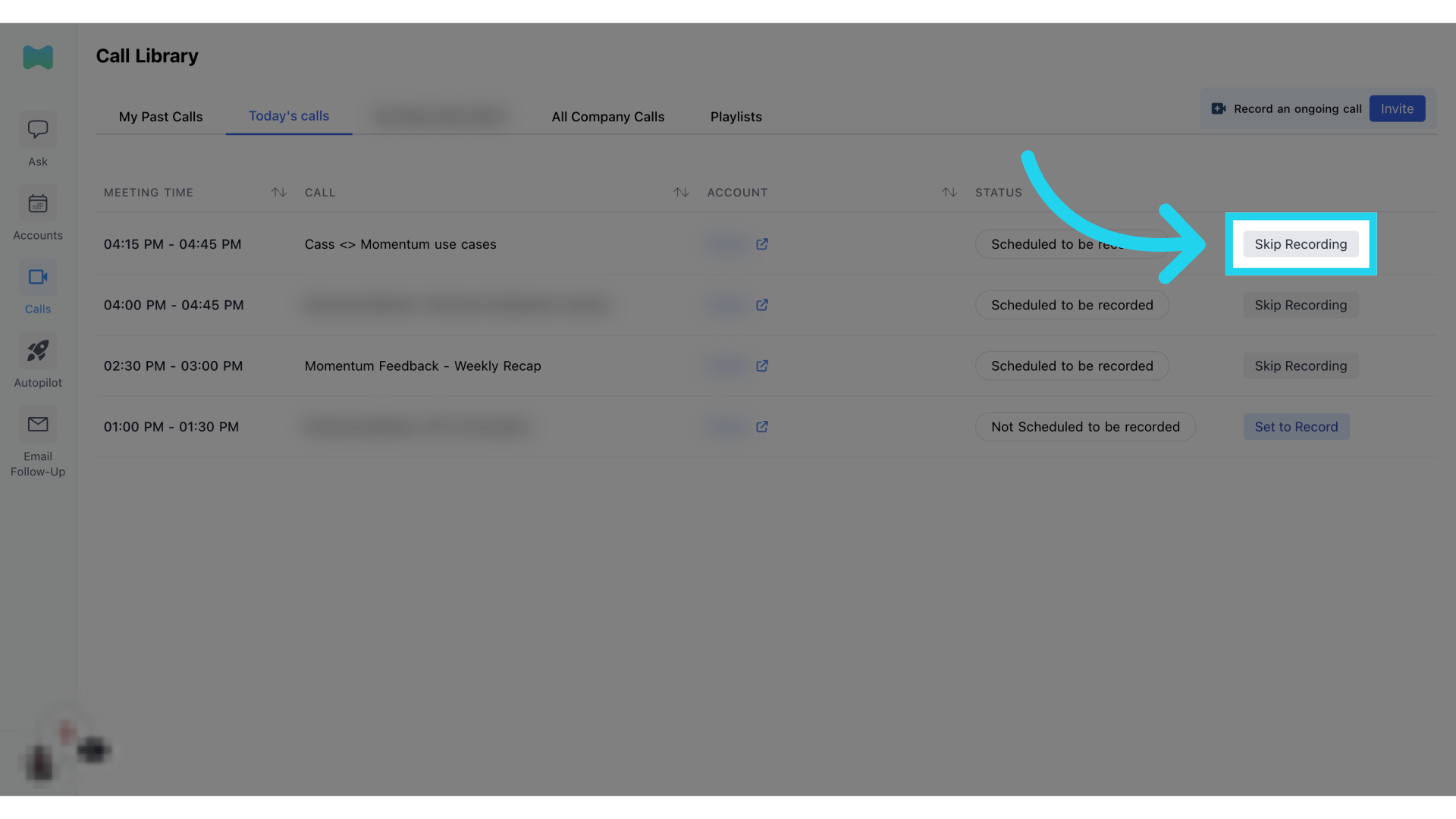
7. Record ongoing call
You can record an ongoing call if you had an adhoc meeting start and your calendar was not synced ahead of time.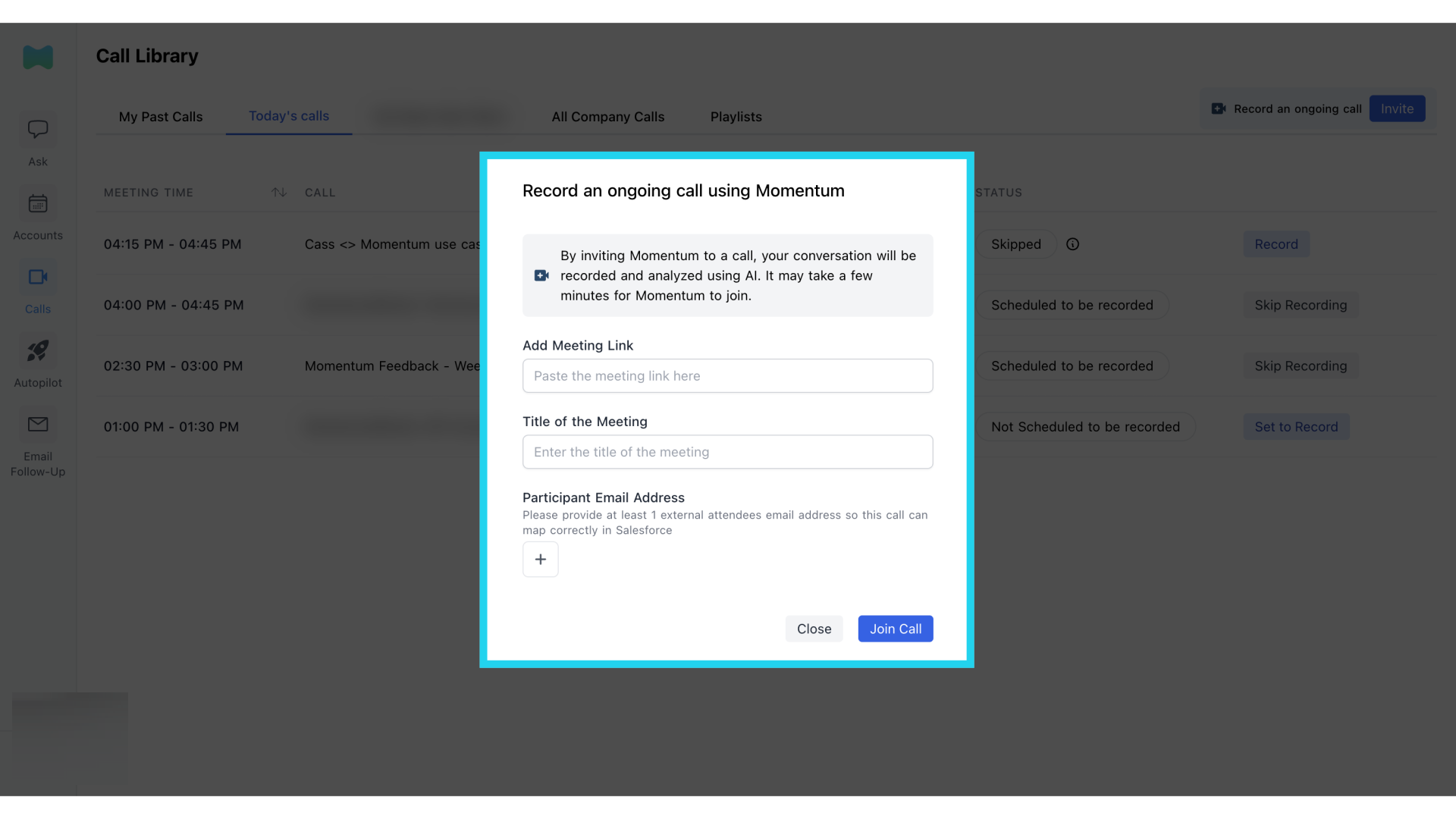
8. Provide call details
You will need to provide some details for Momentum to be able to identify the correct call to record and process.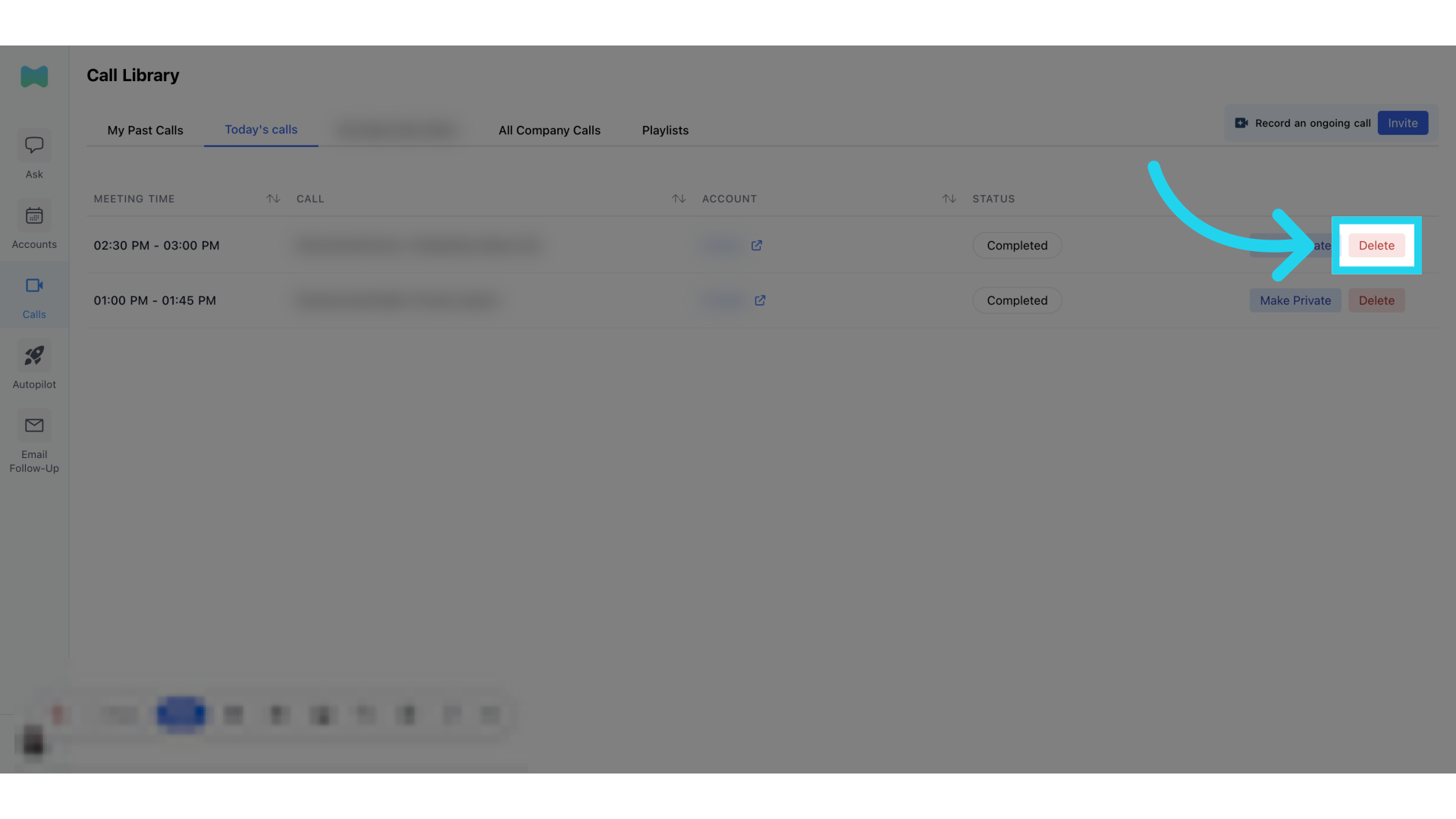
9. Post call actions
After you have completed your external calls for the day, you can review your calls and manage them if necessary.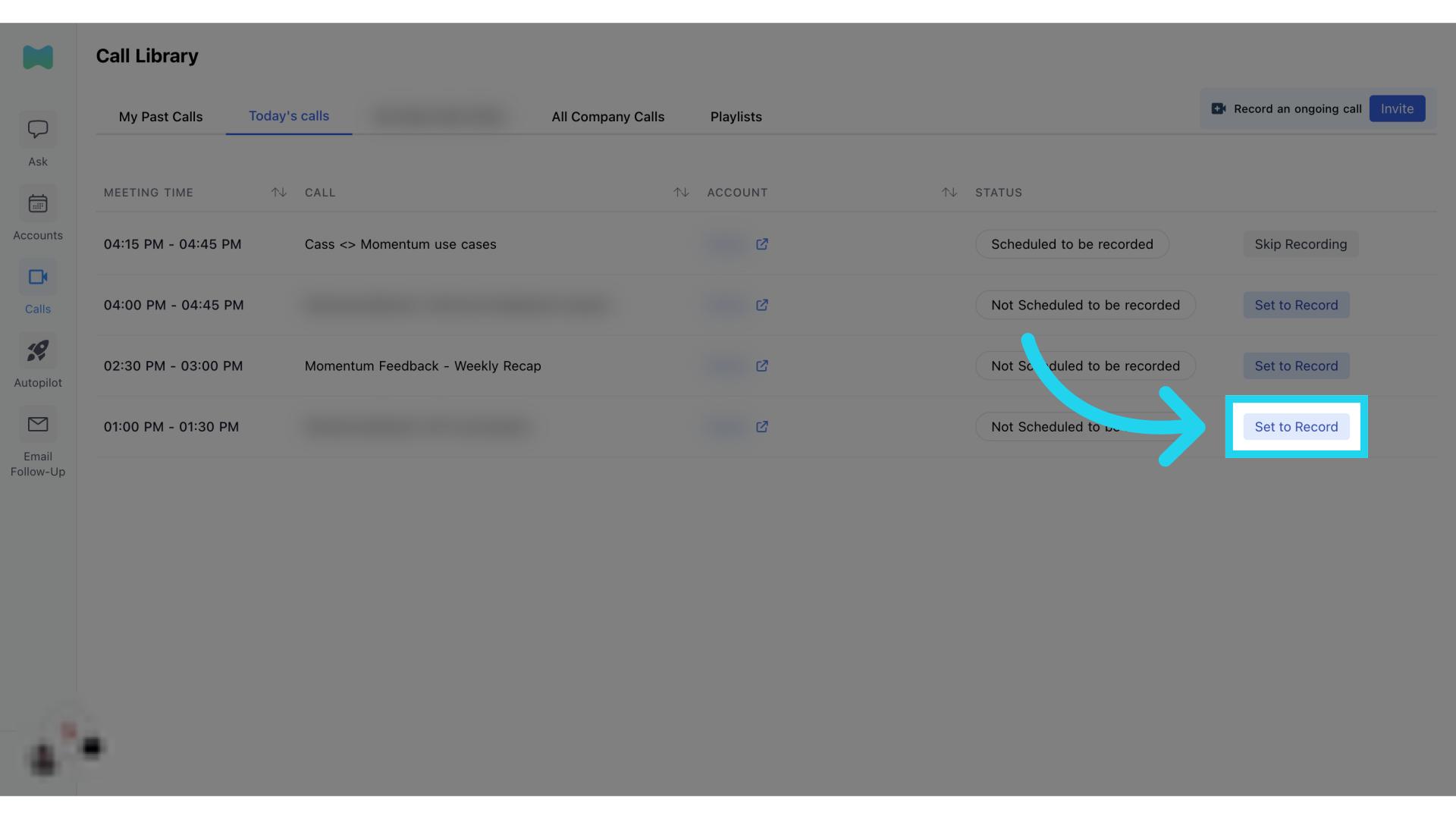
10. Make Call Private
If you need your call to be private to the rest of the organization, you can secure your call by selecting “Make Private”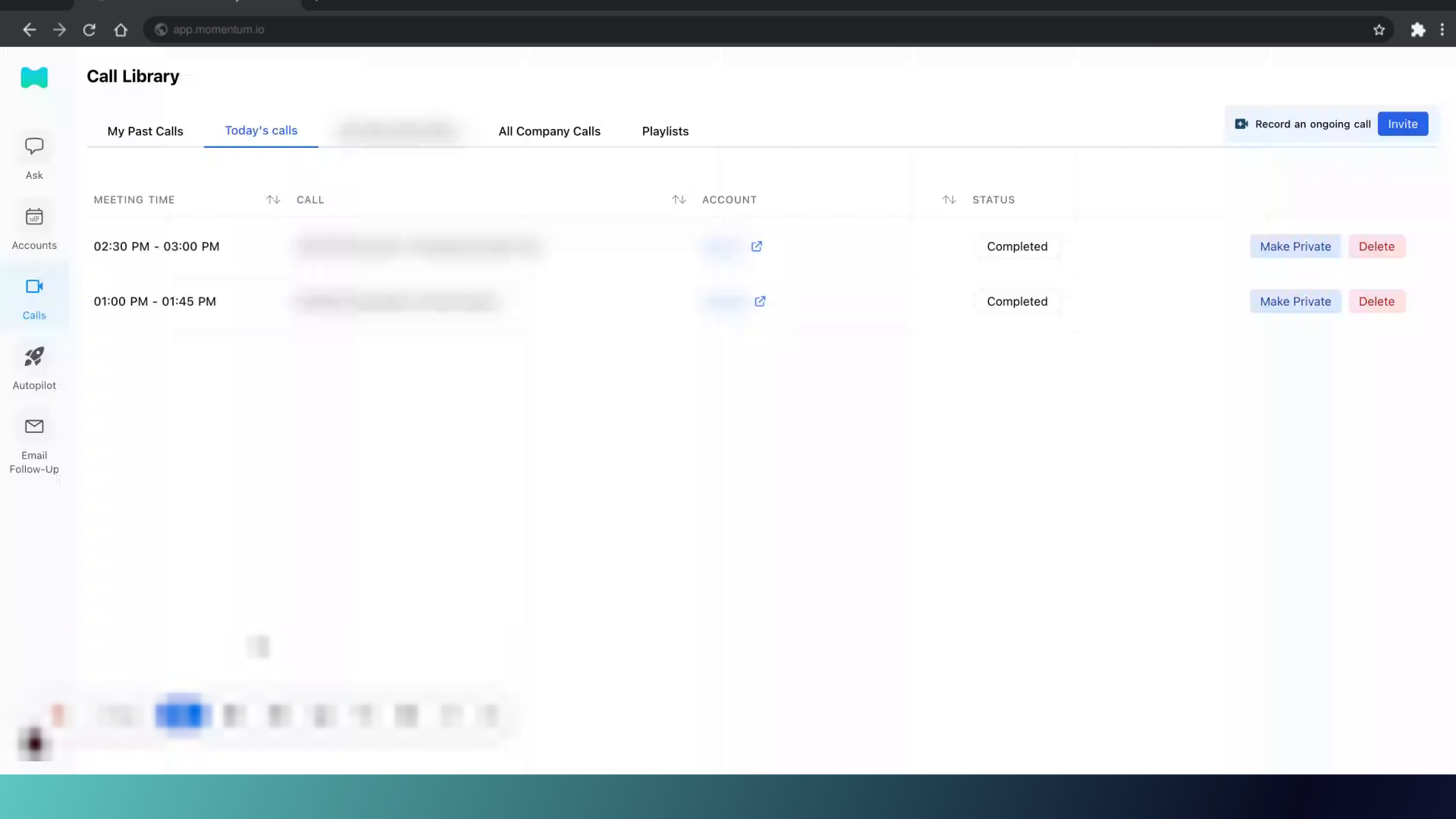
11. Private call access
This will ensure that only you and the attendees of the meeting will be able to view the call within the organization.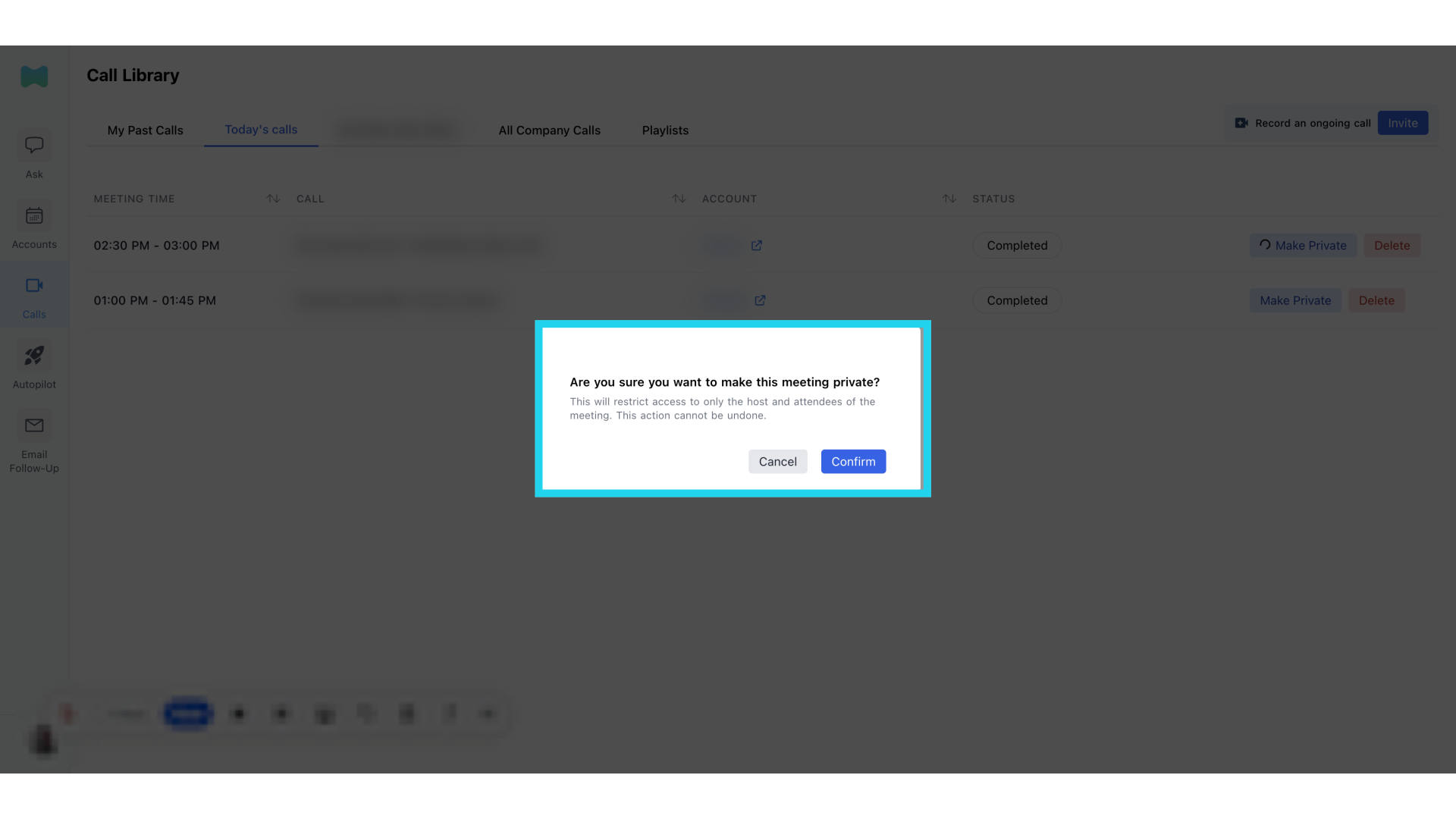
12. Deleting calls
Remove unwanted calls, calls that have been recorded by mistake or by client request by clicking on “Delete”.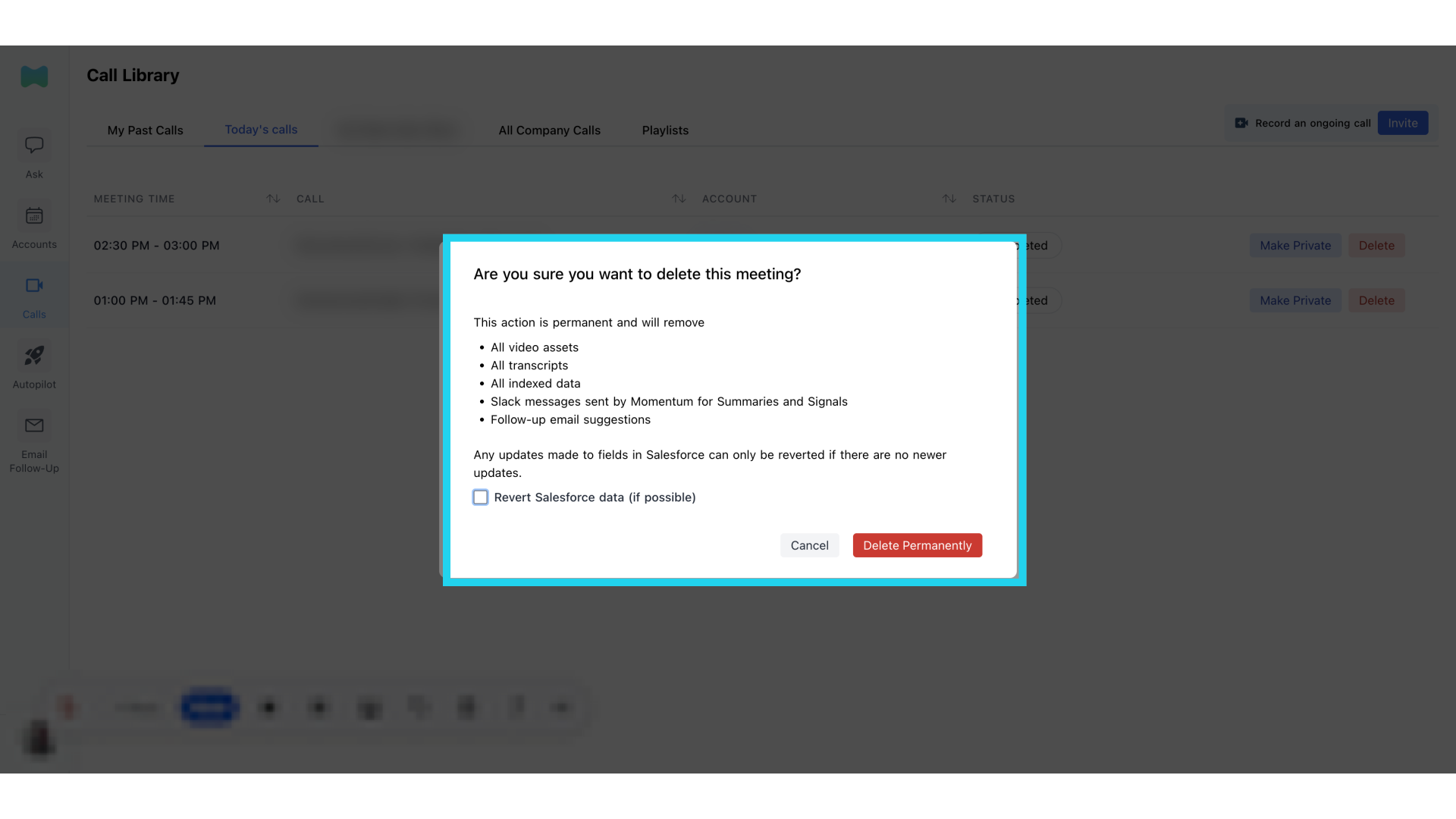
13. Confirm deletion and field revert
You will be prompted if you also would like to revert all Salesforce fields if the call has been analyzed and insights have been pushed directly in.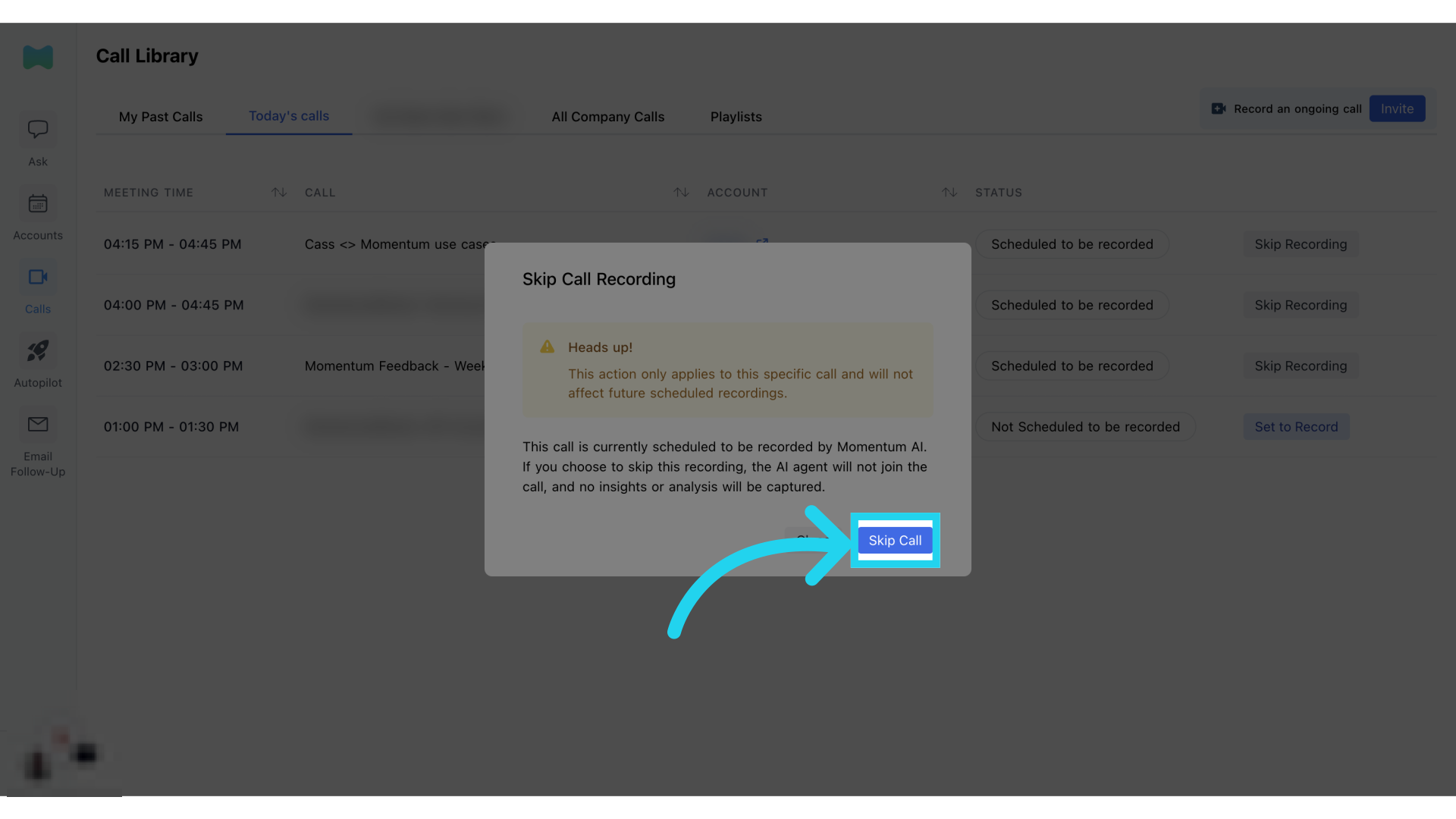 This guide covered essential steps in call management within the Momentum Webapp. We hope you found the video easy to follow. Thank you for choosing Momentum!