> ## Documentation Index
> Fetch the complete documentation index at: https://docs.momentum.io/llms.txt
> Use this file to discover all available pages before exploring further.
# Setting Up Call Summaries
> Step-by-step guide to configure and set up call summaries in Momentum.
# Setting Up Call Summaries
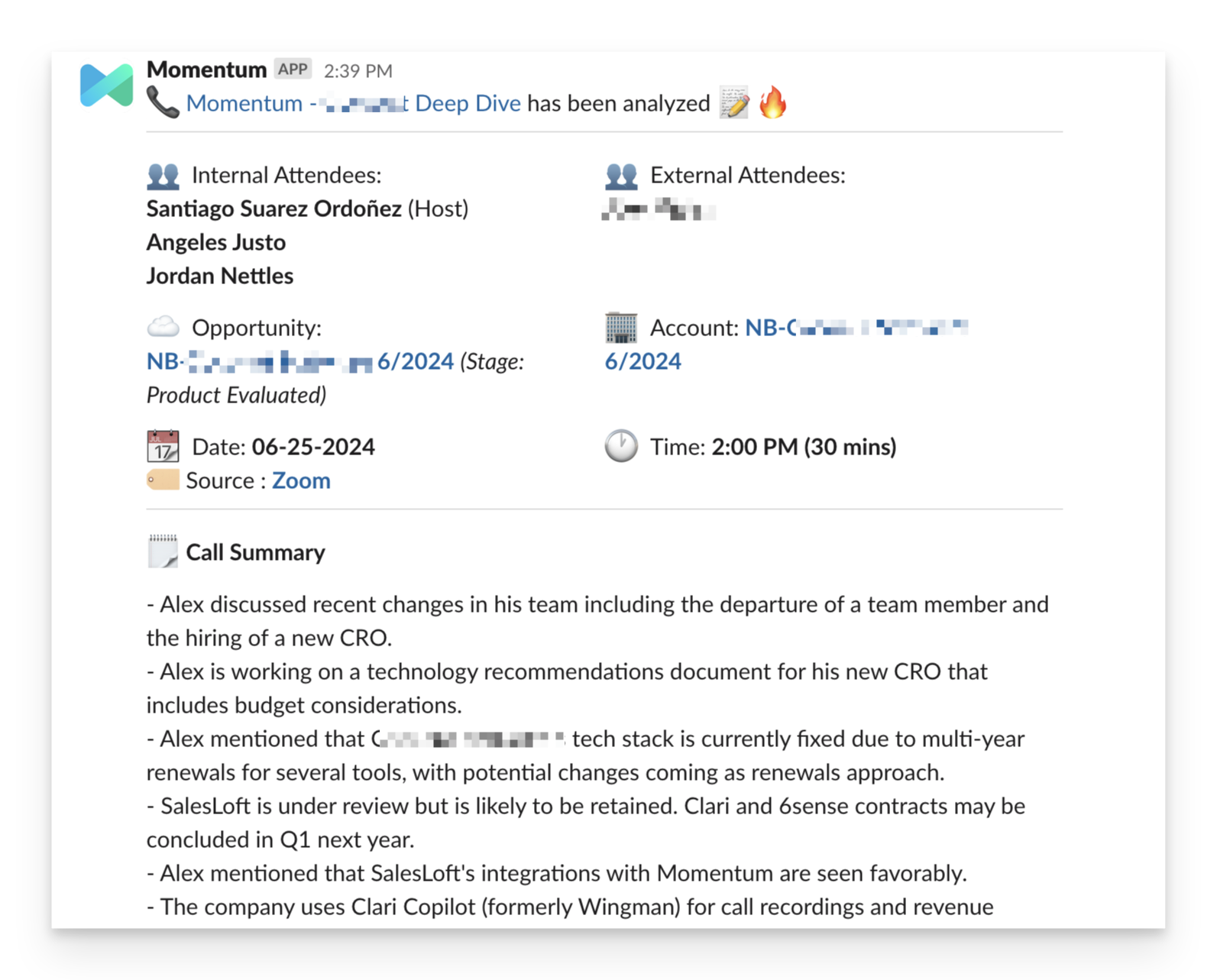
This guide walks you through the technical setup process for Momentum's Call Summaries feature. Call Summaries automatically generate detailed notes from sales calls and deliver them to your team via Slack, Microsoft Teams, or Salesforce.
 ## Prerequisites
Before setting up Call Summaries, ensure you have:
* [Momentum AI installed with your preferred call provider](/how-to-install-momentum)
* Admin access to your Momentum Organization
* Slack workspace configured
* Salesforce integration active
## Step-by-Step Setup
### Step 1: Access the Summaries Section
1. Log in to your [Momentum admin dashboard](https://app.momentum.io/admin/notifications/ai-summary)
2. Navigate to the **Summaries** section in the left sidebar
3. Click **"New AI Call Notification"** to begin the setup process
### Step 2: Configure Salesforce Rules
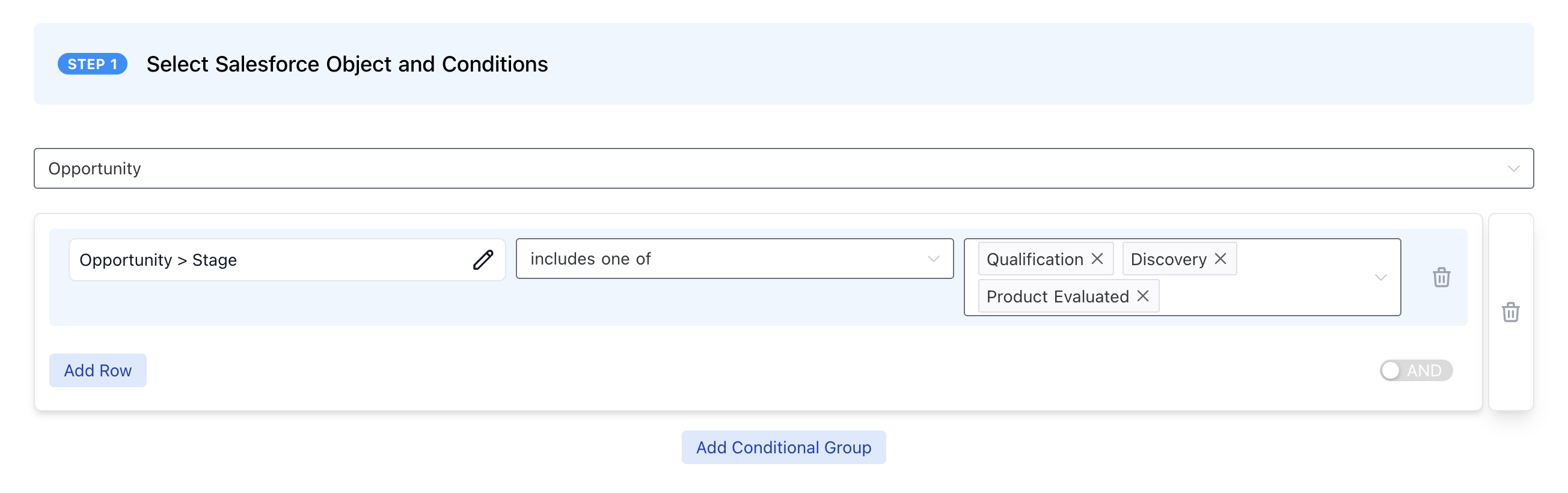
The first section involves setting up Salesforce rules to determine which calls will be processed by this summary workflow.
**Configure Call Detection Rules:**
* **Object Type**: Select the Salesforce object (Opportunity, Account, Lead) this summary should apply to
* **CRM Conditions**: Set specific CRM conditions to filter calls to be summarized
**Example Configuration:**
```yaml theme={null}
Object: Opportunity
Stage: Discovery, Qualification
Opportunity > Account > ARR: < $100,000
```
## Prerequisites
Before setting up Call Summaries, ensure you have:
* [Momentum AI installed with your preferred call provider](/how-to-install-momentum)
* Admin access to your Momentum Organization
* Slack workspace configured
* Salesforce integration active
## Step-by-Step Setup
### Step 1: Access the Summaries Section
1. Log in to your [Momentum admin dashboard](https://app.momentum.io/admin/notifications/ai-summary)
2. Navigate to the **Summaries** section in the left sidebar
3. Click **"New AI Call Notification"** to begin the setup process
### Step 2: Configure Salesforce Rules
The first section involves setting up Salesforce rules to determine which calls will be processed by this summary workflow.
**Configure Call Detection Rules:**
* **Object Type**: Select the Salesforce object (Opportunity, Account, Lead) this summary should apply to
* **CRM Conditions**: Set specific CRM conditions to filter calls to be summarized
**Example Configuration:**
```yaml theme={null}
Object: Opportunity
Stage: Discovery, Qualification
Opportunity > Account > ARR: < $100,000
```
 ### Step 3: Configure Summary Content
The second section allows you to customize what content appears in your summaries.
**Enable/Disable Features:**
* **Follow-up Emails**: Include email follow-up suggestions
* **Autopilot**: Display extracted CRM data
* **Action Items**: List next steps and commitments
* **Action Buttons**: Include Slack buttons to assist your team in taking action
* **Condensed Summary**: Provide a brief overview with full details in the Slack thread
**Custom Prompt Configuration:**
* **Default Prompt**: Use Momentum's standard summary format
* **Custom Prompt**: Write your own AI prompt for specialized summaries
**Example Custom Prompt:**
```text theme={null}
Create a concise summary of this sales call focusing on:
1. Customer pain points and challenges
2. Product interest and requirements
3. Budget and timeline discussions
4. Next steps and action items
5. Competitive mentions or concerns
```
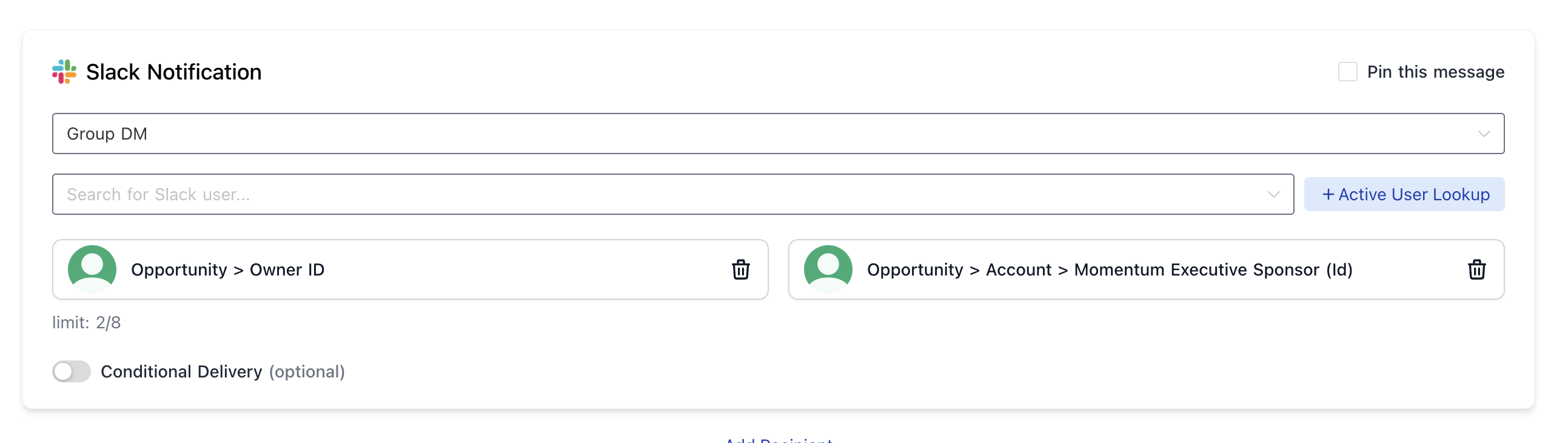
### Step 4: Configure Delivery Settings
The final section determines where and how summaries are delivered.
**Delivery Options:**
* **Slack Channels, DMs, Group DMs**: Send to a specific channel or individuals
* **Microsoft Teams**: Public channel messages or personal chats (choose a user via dropdown, Active User Lookup, or internal meeting attendees)
* **Dynamic Lookups**: Route based on Salesforce object ownership
* **Email**: Send to somebody's inbox
**Advanced Delivery Settings:**
* **Active User Lookup**: Automatically find and notify Salesforce users
* **Pinning**: Pin important summaries to channels
* **Conditional Delivery**: Add additional conditions for individual delivery destinations
**Example Delivery Configuration:**
```yaml theme={null}
Primary: Direct Message to Opportunity Owner
Secondary: Slack Channel #sales-calls
Salesforce: Create note on Opportunity
Manager: Include rep's manager if Opportunity Amount is over $50k
```
### Step 3: Configure Summary Content
The second section allows you to customize what content appears in your summaries.
**Enable/Disable Features:**
* **Follow-up Emails**: Include email follow-up suggestions
* **Autopilot**: Display extracted CRM data
* **Action Items**: List next steps and commitments
* **Action Buttons**: Include Slack buttons to assist your team in taking action
* **Condensed Summary**: Provide a brief overview with full details in the Slack thread
**Custom Prompt Configuration:**
* **Default Prompt**: Use Momentum's standard summary format
* **Custom Prompt**: Write your own AI prompt for specialized summaries
**Example Custom Prompt:**
```text theme={null}
Create a concise summary of this sales call focusing on:
1. Customer pain points and challenges
2. Product interest and requirements
3. Budget and timeline discussions
4. Next steps and action items
5. Competitive mentions or concerns
```
### Step 4: Configure Delivery Settings
The final section determines where and how summaries are delivered.
**Delivery Options:**
* **Slack Channels, DMs, Group DMs**: Send to a specific channel or individuals
* **Microsoft Teams**: Public channel messages or personal chats (choose a user via dropdown, Active User Lookup, or internal meeting attendees)
* **Dynamic Lookups**: Route based on Salesforce object ownership
* **Email**: Send to somebody's inbox
**Advanced Delivery Settings:**
* **Active User Lookup**: Automatically find and notify Salesforce users
* **Pinning**: Pin important summaries to channels
* **Conditional Delivery**: Add additional conditions for individual delivery destinations
**Example Delivery Configuration:**
```yaml theme={null}
Primary: Direct Message to Opportunity Owner
Secondary: Slack Channel #sales-calls
Salesforce: Create note on Opportunity
Manager: Include rep's manager if Opportunity Amount is over $50k
```
 ### Step 5: Test and Validate
1. **Create a Test Summary**: Set up a summary workflow with broad criteria for testing
2. **Schedule a Test Call**: Have a team member conduct a test call
3. **Review Output**: Check that the summary appears in the correct location
4. **Adjust Settings**: Fine-tune content and delivery based on results
## Advanced Configuration
### Multiple Summary Workflows
You can create multiple summary workflows for different use cases:
**Discovery Summary Workflow:**
* **Rules**: Opportunity Stage = "Discovery"
* **Content**: Focus on pain points, requirements, timeline
* **Delivery**: Rep + Manager DM
**Proposal Summary Workflow:**
* **Rules**: Opportunity Stage = "Proposal"
* **Content**: Focus on pricing, objections, next steps
* **Delivery**: Sales channel + Salesforce note
## Troubleshooting
### Common Issues
**Summaries Not Appearing:**
* Check Salesforce rules are correctly configured
* Verify call recording integration is working
* Verify that one of the attendees has a Momentum AI seat
* Ensure delivery settings are properly configured
* Make sure call lasts longer than 5 minutes
**Incorrect Content:**
* Review and refine custom prompts
* Check that the right calls are being processed
* Validate Salesforce field mappings
**Delivery Problems:**
* Verify that Momentum has channel access
* Check Salesforce conditions match
* [**Microsoft Teams DMs not appearing**](/momentum-ai-microsoft-teams-integration#4-install-momentum-for-an-individual-user): Reauthorize the Teams integration (My Integrations), then have a Teams admin open the Momentum app in Teams admin center and click **Publish Update** (wait \~10 minutes for version **1.0.1** to show). If a user is missing from the DM dropdown, have them send a message to the Momentum bot once; they will then appear and can receive call summary DMs.
## Best Practices
1. **Start Simple**: Begin with basic summary workflows and add complexity gradually
2. **Test Thoroughly**: Always test new configurations with sample calls
3. **Monitor Usage**: Regularly review summary quality and team adoption
4. **Iterate**: Continuously improve prompts and delivery based on feedback
5. **Document**: Keep records of successful configurations for team reference
## Support
If you encounter issues during setup, contact our support team:
* **Slack**: Use your shared Momentum channel
* **Email**: [support@momentum.io](mailto:support@momentum.io)
### Step 5: Test and Validate
1. **Create a Test Summary**: Set up a summary workflow with broad criteria for testing
2. **Schedule a Test Call**: Have a team member conduct a test call
3. **Review Output**: Check that the summary appears in the correct location
4. **Adjust Settings**: Fine-tune content and delivery based on results
## Advanced Configuration
### Multiple Summary Workflows
You can create multiple summary workflows for different use cases:
**Discovery Summary Workflow:**
* **Rules**: Opportunity Stage = "Discovery"
* **Content**: Focus on pain points, requirements, timeline
* **Delivery**: Rep + Manager DM
**Proposal Summary Workflow:**
* **Rules**: Opportunity Stage = "Proposal"
* **Content**: Focus on pricing, objections, next steps
* **Delivery**: Sales channel + Salesforce note
## Troubleshooting
### Common Issues
**Summaries Not Appearing:**
* Check Salesforce rules are correctly configured
* Verify call recording integration is working
* Verify that one of the attendees has a Momentum AI seat
* Ensure delivery settings are properly configured
* Make sure call lasts longer than 5 minutes
**Incorrect Content:**
* Review and refine custom prompts
* Check that the right calls are being processed
* Validate Salesforce field mappings
**Delivery Problems:**
* Verify that Momentum has channel access
* Check Salesforce conditions match
* [**Microsoft Teams DMs not appearing**](/momentum-ai-microsoft-teams-integration#4-install-momentum-for-an-individual-user): Reauthorize the Teams integration (My Integrations), then have a Teams admin open the Momentum app in Teams admin center and click **Publish Update** (wait \~10 minutes for version **1.0.1** to show). If a user is missing from the DM dropdown, have them send a message to the Momentum bot once; they will then appear and can receive call summary DMs.
## Best Practices
1. **Start Simple**: Begin with basic summary workflows and add complexity gradually
2. **Test Thoroughly**: Always test new configurations with sample calls
3. **Monitor Usage**: Regularly review summary quality and team adoption
4. **Iterate**: Continuously improve prompts and delivery based on feedback
5. **Document**: Keep records of successful configurations for team reference
## Support
If you encounter issues during setup, contact our support team:
* **Slack**: Use your shared Momentum channel
* **Email**: [support@momentum.io](mailto:support@momentum.io)