> ## Documentation Index
> Fetch the complete documentation index at: https://docs.momentum.io/llms.txt
> Use this file to discover all available pages before exploring further.
# Scheduled Reports
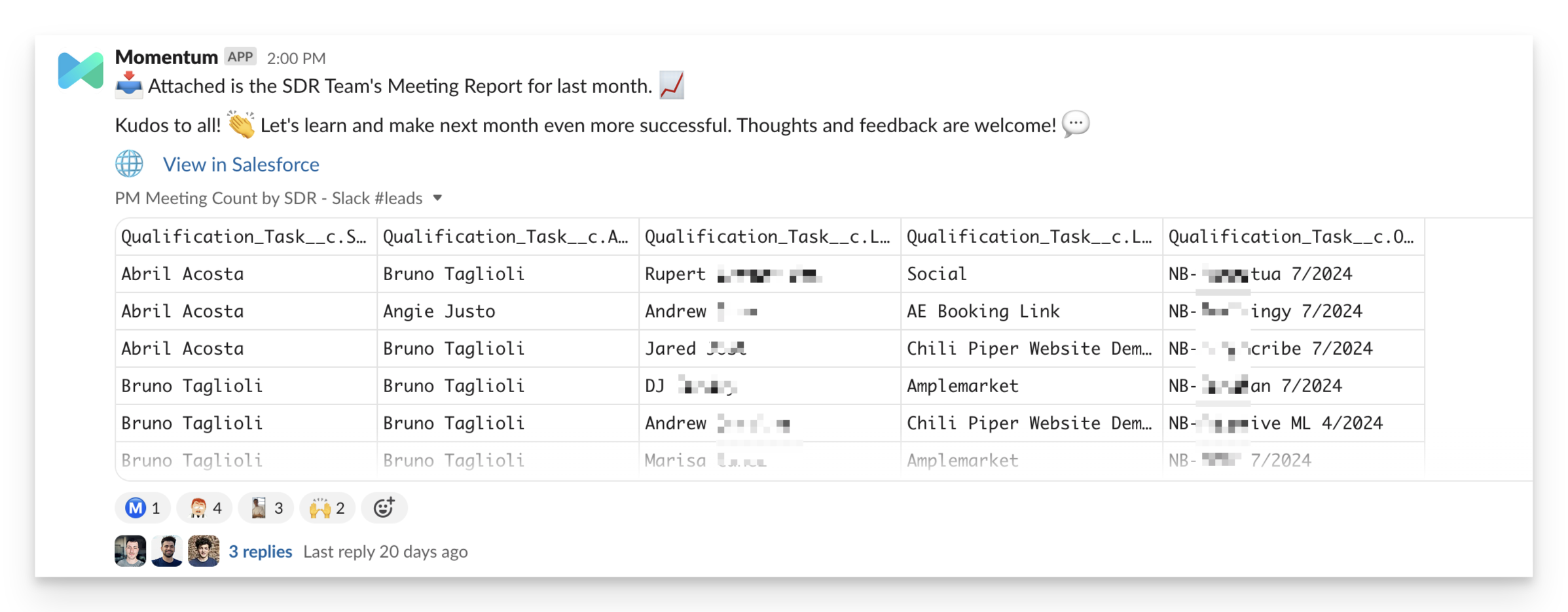
Scheduled Reports by Momentum allows you to deliver Salesforce reports on a specific cadence directly into your Slack channels or to specific users. This feature ensures that your team stays updated with important data without the need to constantly check Salesforce manually.
 ### Key Features:
* **Automated Delivery**: Schedule reports to be delivered at regular intervals (daily, weekly, monthly) to keep your team informed.
* **Slack Integration**: Receive reports as convenient tables in Slack, making it easy to review key metrics quickly.
* **Direct Links**: Each report includes a link back to Salesforce for in-depth analysis and detailed review.
### Getting Started
### Set Up Your First Scheduled Report
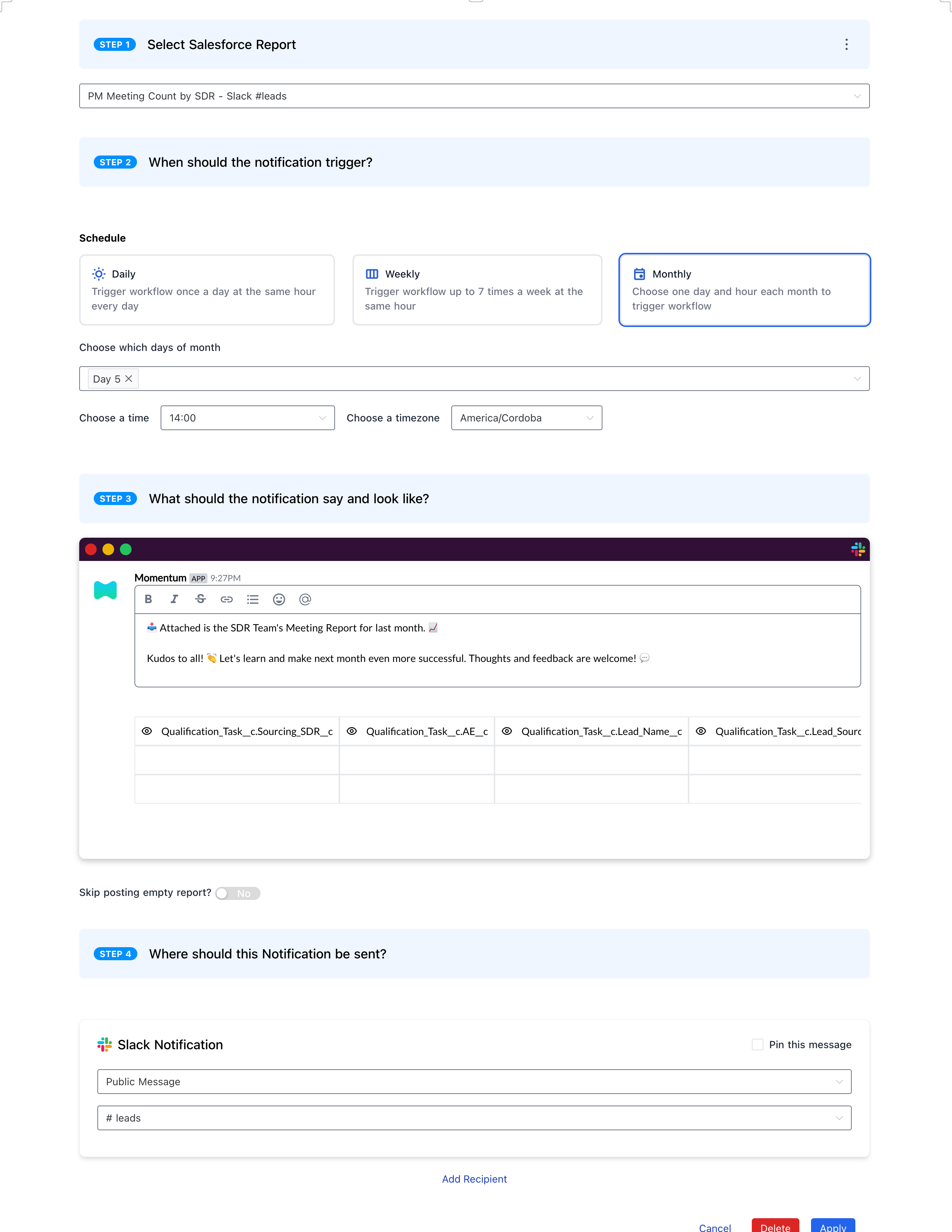
**Step 1**: Select the Report
* **Choose a Salesforce Report**: Navigate to the Scheduled Reports section in the Momentum administrator and select the report you want to schedule. This can be any standard or custom report in your Salesforce instance.
**Step 2**: Define the Schedule
* **Set the Cadence**: Determine how often you want the report to be delivered (e.g., daily, weekly, monthly).
* **Choose the Time**: Specify the exact time of day the report should be sent to ensure it aligns with your team's workflow.
* **Select Days**: For monthly reports, choose which day of the month the report should be sent.
**Step 3**: Customize the Notification
* **Customize the Message**: Tailor the notification message to include relevant information. You can leverage details such as the report name, the specific metrics included, and any additional context for the team.
* **Include Report Details**: Render the report as a convenient table in Slack for quick review. Include a link back to Salesforce for in-depth analysis.
**Step 4**: Set Your Destination
* **Select Slack Channels or Users**: Choose the Slack channels or individual users who should receive the report.
* **Pin Messages**: Optionally, pin the report message in Slack for easy access.
That's it! You've just configured your first scheduled report. 🎉
### Example Use Case: Monthly SDR Meeting Report
**Scenario**:
You want to keep your sales development team updated with a monthly meeting report. This report includes metrics such as meeting counts by SDR, lead sources, and qualification tasks.
### Key Features:
* **Automated Delivery**: Schedule reports to be delivered at regular intervals (daily, weekly, monthly) to keep your team informed.
* **Slack Integration**: Receive reports as convenient tables in Slack, making it easy to review key metrics quickly.
* **Direct Links**: Each report includes a link back to Salesforce for in-depth analysis and detailed review.
### Getting Started
### Set Up Your First Scheduled Report
**Step 1**: Select the Report
* **Choose a Salesforce Report**: Navigate to the Scheduled Reports section in the Momentum administrator and select the report you want to schedule. This can be any standard or custom report in your Salesforce instance.
**Step 2**: Define the Schedule
* **Set the Cadence**: Determine how often you want the report to be delivered (e.g., daily, weekly, monthly).
* **Choose the Time**: Specify the exact time of day the report should be sent to ensure it aligns with your team's workflow.
* **Select Days**: For monthly reports, choose which day of the month the report should be sent.
**Step 3**: Customize the Notification
* **Customize the Message**: Tailor the notification message to include relevant information. You can leverage details such as the report name, the specific metrics included, and any additional context for the team.
* **Include Report Details**: Render the report as a convenient table in Slack for quick review. Include a link back to Salesforce for in-depth analysis.
**Step 4**: Set Your Destination
* **Select Slack Channels or Users**: Choose the Slack channels or individual users who should receive the report.
* **Pin Messages**: Optionally, pin the report message in Slack for easy access.
That's it! You've just configured your first scheduled report. 🎉
### Example Use Case: Monthly SDR Meeting Report
**Scenario**:
You want to keep your sales development team updated with a monthly meeting report. This report includes metrics such as meeting counts by SDR, lead sources, and qualification tasks.
 ### FAQs
**What are Scheduled Reports?**
Scheduled Reports are automated deliveries of Salesforce reports to Slack, helping teams stay updated with important data without manual effort.
**How do I customize the report delivery?**
You can customize the report delivery by selecting the Salesforce report, defining the schedule, and configuring the Slack channels or users who will receive it.
**Can I include additional context in the Slack message?**
Yes, you can add a personalized message to provide context or instructions for your team along with the report.
### FAQs
**What are Scheduled Reports?**
Scheduled Reports are automated deliveries of Salesforce reports to Slack, helping teams stay updated with important data without manual effort.
**How do I customize the report delivery?**
You can customize the report delivery by selecting the Salesforce report, defining the schedule, and configuring the Slack channels or users who will receive it.
**Can I include additional context in the Slack message?**
Yes, you can add a personalized message to provide context or instructions for your team along with the report.