> ## Documentation Index
> Fetch the complete documentation index at: https://docs.momentum.io/llms.txt
> Use this file to discover all available pages before exploring further.
# Integrating Vonage Contact Center with Momentum AI
Momentum connects to your Vonage Contact Center (VCC) account to automatically ingest call recordings and metadata into Momentum's Call Library. These calls are processed like any other source in Momentum: summarized, analyzed, and made searchable.
## Prerequisites
You'll need Vonage Contact Center administrator access and a Momentum admin account.
Ensure users exist in both systems with matching work emails.
* Momentum workspace permissions to install and manage integrations.
* Calls must have recordings enabled and accessible in Vonage Contact Center.
* **Vonage Contact Center region**: Know your VCC region (NAM, EMEA, or APAC) — this determines the API endpoints used.
## Vonage Contact Center Configuration
### Required API Scopes
Your Vonage Contact Center API credentials must have the following scopes enabled in the VCC Admin Portal:
| Scope | Purpose |
| ----------------------------------------------------------------- | --------------------------------------------------------------------------- |
| `stats - View Insights stats` | Required. Access to Insights Stats API for retrieving call/interaction data |
| `interaction-content:read - Read or download interaction content` | Required. Access to recordings and transcripts |
| `users:read - Read VCC user details, settings and presence` | Required. Enables automatic user sync between Vonage and Momentum |
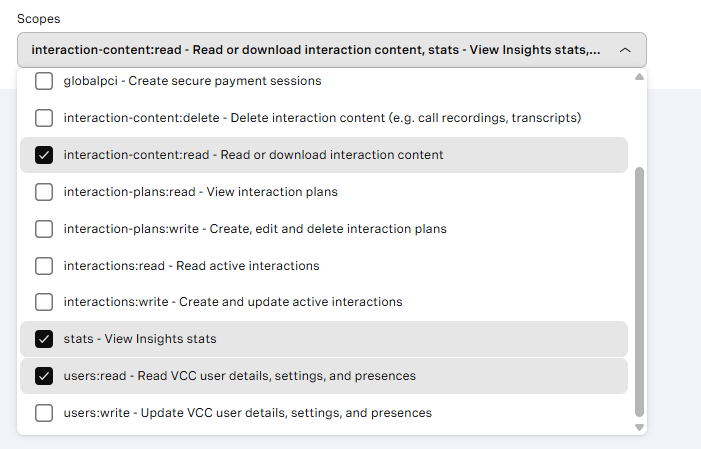 If the required scopes are not enabled, Momentum will not be able to retrieve call data or recordings. Contact your Vonage administrator to verify scope configuration.
### Regional Endpoints
Vonage Contact Center uses region-specific endpoints. Momentum will use the appropriate endpoints based on your configured region:
| Region | Authentication Endpoint | API Endpoint |
| -------------------------------- | ----------------------------------------------- | -------------------------------- |
| NAM (North America) | `https://nam.cc.vonage.com/Auth/connect/token` | `https://nam.api.cc.vonage.com` |
| EMEA (Europe/Middle East/Africa) | `https://emea.cc.vonage.com/Auth/connect/token` | `https://emea.api.cc.vonage.com` |
| APAC (Asia Pacific) | `https://apac.cc.vonage.com/Auth/connect/token` | `https://apac.api.cc.vonage.com` |
EMEA is the default region. If your VCC account is provisioned in a different region, ensure you specify the correct region when configuring the integration or inform the support team and they will help you to configure.
## Generate your Vonage API Credentials
1. Sign in to your Vonage Contact Center Admin Portal with an administrator account.
2. Navigate to **Admin → API Credentials**.
3. Click **Create API Credentials** or locate existing credentials.
4. Select the [required scopes](#required-api-scopes).
5. Click **Create**.
6. Copy the **Client ID** and **Client Secret**.
Store your API credentials securely immediately after generation. The Client credentials may not be retrievable later.
## Add API Credentials to Momentum
1. Copy the generated API credentials from Vonage Contact Center.
2. Switch to your Momentum admin dashboard.
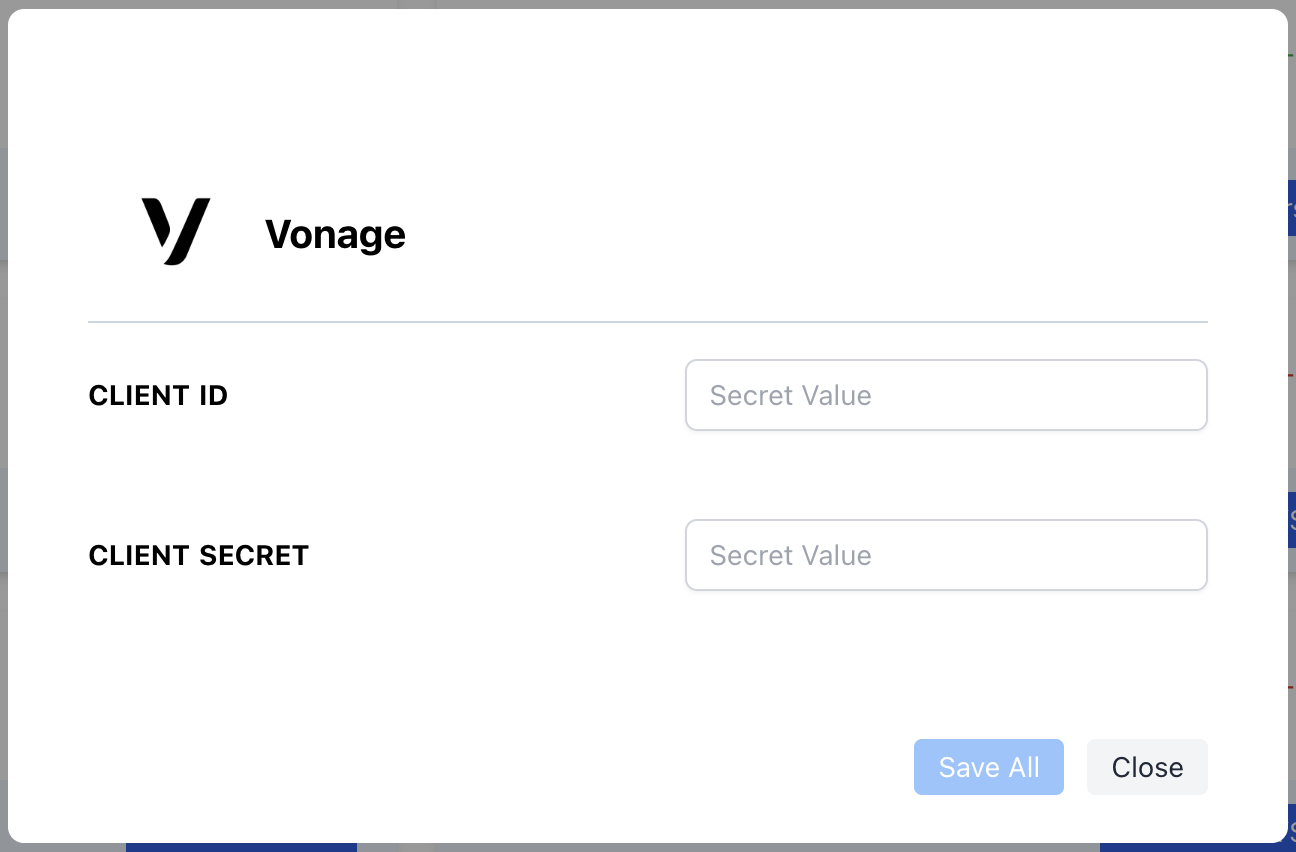
3. Find the Vonage integration tile and enter:
* **Client ID**
* **Client Secret**
If the required scopes are not enabled, Momentum will not be able to retrieve call data or recordings. Contact your Vonage administrator to verify scope configuration.
### Regional Endpoints
Vonage Contact Center uses region-specific endpoints. Momentum will use the appropriate endpoints based on your configured region:
| Region | Authentication Endpoint | API Endpoint |
| -------------------------------- | ----------------------------------------------- | -------------------------------- |
| NAM (North America) | `https://nam.cc.vonage.com/Auth/connect/token` | `https://nam.api.cc.vonage.com` |
| EMEA (Europe/Middle East/Africa) | `https://emea.cc.vonage.com/Auth/connect/token` | `https://emea.api.cc.vonage.com` |
| APAC (Asia Pacific) | `https://apac.cc.vonage.com/Auth/connect/token` | `https://apac.api.cc.vonage.com` |
EMEA is the default region. If your VCC account is provisioned in a different region, ensure you specify the correct region when configuring the integration or inform the support team and they will help you to configure.
## Generate your Vonage API Credentials
1. Sign in to your Vonage Contact Center Admin Portal with an administrator account.
2. Navigate to **Admin → API Credentials**.
3. Click **Create API Credentials** or locate existing credentials.
4. Select the [required scopes](#required-api-scopes).
5. Click **Create**.
6. Copy the **Client ID** and **Client Secret**.
Store your API credentials securely immediately after generation. The Client credentials may not be retrievable later.
## Add API Credentials to Momentum
1. Copy the generated API credentials from Vonage Contact Center.
2. Switch to your Momentum admin dashboard.
3. Find the Vonage integration tile and enter:
* **Client ID**
* **Client Secret**
 Your integration is now complete!
## Where to Find Calls
Open the **Call Library** in Momentum to browse and search Vonage calls.
## Assign AI License Seats
To enable Vonage call sync for users:
1. Log in to the [Momentum admin](https://app.momentum.io/admin/team) page.
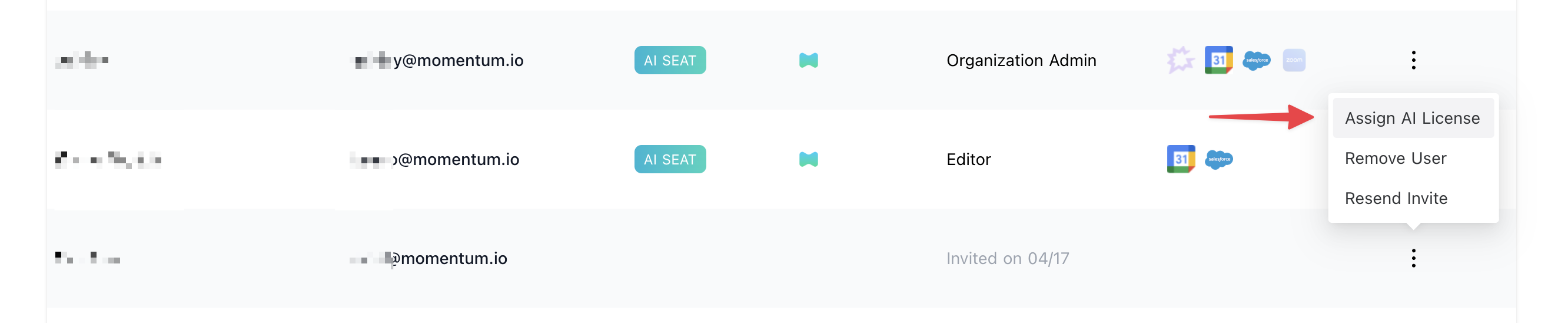
2. In the **Team** section, invite or locate users to license.
3. Click **Assign AI License** for each user.
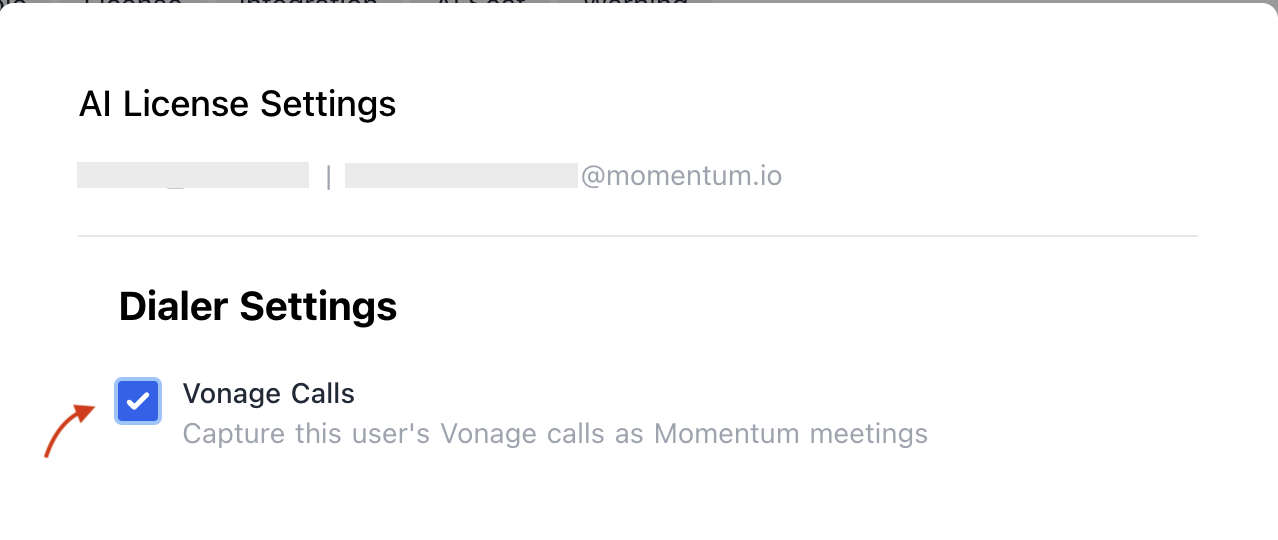
4. Enable **Vonage calls** to sync that user's calls.
Your integration is now complete!
## Where to Find Calls
Open the **Call Library** in Momentum to browse and search Vonage calls.
## Assign AI License Seats
To enable Vonage call sync for users:
1. Log in to the [Momentum admin](https://app.momentum.io/admin/team) page.
2. In the **Team** section, invite or locate users to license.
3. Click **Assign AI License** for each user.
4. Enable **Vonage calls** to sync that user's calls.
 ## Troubleshooting
If you encounter issues, contact our support team:
* Slack: Use your shared Momentum channel
* Email: [support@momentum.io](mailto:support@momentum.io)
## FAQs
By default, ingestion starts after connection. Contact Momentum support for historical backfill requests.
You'll need to update the credentials in Momentum's integration settings to maintain the connection.
Your region is determined by where your Vonage Contact Center account was provisioned. If you're unsure, contact your Vonage administrator or check your VCC Admin Portal URL — it typically contains the region prefix (nam, emea, or apac).
## Troubleshooting
If you encounter issues, contact our support team:
* Slack: Use your shared Momentum channel
* Email: [support@momentum.io](mailto:support@momentum.io)
## FAQs
By default, ingestion starts after connection. Contact Momentum support for historical backfill requests.
You'll need to update the credentials in Momentum's integration settings to maintain the connection.
Your region is determined by where your Vonage Contact Center account was provisioned. If you're unsure, contact your Vonage administrator or check your VCC Admin Portal URL — it typically contains the region prefix (nam, emea, or apac).