> ## Documentation Index
> Fetch the complete documentation index at: https://docs.momentum.io/llms.txt
> Use this file to discover all available pages before exploring further.
# Integrating Salesloft with Momentum AI
Momentum connects to your Salesloft account to automatically ingest Dialer/Cold-call recordings and metadata into Momentum's Call Library. These calls are processed like any other source in Momentum: summarized, analyzed, and made searchable.
## Prerequisites
You'll need Salesloft administrator access and a Momentum admin account.
Ensure users exist in both systems with matching work emails.
* Salesloft account with API access to Call Activities and recordings.
* Momentum workspace permissions to install and manage integrations.
* Calls must have a recording available and accessible in Salesloft for audio processing.
## Connect Salesloft
1. In Slack, type `/configure` to open Momentum's Integrations menu.
2. Select Salesloft and click **Authorize**.
3. Sign in to Salesloft and approve the requested scopes.
4. When connected, the status will show as Active.
If your organization restricts app installs, your Salesloft admin may need to
approve the Momentum app.
## What Gets Synced
* Source: Salesloft Activities > Calls ([API docs](https://developers.salesloft.com/docs/api/activities-calls-index))
* Frequency: every 15 minutes
* Filters: excludes calls with dispositions “No Answer”, “Not in Service”, “Voicemail Full”, and “Wrong Number”
* Content: call recording (if available) and metadata (e.g., call ID, timestamps, disposition, user/owner, and related references)
## Where to Find Calls
* Open the Call Library in Momentum to browse, search, and play Salesloft calls.
* Standard processing applies: AI summaries, key moments, trackers/extractions, and full-text search.
## Sync Timing and Limitations
* Allow up to 15 minutes from availability in Salesloft to appearance in Momentum.
* Recording must exist and be accessible in Salesloft for audio to process.
* Only supported dispositions are ingested; other dispositions are ignored.
* Salesloft permissions limit what Momentum can retrieve; restricted users/calls are not synced.
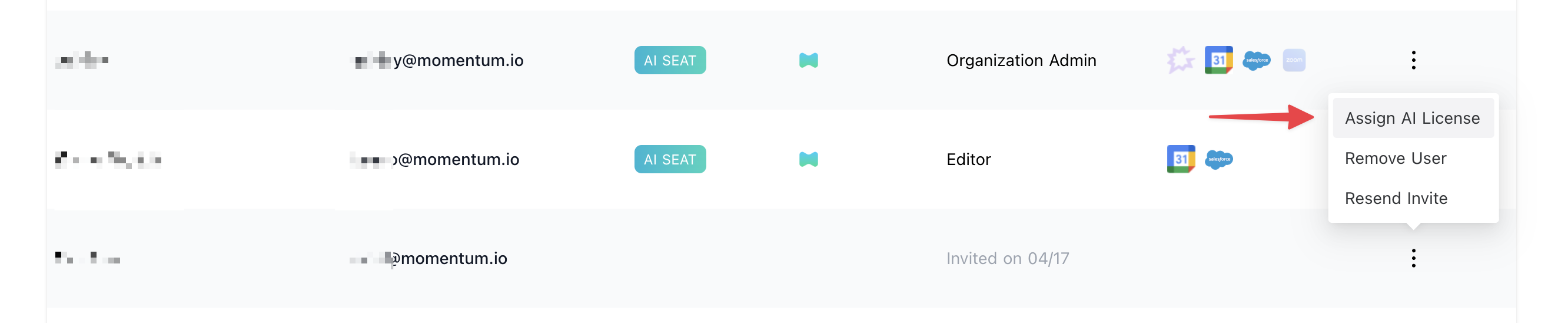
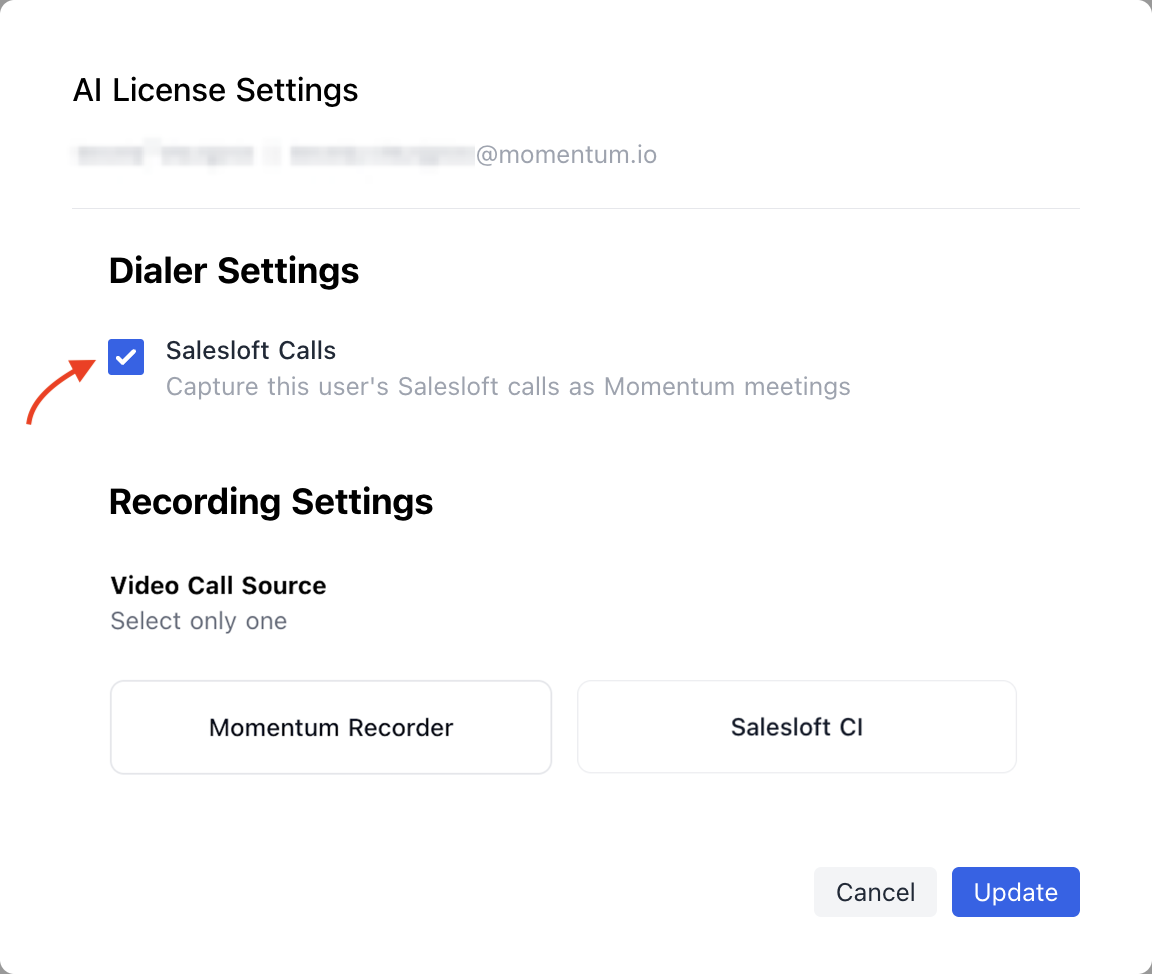
## Assign AI License Seats
1. Log in to the [Momentum admin](https://app.momentum.io/admin/team) page.
2. In Team, invite or locate users to license.
3. Click **Assign AI License** for each user.
 ## Security and Access
* Read-only: Momentum retrieves Salesloft Call Activities and recordings; it does not write back to Salesloft.
* To ingest Salesloft Call Activities, Momentum requires the `calls:read` scope and appropriate permissions to import corresponding audio recordings.
* Access is governed by your Salesloft and Momentum permissions.
* You can disconnect anytime in Momentum Settings > Integrations; you may also revoke access in Salesloft.
## Troubleshooting
* **A call isn't showing up:**
* Confirm the call's disposition is NOT one of: “No Answer”, “Not in Service”, “Voicemail Full”, or “Wrong Number”.
* Verify a recording exists and is accessible in Salesloft.
* Allow up to 15 minutes for the next sync cycle.
* Check that the Salesloft connection is Active in Momentum.
* **Audio won't play:**
* Ensure the recording link in Salesloft is valid and not restricted.
* **Still stuck?**
Contact support via your shared Slack channel or email [support@momentum.io](mailto:support@momentum.io) with the Salesloft call ID and timestamp so we can investigate.
## FAQs
* **Does Momentum write to Salesloft?**
No, the integration is read-only.
* **Can we change which dispositions are ingested?**
We exclude calls with the following dispositions: “No Answer”, “Not in Service”, “Voicemail Full” and “Wrong Number”.
* **Do you support historical backfill?**
By default, ingestion starts after connection. For backfill, contact Momentum.
* **How often are calls imported?**
Every 15 minutes.
## Disconnecting the Integration
* In Slack: type `/configure`, select the Momentum app, and click **Log Out** next to Salesloft.
* Optionally contact Momentum to confirm the disconnect completed as expected.
## Need Help?
If you have questions about setup, permissions, or backfills, contact Momentum Support and include:
* Your workspace name
* The Salesloft Call ID(s)
* A brief description of the issue and when it occurred
## Security and Access
* Read-only: Momentum retrieves Salesloft Call Activities and recordings; it does not write back to Salesloft.
* To ingest Salesloft Call Activities, Momentum requires the `calls:read` scope and appropriate permissions to import corresponding audio recordings.
* Access is governed by your Salesloft and Momentum permissions.
* You can disconnect anytime in Momentum Settings > Integrations; you may also revoke access in Salesloft.
## Troubleshooting
* **A call isn't showing up:**
* Confirm the call's disposition is NOT one of: “No Answer”, “Not in Service”, “Voicemail Full”, or “Wrong Number”.
* Verify a recording exists and is accessible in Salesloft.
* Allow up to 15 minutes for the next sync cycle.
* Check that the Salesloft connection is Active in Momentum.
* **Audio won't play:**
* Ensure the recording link in Salesloft is valid and not restricted.
* **Still stuck?**
Contact support via your shared Slack channel or email [support@momentum.io](mailto:support@momentum.io) with the Salesloft call ID and timestamp so we can investigate.
## FAQs
* **Does Momentum write to Salesloft?**
No, the integration is read-only.
* **Can we change which dispositions are ingested?**
We exclude calls with the following dispositions: “No Answer”, “Not in Service”, “Voicemail Full” and “Wrong Number”.
* **Do you support historical backfill?**
By default, ingestion starts after connection. For backfill, contact Momentum.
* **How often are calls imported?**
Every 15 minutes.
## Disconnecting the Integration
* In Slack: type `/configure`, select the Momentum app, and click **Log Out** next to Salesloft.
* Optionally contact Momentum to confirm the disconnect completed as expected.
## Need Help?
If you have questions about setup, permissions, or backfills, contact Momentum Support and include:
* Your workspace name
* The Salesloft Call ID(s)
* A brief description of the issue and when it occurred