> ## Documentation Index
> Fetch the complete documentation index at: https://docs.momentum.io/llms.txt
> Use this file to discover all available pages before exploring further.
# Integrating RingCentral with Momentum AI
Momentum connects to your RingCentral account to automatically ingest call recordings and metadata into Momentum's Call Library. These calls are processed like any other source in Momentum: summarized, analyzed, and made searchable.
## Prerequisites
You'll need RingCentral Super Admin access and a Momentum admin account.
Ensure users exist in both systems with matching work emails.
* Momentum workspace permissions to install and manage integrations.
* **RingCentral plan requirements**: RingEX Advanced or higher is recommended.
* **Super Admin authorization**: A RingCentral Super Admin must authorize the connection in Momentum to access company-wide call logs.
* [RingCentral for Salesforce](#salesforce-integration) package installed in Salesforce with auto call logging enabled.
* Calls must have automatic call recording enabled in RingCentral.
## RingCentral Configuration
### Enable Automatic Call Recording
To ensure Momentum can access your call recordings:
1. Sign in to the [RingCentral Admin Portal](https://service.ringcentral.com/) with administrator credentials
2. Navigate to **Phone System** tab
3. Depending on your company settings layout:
* **If New company settings layout is OFF:**
* Navigate to **Auto-Receptionist → General Settings → Call Recording**
* Toggle **Enable Automatic Call Recording** on
* **If New company settings layout is ON:**
* Navigate to **Company → Company Call Handling → Call recording**
* Toggle **Enable Automatic Call Recording** on
4. Click **Save**
The authorized user must be a **Super Admin** in RingCentral to access company-wide call logs. Momentum calls the `/account/~/call-log` endpoint, which requires the `ReadCompanyCallLog` user permission that only Super Admins have.
## Salesforce Add-on: RingCentral Package
When you're using RingCentral for Salesforce add-on, ensure proper setup for optimal call attribution:
### Prerequisites
* RingCentral for Salesforce is available for **RingEX Advanced and Ultra** customers
* [Install the RingCentral for Salesforce package](https://www.ringcentral.com/apps/salesforce)
### Setup Steps
1. Install the RingCentral for Salesforce package
2. Enable auto-logging calls as Tasks in Salesforce
3. Verify Task page layout:
* Ensure RingCentral custom fields are visible: **CALL\_UNIQUE\_ID**`(rcsfl__CALL_UNIQUE_ID__c)` and **Call Recording**`(rcsfl__Call_Recording__c)`
* Adjust field-level security for all RingCentral users if needed
### Resources
* [Admin Guide (PDF)](https://assets.ringcentral.com/us/guide/rc-sfdc-admin-guide.pdf)
* [RingCentral Integrations Portal](https://integrations.ringcentral.com/) - To check your connection status
## Connect RingCentral to Momentum
RingCentral uses OAuth 2.0 authentication. To connect:
**From the Momentum web app:**
1. Click on your profile icon and select **Integrations**.
2. Find the RingCentral integration from **Browse integrations** and click **Sign in**.
**From Slack:**
1. Type `/configure` to open Momentum's Integrations menu.
2. Find the RingCentral integration and click **Authorize**.
**Complete the authorization:**
1. You'll be redirected to RingCentral to authorize the connection.
2. Sign in with your RingCentral Super Admin account.
3. Review and approve the requested permissions (`ReadCallLog`, `ReadCallRecording`, `ReadAccounts`).
4. When connected, the status will show as **Connected**.
Your integration is now complete!
Momentum requests read-only access to your RingCentral call logs and recordings. No data is written back to RingCentral.
## Where to Find Calls
Open the **Call Library** in Momentum to browse and search RingCentral calls.
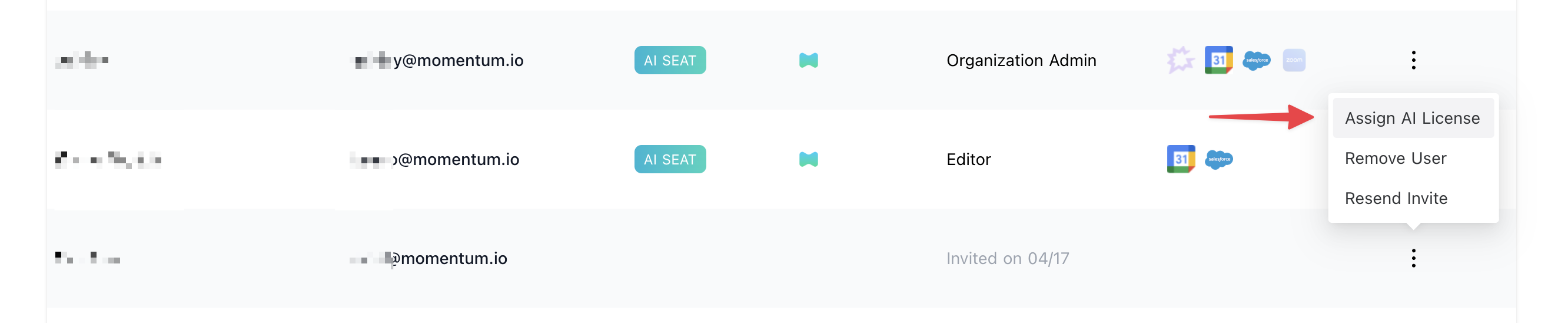
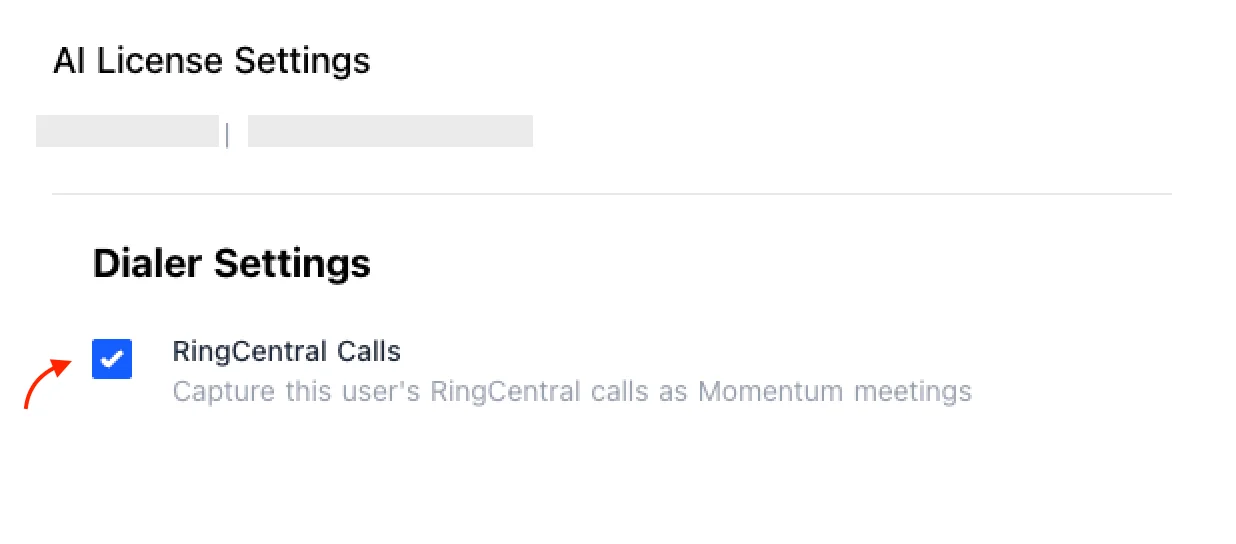
## Assign AI License Seats
To enable RingCentral call sync for users:
1. Log in to the [Momentum admin](https://app.momentum.io/admin/team) page.
2. In the **Team** section, invite or locate users to license.
3. Click **Assign AI License** for each user.
4. Enable **RingCentral calls** to sync that user's calls.
 ## Troubleshooting
* Calls not appearing:
* Authorizing user must be a Super Admin in RingCentral (for company-wide call log access)
* Automatic call recording not enabled: Enable via Admin Portal ([see steps above](#enable-automatic-call-recording))
* Check that your RingCentral plan is RingEX Advanced or higher
If you encounter issues, contact our support team:
* Slack: Use your shared Momentum channel
* Email: [support@momentum.io](mailto:support@momentum.io)
## FAQs
Simply follow the connection steps again. Your existing call history in Momentum will remain intact.
RingEX Advanced and Ultra plans include full API access. RingEX Core may have limited recording capabilities and is not recommended.
RingCentral's API permission model requires **Super Admin** privileges to access company-wide call logs. Momentum calls the `/account/~/call-log` endpoint to retrieve call data across your entire organization, which requires the `ReadCompanyCallLog` user permission. Only users with the **Super Admin** role have this permission. Regular users can only access their own call logs, which would not provide Momentum with visibility into all organizational calls.
Momentum supports RingCentral **RingEX**. Most RingCX customers can also connect because RingCX is typically deployed alongside RingEX. However, contact-center-specific features are **not** currently supported (queue-level analytics, contact-center routing, agent performance metrics, supervisor workflows, omnichannel interactions).
## Troubleshooting
* Calls not appearing:
* Authorizing user must be a Super Admin in RingCentral (for company-wide call log access)
* Automatic call recording not enabled: Enable via Admin Portal ([see steps above](#enable-automatic-call-recording))
* Check that your RingCentral plan is RingEX Advanced or higher
If you encounter issues, contact our support team:
* Slack: Use your shared Momentum channel
* Email: [support@momentum.io](mailto:support@momentum.io)
## FAQs
Simply follow the connection steps again. Your existing call history in Momentum will remain intact.
RingEX Advanced and Ultra plans include full API access. RingEX Core may have limited recording capabilities and is not recommended.
RingCentral's API permission model requires **Super Admin** privileges to access company-wide call logs. Momentum calls the `/account/~/call-log` endpoint to retrieve call data across your entire organization, which requires the `ReadCompanyCallLog` user permission. Only users with the **Super Admin** role have this permission. Regular users can only access their own call logs, which would not provide Momentum with visibility into all organizational calls.
Momentum supports RingCentral **RingEX**. Most RingCX customers can also connect because RingCX is typically deployed alongside RingEX. However, contact-center-specific features are **not** currently supported (queue-level analytics, contact-center routing, agent performance metrics, supervisor workflows, omnichannel interactions).