> ## Documentation Index
> Fetch the complete documentation index at: https://docs.momentum.io/llms.txt
> Use this file to discover all available pages before exploring further.
# Integrating Orum with Momentum AI
Momentum connects to your Orum account via webhooks to automatically ingest call recordings and metadata into Momentum's Call Library. These calls are processed like any other source in Momentum: summarized, analyzed, and made searchable.
## Prerequisites
You'll need Orum administrator access and a Momentum admin account.
Ensure users exist in both systems with matching work emails.
* **Orum Webhooks add-on**: Your Orum plan must include the Webhooks add-on feature. This is required for the integration to work. [View Orum plan details](https://www.orum.com/pricing) to confirm your plan includes webhooks.
* Momentum workspace permissions to install and manage integrations
If you don't have the Webhooks add-on in your Orum plan, contact your Orum account representative to enable this feature before proceeding with the integration setup.
## Connect Orum to Momentum
### Step 1: Get Your Webhook Signing Key from Orum
1. Sign in to your Orum Admin Portal
2. Navigate to **Settings → System → Webhooks**
3. Locate or create your **Webhook Signing Key**
4. Copy the signing key value
The webhook signing key is used to verify that webhook requests are genuinely from Orum. Keep this key secure and never share it publicly.
### Step 2: Add the Signing Key in Momentum
1. Log in to the [Momentum Admin Portal](https://app.momentum.io/admin)
2. Navigate to **Integrations**
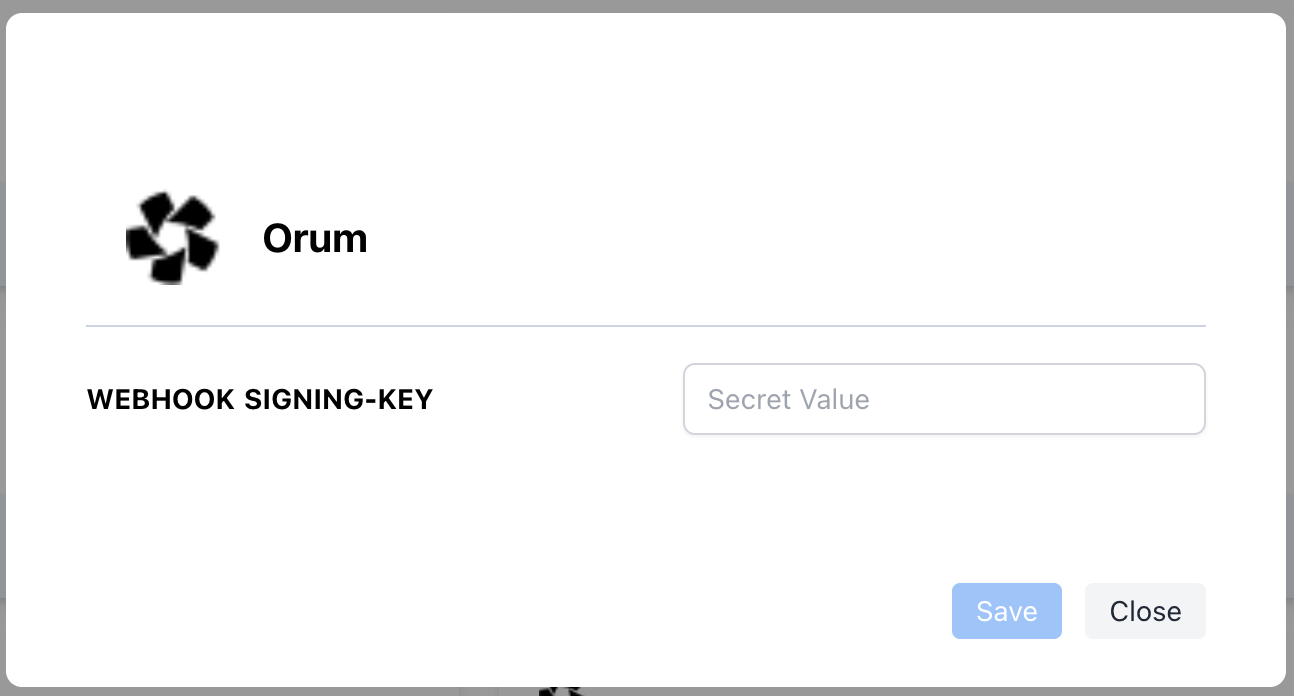
3. Find **Orum** and click **Secret Keys**
4. Enter your webhook signing key and **Save**
Once saved, Contact Momentum support who will provide you with a unique **Webhook URL** for your organization.
 ### Step 3: Configure Webhook URL in Orum
1. Return to your Orum Admin Portal
2. Navigate to **Settings → System → Webhooks**
3. Add a new webhook with the following settings:
* **URL**: *(the webhook URL provided by Momentum)*
4. Save the webhook configuration
5. Optional: Use Orum's **Test** button to send a test event
Orum's test events do not include the webhook signature header that Momentum uses to verify authenticity. As a result, test events will return an **Unauthorized** error. This is expected and does not indicate a problem with your configuration. To confirm the integration is working, make a real call in Orum.
Your integration is now complete!
## Assign AI License Seats
To enable Orum call sync for specific users:
1. Log in to the [Momentum admin](https://app.momentum.io/admin/team) page.
2. In the **Team** section, invite or locate users to license.
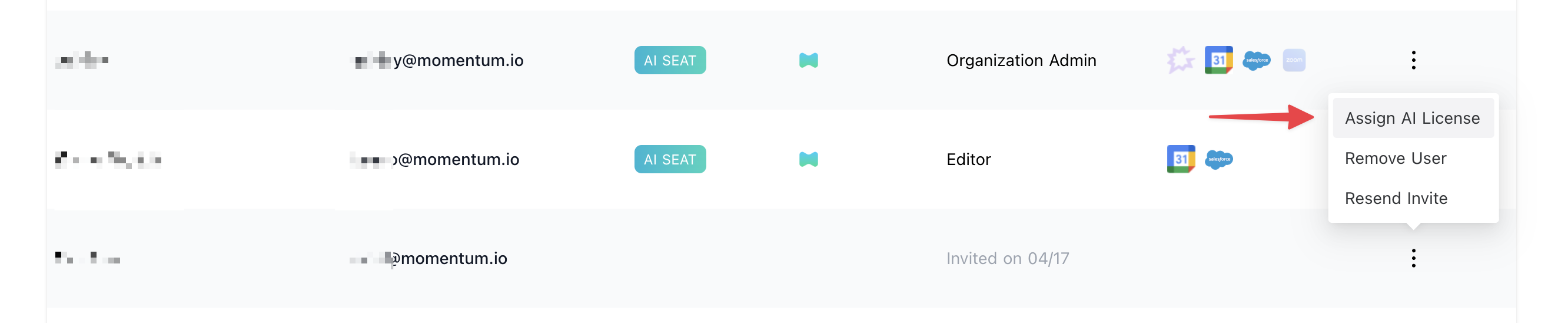
3. Click **Assign AI License** for each user.
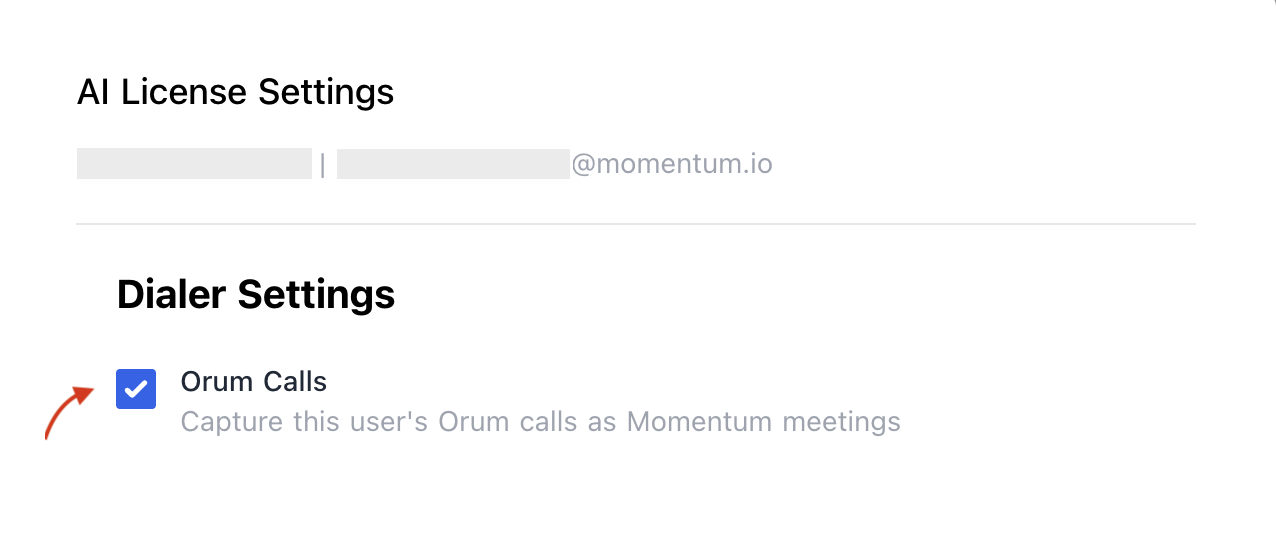
4. Enable **Orum calls** to sync that user's calls.
### Step 3: Configure Webhook URL in Orum
1. Return to your Orum Admin Portal
2. Navigate to **Settings → System → Webhooks**
3. Add a new webhook with the following settings:
* **URL**: *(the webhook URL provided by Momentum)*
4. Save the webhook configuration
5. Optional: Use Orum's **Test** button to send a test event
Orum's test events do not include the webhook signature header that Momentum uses to verify authenticity. As a result, test events will return an **Unauthorized** error. This is expected and does not indicate a problem with your configuration. To confirm the integration is working, make a real call in Orum.
Your integration is now complete!
## Assign AI License Seats
To enable Orum call sync for specific users:
1. Log in to the [Momentum admin](https://app.momentum.io/admin/team) page.
2. In the **Team** section, invite or locate users to license.
3. Click **Assign AI License** for each user.
4. Enable **Orum calls** to sync that user's calls.
 ## Troubleshooting
* Calls may be missing if:
* The webhook URL is not set correctly in Orum. Verify the URL in **Settings → System → Webhooks**.
* The signing key in Momentum does not match the key configured in Orum. Re-enter the key in both systems.
* The call event does not have prospect information(name or phone number) associated with it.
* Calls are below the minimum duration threshold
* Calls do not have recording links
If you encounter issues, contact our support team:
* Slack: Use your shared Momentum channel
* Email: [support@momentum.io](mailto:support@momentum.io)
## FAQs
Yes. Orum sends webhook events immediately once a call is ended. Calls typically appear in Momentum within a few minutes of completion.
No. Orum's webhook integration only captures calls going forward from the time the webhook is configured.
Calls without recordings, calls below the minimum duration threshold, and calls missing prospect details (no name or phone number) are automatically excluded.
## Troubleshooting
* Calls may be missing if:
* The webhook URL is not set correctly in Orum. Verify the URL in **Settings → System → Webhooks**.
* The signing key in Momentum does not match the key configured in Orum. Re-enter the key in both systems.
* The call event does not have prospect information(name or phone number) associated with it.
* Calls are below the minimum duration threshold
* Calls do not have recording links
If you encounter issues, contact our support team:
* Slack: Use your shared Momentum channel
* Email: [support@momentum.io](mailto:support@momentum.io)
## FAQs
Yes. Orum sends webhook events immediately once a call is ended. Calls typically appear in Momentum within a few minutes of completion.
No. Orum's webhook integration only captures calls going forward from the time the webhook is configured.
Calls without recordings, calls below the minimum duration threshold, and calls missing prospect details (no name or phone number) are automatically excluded.