> ## Documentation Index
> Fetch the complete documentation index at: https://docs.momentum.io/llms.txt
> Use this file to discover all available pages before exploring further.
# Integrating Dialpad with Momentum AI
Momentum connects to your Dialpad account to automatically ingest call recordings and metadata into Momentum's Call Library. These calls are processed like any other source in Momentum: summarized, analyzed, and made searchable.
## Prerequisites
You'll need Dialpad administrator access and a Momentum admin account.
Ensure users exist in both systems with matching work emails.
* Momentum workspace permissions to install and manage integrations.
* Calls must have recordings enabled in Dialpad.
* **Dialpad plan requirements**: API access is typically available on Dialpad Pro or Enterprise plans.
## Dialpad Configuration
### Required API Scopes
Your Dialpad API key must have the following additional scopes enabled:
| Scope | Purpose |
| ------------------- | --------------------------------------------------- |
| `Recordings export` | Required. Access to download call recordings |
| `List calls` | Required. Access to retrieve call data and metadata |
If the required scopes are not enabled, Momentum will not be able to retrieve call data or recordings.
### Enable Automatic Call Recording
Ensure that **Automatic Call Recording** is turned on in Dialpad Office Settings for all users whose calls should be synced to Momentum.
1. In Dialpad Admin Portal, navigate to **Office Settings**
2. Enable **Automatic Call Recording** for desired users.
## Generate your Dialpad API Key
1. Sign in to your Dialpad Admin Portal with an administrator account.
2. Navigate to **Admin Settings → My Company → Authentication → API Keys**.
3. Click **Add Key**.
4. Select the [required additional scopes](#required-api-scopes):
* **Recordings export**
* **List calls**
5. Click **Save**, then copy the **API Key**.
Store your API key securely immediately after generation. You may not be able to view it again after leaving the page.
## Add API Key to Momentum
1. Copy the generated API key from Dialpad.
2. Switch to your Momentum admin dashboard.
3. Find the Dialpad integration tile and paste the **API Key**.
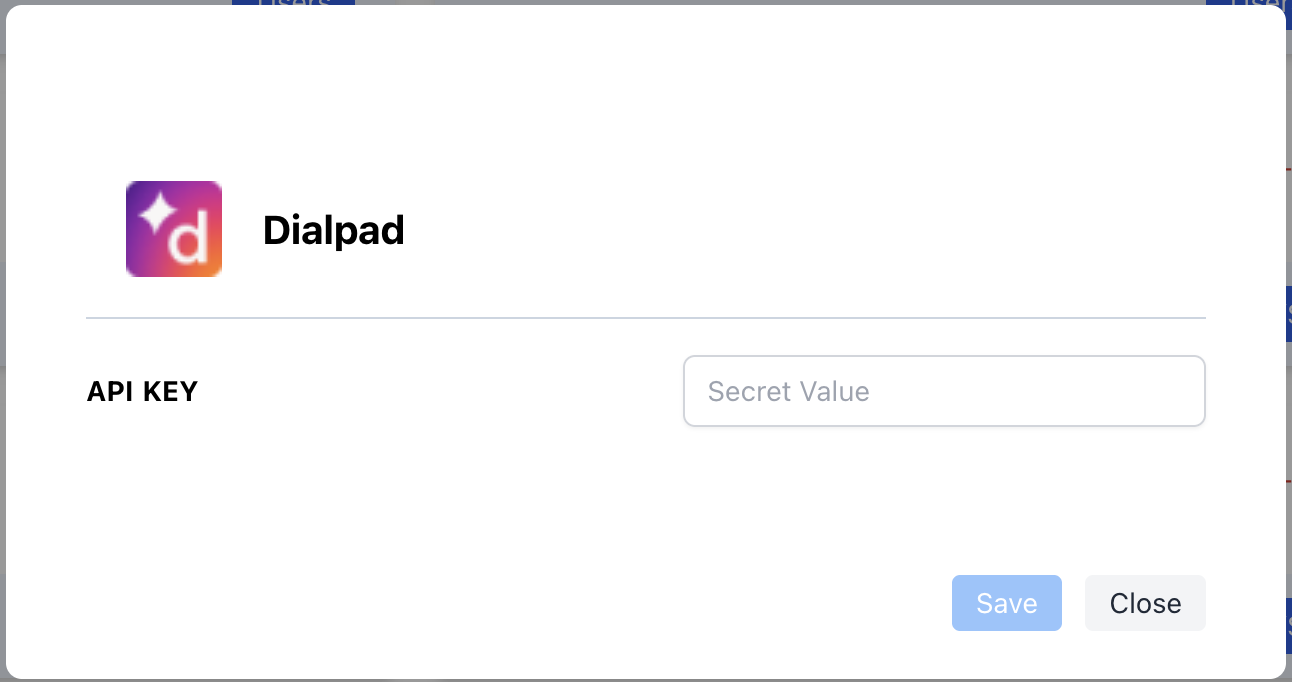 Your integration is now complete!
## Where to Find Calls
Open the **Call Library** in Momentum to browse and search Dialpad calls.
## Assign AI License Seats
To enable Dialpad call sync for users:
1. Log in to the [Momentum admin](https://app.momentum.io/admin/team) page.
2. In the **Team** section, invite or locate users to license.
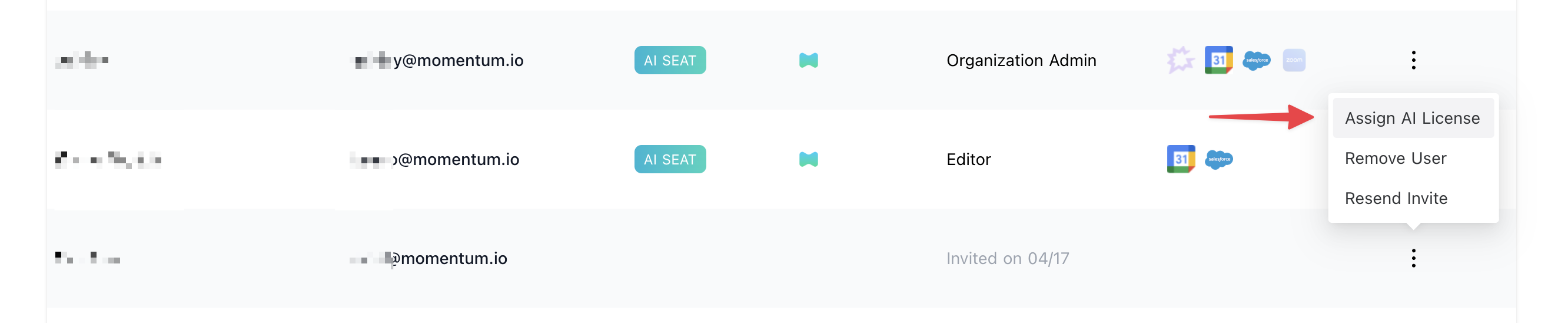
3. Click **Assign AI License** for each user.
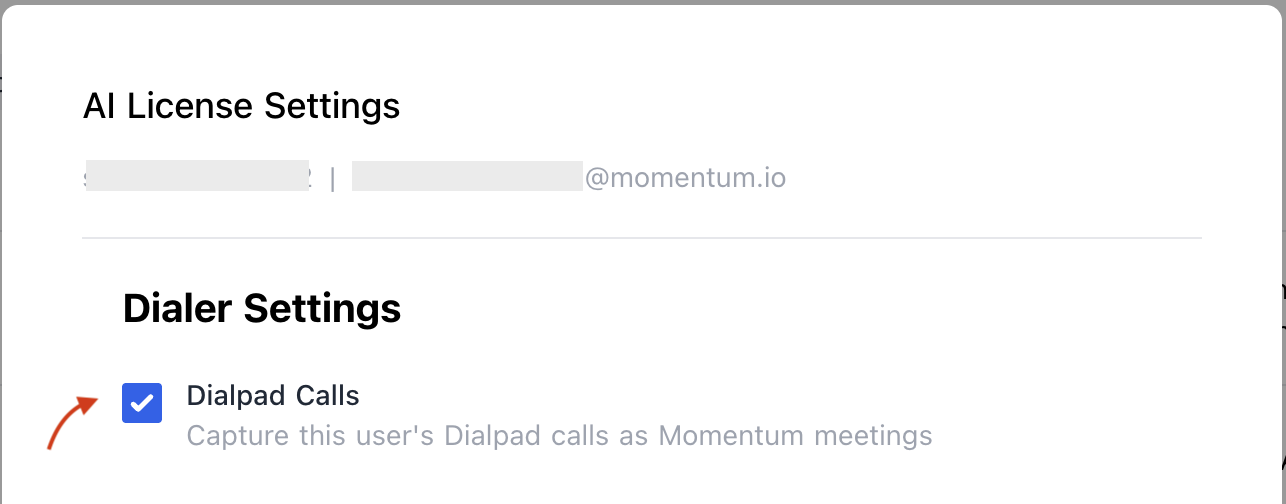
4. Enable **Dialpad calls** to sync that user's calls.
Your integration is now complete!
## Where to Find Calls
Open the **Call Library** in Momentum to browse and search Dialpad calls.
## Assign AI License Seats
To enable Dialpad call sync for users:
1. Log in to the [Momentum admin](https://app.momentum.io/admin/team) page.
2. In the **Team** section, invite or locate users to license.
3. Click **Assign AI License** for each user.
4. Enable **Dialpad calls** to sync that user's calls.
 ## Troubleshooting
* Calls may be missing if:
* Automatic Call Recording is not enabled for that user.
* The call does not have external contact information associated with it.
* The API key is missing the required scopes (`Recordings export`, `List calls`).
* Allow up to 15 minutes for the next sync cycle.
If you encounter issues, contact our support team:
* Slack: Use your shared Momentum channel
* Email: [support@momentum.io](mailto:support@momentum.io)
## FAQs
By default, ingestion starts after connection. Contact Momentum support for historical backfill requests.
Every 15 minutes, subject to Dialpad API rate limits.
You'll need to update the API key in Momentum's integration settings to maintain the connection.
API access is typically available on Dialpad Pro and Enterprise plans. Contact Dialpad support to confirm API availability for your specific plan.
## Troubleshooting
* Calls may be missing if:
* Automatic Call Recording is not enabled for that user.
* The call does not have external contact information associated with it.
* The API key is missing the required scopes (`Recordings export`, `List calls`).
* Allow up to 15 minutes for the next sync cycle.
If you encounter issues, contact our support team:
* Slack: Use your shared Momentum channel
* Email: [support@momentum.io](mailto:support@momentum.io)
## FAQs
By default, ingestion starts after connection. Contact Momentum support for historical backfill requests.
Every 15 minutes, subject to Dialpad API rate limits.
You'll need to update the API key in Momentum's integration settings to maintain the connection.
API access is typically available on Dialpad Pro and Enterprise plans. Contact Dialpad support to confirm API availability for your specific plan.