> ## Documentation Index
> Fetch the complete documentation index at: https://docs.momentum.io/llms.txt
> Use this file to discover all available pages before exploring further.
# Integrating CloudTalk with Momentum AI
Momentum AI's integration with CloudTalk enables you to automatically capture and analyze your CloudTalk calls directly within the Momentum platform. Once connected, all your CloudTalk conversations will be available for playback and can be processed through Momentum's AI workflows—including automated coaching insights, action item extraction, and CRM updates.
## Generate Your CloudTalk API Credentials
Copy Your CloudTalk API ID and Key
1. Sign in to the CloudTalk Dashboard with an administrator account.
2. In the left navigation, go to **Account → Settings → API Keys**.
3. Click **Add API Key**.
4. Copy the generated **API ID** and **API Key**.
## Connect CloudTalk in Momentum
In your Momentum dashboard, you can find CloudTalk and paste the previously copied API Id and Key.
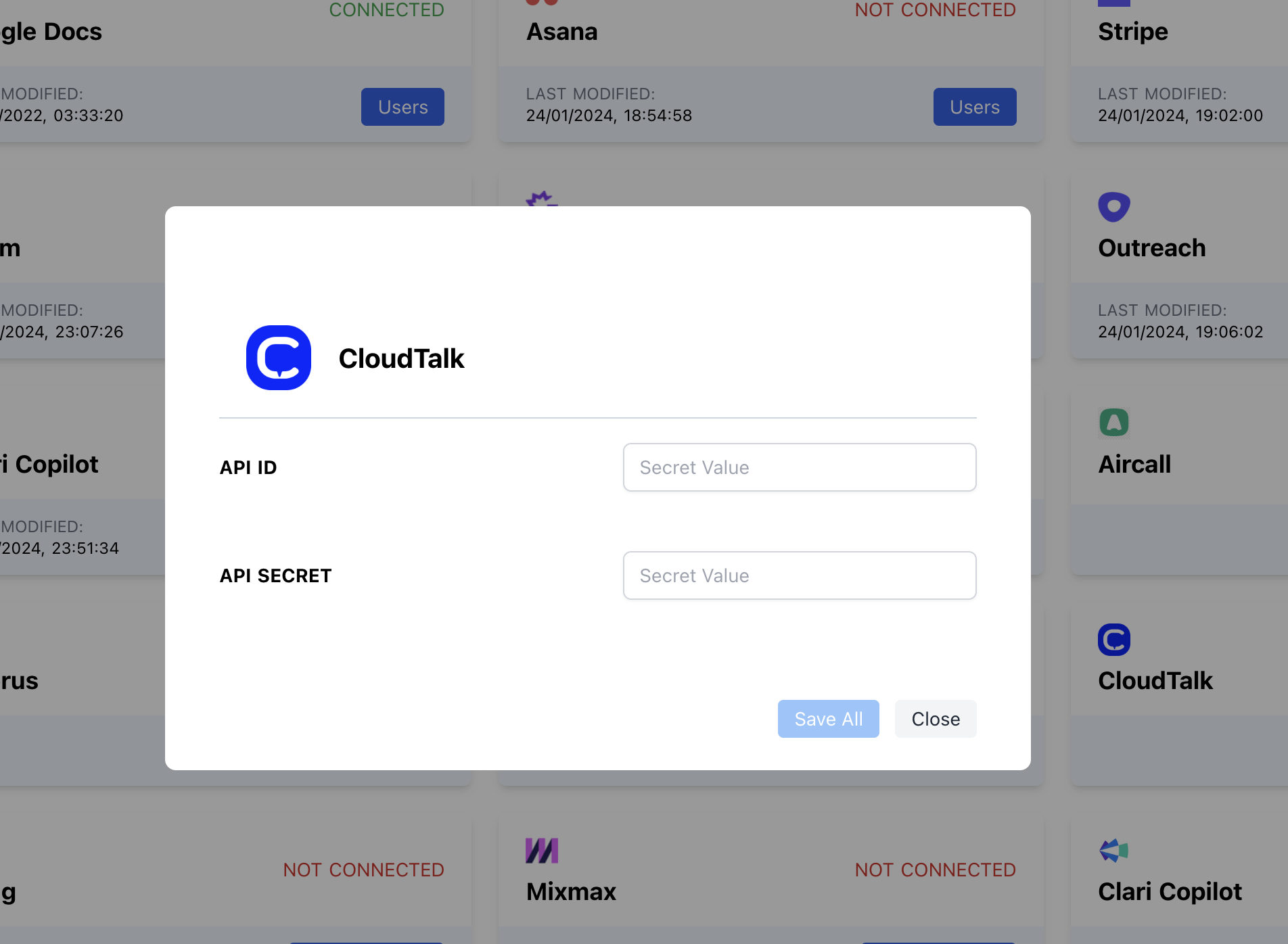 That's all! Your integration is now successfully completed.
## Ensure CloudTalk Call Access
In CloudTalk, head to **Account → Settings → General → Visibility of calls and recordings** and confirm recording is enabled for all calls you want Momentum to analyze.
## Assign AI License Seats To Your Team Members
To add users to the AI license Seats setting in Momentum:
1. Log in to the Momentum Admin: Visit the [Momentum admin](https://app.momentum.io/admin/team) page and log in with your credentials
2. In the Team section, find or invite the users you'd like to assign AI licenses to
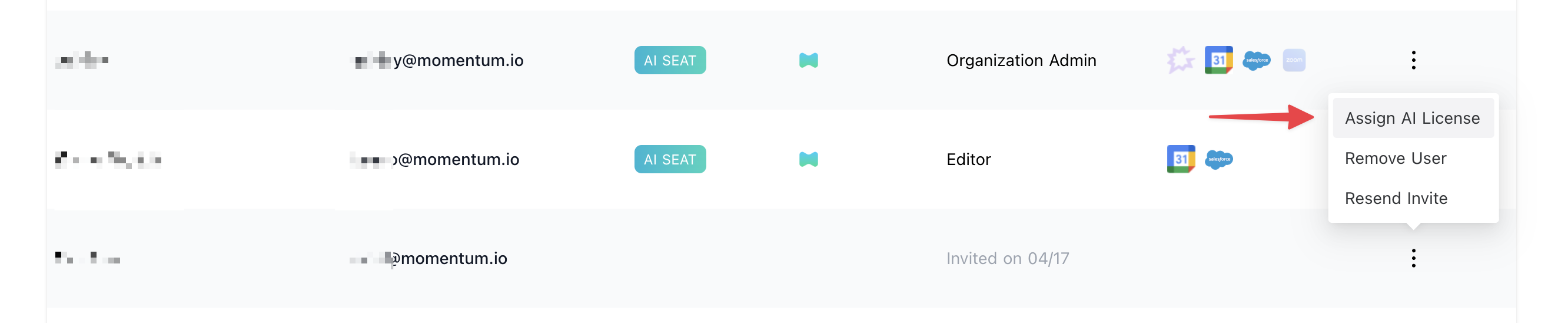
3. Click Assign AI License option in the users's record
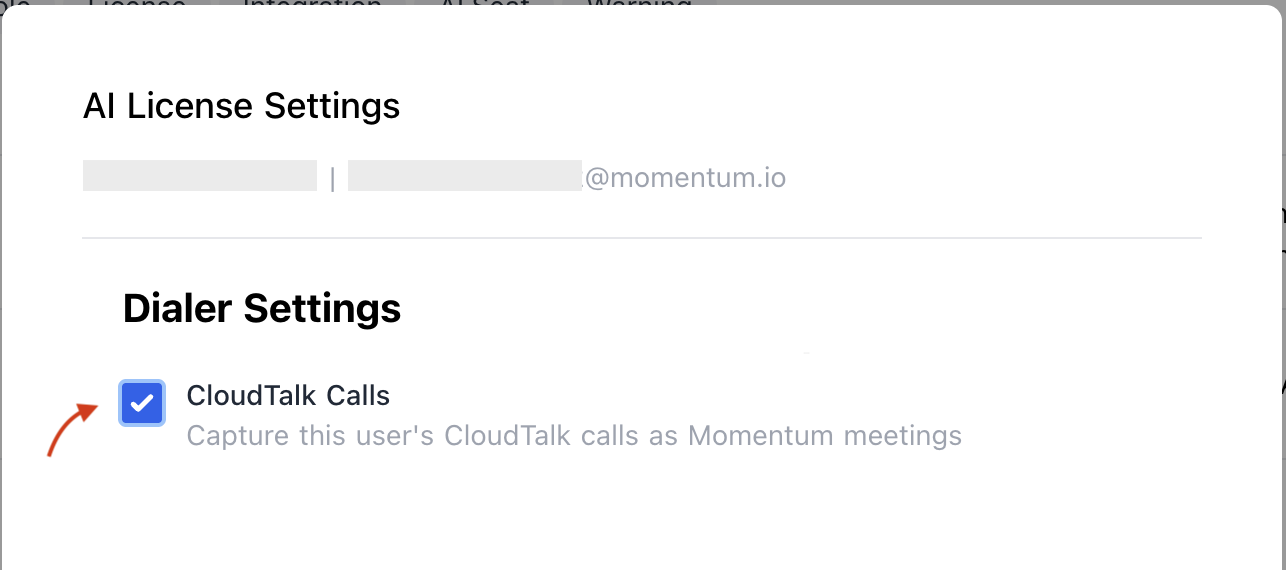
4. Enable **CloudTalk calls** to sync calls of the user.
That's all! Your integration is now successfully completed.
## Ensure CloudTalk Call Access
In CloudTalk, head to **Account → Settings → General → Visibility of calls and recordings** and confirm recording is enabled for all calls you want Momentum to analyze.
## Assign AI License Seats To Your Team Members
To add users to the AI license Seats setting in Momentum:
1. Log in to the Momentum Admin: Visit the [Momentum admin](https://app.momentum.io/admin/team) page and log in with your credentials
2. In the Team section, find or invite the users you'd like to assign AI licenses to
3. Click Assign AI License option in the users's record
4. Enable **CloudTalk calls** to sync calls of the user.
 ## Troubleshooting
Momentum's CloudTalk Integration requires two systems to communicate, and errors can occur in the event of miscommunication. For assistance troubleshooting Momentum's CloudTalk Integration, don't hesitate to contact our team via our shared Slack channel or at [support@momentum.io](mailto:support@momentum.io).
## Troubleshooting
Momentum's CloudTalk Integration requires two systems to communicate, and errors can occur in the event of miscommunication. For assistance troubleshooting Momentum's CloudTalk Integration, don't hesitate to contact our team via our shared Slack channel or at [support@momentum.io](mailto:support@momentum.io).