> ## Documentation Index
> Fetch the complete documentation index at: https://docs.momentum.io/llms.txt
> Use this file to discover all available pages before exploring further.
# Integrating Amazon Connect with Momentum AI
Momentum connects directly to your Amazon Connect instance to automatically ingest call recordings and metadata into Momentum's Call Library. These calls are processed like any other source in Momentum: transcribed, summarized, analyzed, and made searchable.
## How the Integration Works
Momentum integrates with Amazon Connect through **direct AWS access** to your Connect instance:
* Momentum calls the Amazon Connect API (`SearchContacts` → `DescribeContact`) on a recurring schedule to discover new voice calls.
* Recording audio is downloaded from your Connect **recording S3 bucket** using the AWS credentials you provide.
* Transcripts are generated by Momentum from that audio.
Momentum ingests Amazon Connect calls **directly from AWS** — not through
Salesforce. If your Amazon Connect instance is wired to Salesforce via
Salesforce Voice (Service Cloud Voice), see
[Using Amazon Connect with Salesforce Voice](#using-amazon-connect-with-salesforce-voice-service-cloud-voice)
below.
## Prerequisites
You'll need AWS administrator (IAM) access to your Amazon Connect account and a Momentum admin account.
Ensure your Amazon Connect agents have work emails that match their Momentum users.
* An active AWS account with an Amazon Connect instance.
* Call recording enabled on the instance, with an S3 bucket configured for recordings.
* Admin access to AWS IAM to create a programmatic user and policy.
* Momentum workspace permissions to install and manage integrations.
## Amazon Connect - AWS Configuration
### Step 1: Create an IAM User
1. Go to **AWS Console → IAM → Users → Create user**.
2. User name: `momentum-connect-integration` (or any descriptive name).
3. Do **not** enable console access — this user only needs programmatic access.
4. Click **Next**.
### Step 2: Attach a Read-Only Policy
On the **Set permissions** page:
1. Select **Attach policies directly**.
2. Click **Create policy** (opens in a new tab).
3. Switch to the **JSON** tab and paste this policy:
```json theme={null}
{
"Version": "2012-10-17",
"Statement": [
{
"Effect": "Allow",
"Action": [
"connect:SearchContacts",
"connect:DescribeContact",
"connect:SearchUsers",
"connect:GetContactAttributes",
"connect:ListUsers",
"connect:DescribeUser"
],
"Resource": [
"arn:aws:connect:*:*:instance/YOUR_INSTANCE_ID",
"arn:aws:connect:*:*:instance/YOUR_INSTANCE_ID/*"
]
}
]
}
```
4. Replace `YOUR_INSTANCE_ID` with your Amazon Connect instance ID (see [Step 4](#step-4-find-your-instance-id-and-region)).
5. Name the policy `MomentumConnectReadOnly` and click **Create policy**.
6. Return to the **Create user** tab, refresh the policy list, attach `MomentumConnectReadOnly`, then click **Next → Create user**.
This policy is **read-only** — Momentum cannot modify your Amazon Connect instance.
### Step 3: Generate Access Keys
1. Open the newly created user and go to the **Security credentials** tab.
2. Under **Access keys**, click **Create access key**.
3. Select **Third-party service** as the use case and acknowledge the notice.
4. Click **Create access key**.
5. **Save both values** — the secret key is only shown once:
* **Access key ID** (starts with `AKIA...`)
* **Secret access key**
Store your access keys securely immediately after generation. The secret access key cannot be retrieved later.
### Step 4: Find Your Instance ID and Region
1. Go to **AWS Console → Amazon Connect** and click your instance alias.
2. The **Instance ID** appears in the URL:
`https://console.aws.amazon.com/connect/home?region=us-east-1#/instance/INSTANCE_ID/overview`
* Example: `12345678-1234-1234-1234-123456789012`
3. The **Region** is also in the URL (for example, `us-east-1`).
The **Instance ARN** on the instance overview page contains both:
`arn:aws:connect:us-east-1:123456789:instance/12345678-...`
### Step 5: Confirm Call Recording Is Enabled
1. Open your Amazon Connect instance and go to **Data storage** settings.
2. Verify that **Call recordings** is enabled with an S3 bucket configured.
3. In your **contact flows**, ensure a "Set recording and analytics behavior" block is included with **Agent and Customer** recording enabled.
## Add Credentials to Momentum
1. Log in to Momentum as an org admin and go to **Admin → Integrations**.
2. Find the **Amazon Connect** integration tile and enter:
* **Access Key ID** — from [Step 3](#step-3-generate-access-keys)
* **Secret Access Key** — from [Step 3](#step-3-generate-access-keys)
* **Region** — from [Step 4](#step-4-find-your-instance-id-and-region) (for example, `us-east-1`)
* **Instance ID** — from [Step 4](#step-4-find-your-instance-id-and-region)
3. Click **Save**.
Your integration is now complete!
## Where to Find Calls
Open the **Call Library** in Momentum to browse and search Amazon Connect calls. Calls typically appear within 15 minutes of completion.
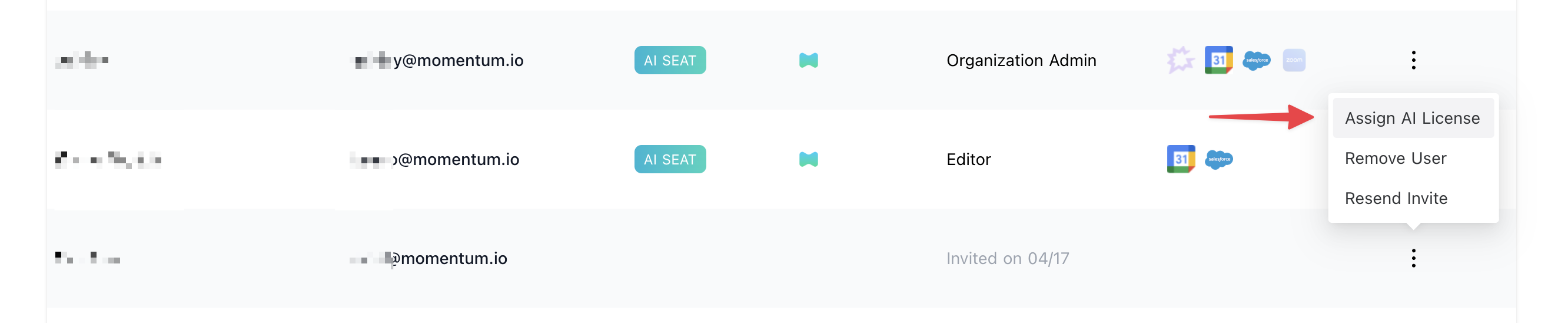
## Assign AI License Seats
To enable Amazon Connect call sync for users:
1. Log in to the [Momentum admin](https://app.momentum.io/admin/team) page.
2. In the **Team** section, invite or locate users to license.
3. Click **Assign AI License** for each user.
4. Enable **Amazon Connect calls** to sync that user's calls.
 ## Using Amazon Connect with Salesforce Voice (Service Cloud Voice)
If your Amazon Connect instance is connected to Salesforce through **Salesforce Voice (Service Cloud Voice / SCV)**, Momentum still ingests the calls **directly from Amazon Connect (API + S3)** — not through Salesforce. The SCV setup is fully supported, as long as Momentum has the direct AWS access described above.
When SCV is in use, Momentum can *optionally* use the Salesforce **`VoiceCall`** object to improve CRM linking:
* Momentum matches `VoiceCall.VendorCallKey` (the Amazon Connect contact ID) to resolve the related Contact, Lead, Account, or Case.
* The matched `VoiceCall` record can also serve as the write-back target for Momentum's insights.
* If no matching `VoiceCall` record is found, Momentum falls back to standard Salesforce Task and Contact matching.
A configuration where call recordings are reachable **only** inside Salesforce
(via SCV) — with no direct Amazon Connect API and S3 access — is **not
supported**. Momentum must be able to read recordings directly from your
Amazon Connect instance.
## Troubleshooting
If you encounter issues, contact our support team:
* Slack: Use your shared Momentum channel
* Email: [support@momentum.io](mailto:support@momentum.io)
## FAQs
Yes. Amazon Connect + Salesforce works, including when Amazon Connect is wired to
Salesforce through Salesforce Voice (Service Cloud Voice). Momentum ingests the
calls directly from Amazon Connect (API + the recording S3 bucket), and can
optionally use the Salesforce `VoiceCall` object to sharpen CRM linking. Momentum
does not ingest calls, recordings, or transcripts *through* Salesforce Voice, so
direct AWS access is always required.
No. Recording audio is always downloaded directly from your Amazon Connect S3
bucket using the AWS credentials you provide. Salesforce is used only for CRM
linking and write-back, never as the source of the call or its recording.
Yes. The `MomentumConnectReadOnly` IAM policy grants read-only Amazon Connect
permissions. Momentum cannot modify your Amazon Connect instance. You can rotate
or revoke the access keys at any time from AWS IAM.
By default, ingestion starts after connection. Contact Momentum support for historical backfill requests.
Create a new access key pair in AWS IAM, update the credentials in Momentum's
Amazon Connect integration settings, then delete the old key pair.
## Using Amazon Connect with Salesforce Voice (Service Cloud Voice)
If your Amazon Connect instance is connected to Salesforce through **Salesforce Voice (Service Cloud Voice / SCV)**, Momentum still ingests the calls **directly from Amazon Connect (API + S3)** — not through Salesforce. The SCV setup is fully supported, as long as Momentum has the direct AWS access described above.
When SCV is in use, Momentum can *optionally* use the Salesforce **`VoiceCall`** object to improve CRM linking:
* Momentum matches `VoiceCall.VendorCallKey` (the Amazon Connect contact ID) to resolve the related Contact, Lead, Account, or Case.
* The matched `VoiceCall` record can also serve as the write-back target for Momentum's insights.
* If no matching `VoiceCall` record is found, Momentum falls back to standard Salesforce Task and Contact matching.
A configuration where call recordings are reachable **only** inside Salesforce
(via SCV) — with no direct Amazon Connect API and S3 access — is **not
supported**. Momentum must be able to read recordings directly from your
Amazon Connect instance.
## Troubleshooting
If you encounter issues, contact our support team:
* Slack: Use your shared Momentum channel
* Email: [support@momentum.io](mailto:support@momentum.io)
## FAQs
Yes. Amazon Connect + Salesforce works, including when Amazon Connect is wired to
Salesforce through Salesforce Voice (Service Cloud Voice). Momentum ingests the
calls directly from Amazon Connect (API + the recording S3 bucket), and can
optionally use the Salesforce `VoiceCall` object to sharpen CRM linking. Momentum
does not ingest calls, recordings, or transcripts *through* Salesforce Voice, so
direct AWS access is always required.
No. Recording audio is always downloaded directly from your Amazon Connect S3
bucket using the AWS credentials you provide. Salesforce is used only for CRM
linking and write-back, never as the source of the call or its recording.
Yes. The `MomentumConnectReadOnly` IAM policy grants read-only Amazon Connect
permissions. Momentum cannot modify your Amazon Connect instance. You can rotate
or revoke the access keys at any time from AWS IAM.
By default, ingestion starts after connection. Contact Momentum support for historical backfill requests.
Create a new access key pair in AWS IAM, update the credentials in Momentum's
Amazon Connect integration settings, then delete the old key pair.