> ## Documentation Index
> Fetch the complete documentation index at: https://docs.momentum.io/llms.txt
> Use this file to discover all available pages before exploring further.
# Manually Invite Momentum Recording Bot to External Meetings
## Overview
Some organizations restrict blanket recording of externally hosted calls due to privacy or consent policies. As a result, users may not have an AI seat assigned for customer-hosted calls.
To address this, Momentum supports manual invitation of the recording bot to external meetings, bypassing the usual AI license checks.
## How It Works
* **Admin Control:**\
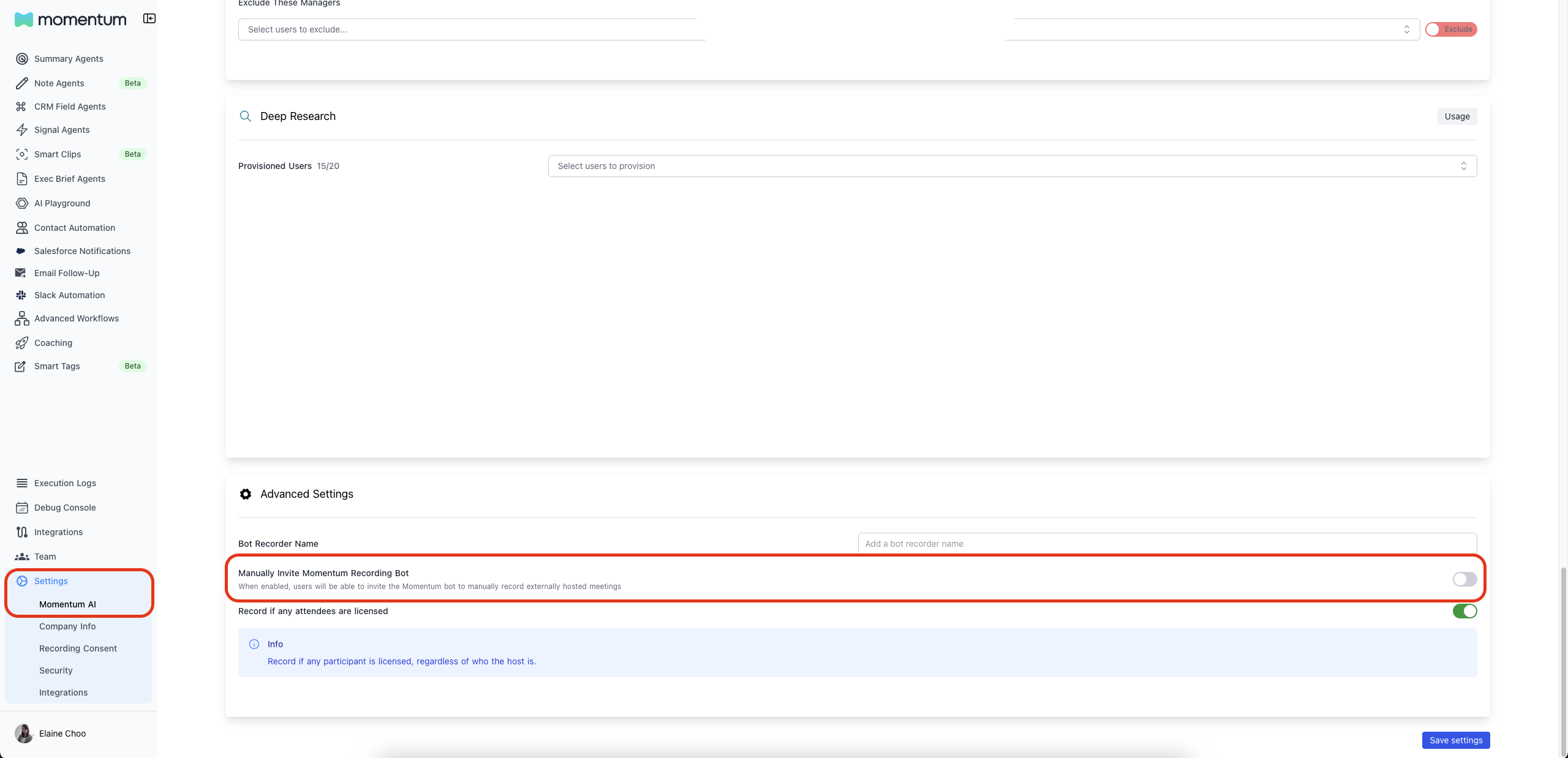
In the Momentum AI Settings page, admins can toggle the Manually Invite Momentum Recording Bot setting.
* **User Experience:**\
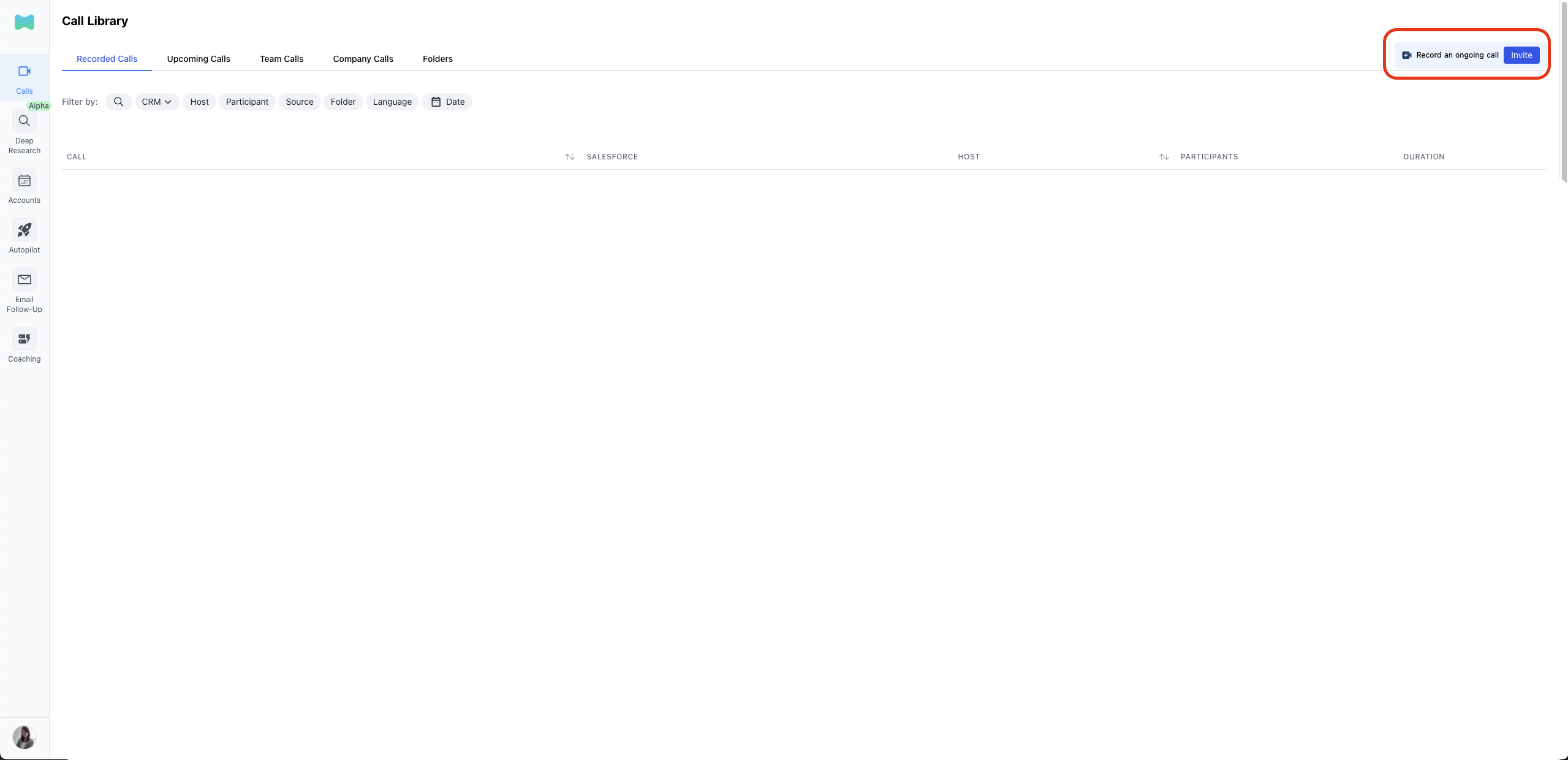
When enabled, users see an Invite button in the Call Library, allowing them to manually invite the Momentum bot to an ongoing external meeting.
* **License Bypass:**\
If the setting is enabled, users can invite the bot even if they do not have an AI license for externally hosted meetings.
## Steps to Use
**Admin Setup**
PREREQUISITE : You must be at least an Organization Admin to have access to this setting.
1. Go to the Momentum AI Settings page in the Admin dashboard.
2. Toggle Manually Invite Momentum Recording Bot to enable manual invitations.
 **User Action**
1. Navigate to the Call Library.
2. Click the Invite button.
**User Action**
1. Navigate to the Call Library.
2. Click the Invite button.
 3. Enter the meeting link, title, and participant email addresses.
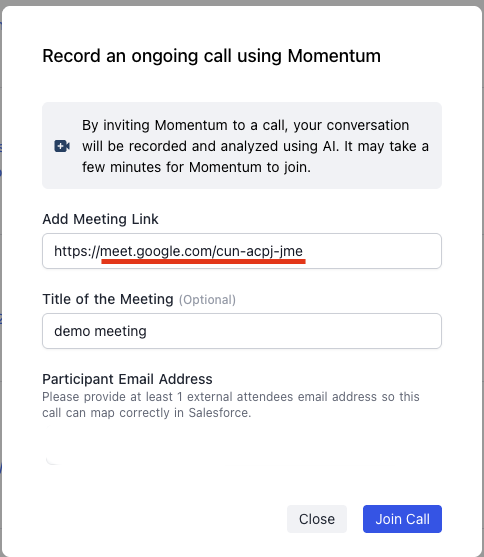 4. Press Join Call and the Momentum bot will request to join your meeting.
5. Admit the Momentum bot to start recording and analyzing your meetings
4. Press Join Call and the Momentum bot will request to join your meeting.
5. Admit the Momentum bot to start recording and analyzing your meetings