> ## Documentation Index
> Fetch the complete documentation index at: https://docs.momentum.io/llms.txt
> Use this file to discover all available pages before exploring further.
# Daily Call Reviews
> Configure daily email digests for reps and managers
## Overview
Daily Call Reviews send personalized email digests every morning at **8:00 AM** in each recipient's local time zone. These emails help reps prepare for upcoming calls and keep managers connected to their team's activities.
### Two Features in One
**Daily Call Review for Reps**
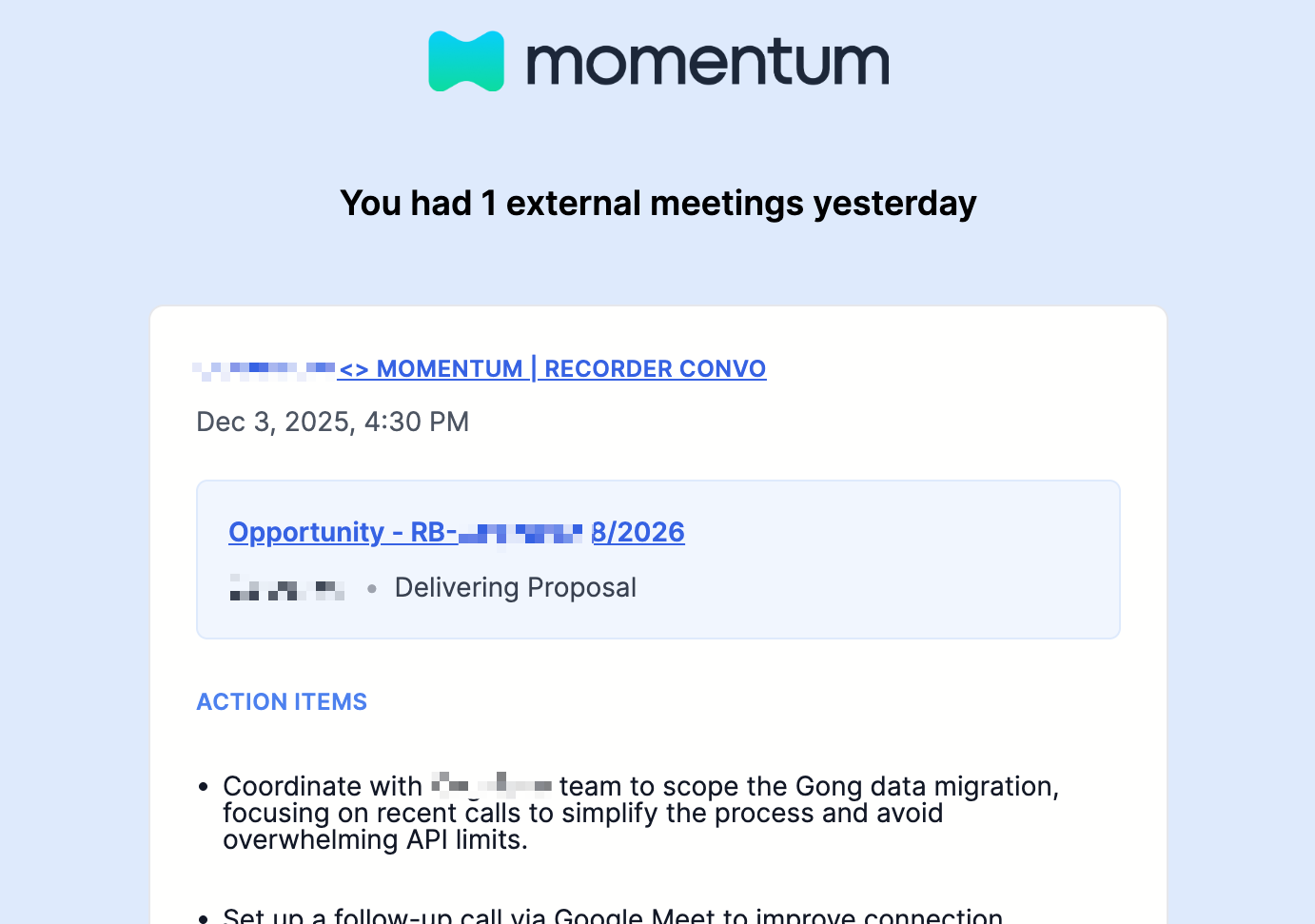
* Sent to all call attendees (not just hosts)
* Includes today's upcoming calls with context from previous meetings
* Includes yesterday's call summaries with action items
* Subject line: `Keep the momentum daily`
**Daily Call Review for Managers**
* Sent to team managers
* Two separate emails that can be enabled independently:
* **Team Focus** (Today's Upcoming): `Momentum Daily — Team Focus`
* **Team Recap** (Yesterday's Recap): `Momentum Daily — Team Recap`
* Shows a smartly prioritized list of team meetings based on deal stage, opportunity amount, and conversation topics
 ## Prerequisites
* [Momentum AI installed with your preferred call provider](/how-to-install-momentum)
* Admin access for organization-wide settings
* Call recordings and summaries enabled
* Salesforce integration active (for contextual information)
***
## Daily Call Review for Reps
### Admin Configuration
#### Enable the Feature
1. Log in to your [Momentum admin dashboard](https://app.momentum.io/admin/momentum-ai-settings)
2. Navigate to **Momentum AI Settings** → **Email** section
3. Toggle **Daily Call Review for Reps** to **ON**
4. Click **Save settings**
**Important:** When enabled, all users automatically receive emails. Users must opt out if they don't want to receive them.
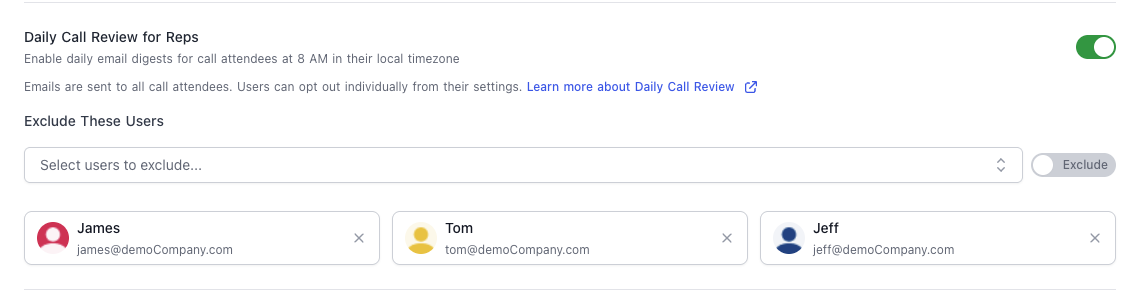
#### Manage Exclusions (Optional)
Use the toggle to switch between **Exclude** and **Include** modes:
* **Exclude mode (default):** People on the list will never get emails. Add users via **Select users to exclude...** and save.
* **Include mode:** Only people on the list will receive emails; the exclude list is ignored while this is on. Add users via **Select users to include...** and save.
If a user turns off the feature for themselves, they are removed from the include list and automatically added to the exclude list. Remove someone from either list by clicking the **X** on their user block and saving.
## Prerequisites
* [Momentum AI installed with your preferred call provider](/how-to-install-momentum)
* Admin access for organization-wide settings
* Call recordings and summaries enabled
* Salesforce integration active (for contextual information)
***
## Daily Call Review for Reps
### Admin Configuration
#### Enable the Feature
1. Log in to your [Momentum admin dashboard](https://app.momentum.io/admin/momentum-ai-settings)
2. Navigate to **Momentum AI Settings** → **Email** section
3. Toggle **Daily Call Review for Reps** to **ON**
4. Click **Save settings**
**Important:** When enabled, all users automatically receive emails. Users must opt out if they don't want to receive them.
#### Manage Exclusions (Optional)
Use the toggle to switch between **Exclude** and **Include** modes:
* **Exclude mode (default):** People on the list will never get emails. Add users via **Select users to exclude...** and save.
* **Include mode:** Only people on the list will receive emails; the exclude list is ignored while this is on. Add users via **Select users to include...** and save.
If a user turns off the feature for themselves, they are removed from the include list and automatically added to the exclude list. Remove someone from either list by clicking the **X** on their user block and saving.
 ### User Configuration
Users can opt out of Daily Call Reviews:
1. Navigate to [Momentum Settings](https://app.momentum.io/settings)
2. Locate the **Daily Meeting Review** card
3. Toggle **Daily Call Review Email** to **OFF** to stop receiving emails
### What Reps Receive
**Today's Upcoming Calls:**
* Meeting title, time, and participants
* Context from previous calls with the same attendees
* Associated action items from prior conversations
* Salesforce details: Account, Opportunity, Amount, Stage
* Direct link to call page
**Yesterday's Calls:**
* Meeting title and time
* Compact summary (4 lines max)
* Associated action items
* Salesforce context
* Direct link to call page
***
## Daily Call Review for Managers
**Note:** This feature may require a feature flag. Contact [support@momentum.io](mailto:support@momentum.io) if you don't see it.
### Admin Configuration
#### Enable Email Types
1. Log in to your [Momentum admin dashboard](https://app.momentum.io/admin/momentum-ai-settings)
2. Navigate to **Momentum AI Settings** → **Email** section
3. Locate **Daily Call Review for Managers**
Toggle on the email types you want to enable:
**Yesterday's Recap:**
* Subject: `Momentum Daily — Team Recap`
* Summaries of yesterday's meetings for direct reports
**Today's Upcoming:**
* Subject: `Momentum Daily — Team Focus`
* Prep notes for today's meetings with context from previous calls
Click **Save settings** to apply.
**Important:** When enabled, all managers automatically receive emails. Managers must opt out if they don't want to receive them.
#### Manage Exclusions (Optional)
Use the toggle to choose how you target manager emails:
* **Exclude mode (default):** Managers on the list never receive either email type. Add them via **Select users to exclude...** and save.
* **Include mode:** Only managers on the list receive the emails, and the exclude list is disabled while this is on. Add them via **Select users to include...** and save.
When a manager turns off the feature in their personal settings, they are removed from the include list and added to the exclude list. Remove someone from either list by clicking the **X** on their user block and saving.
### User Configuration
Users can opt out of Daily Call Reviews:
1. Navigate to [Momentum Settings](https://app.momentum.io/settings)
2. Locate the **Daily Meeting Review** card
3. Toggle **Daily Call Review Email** to **OFF** to stop receiving emails
### What Reps Receive
**Today's Upcoming Calls:**
* Meeting title, time, and participants
* Context from previous calls with the same attendees
* Associated action items from prior conversations
* Salesforce details: Account, Opportunity, Amount, Stage
* Direct link to call page
**Yesterday's Calls:**
* Meeting title and time
* Compact summary (4 lines max)
* Associated action items
* Salesforce context
* Direct link to call page
***
## Daily Call Review for Managers
**Note:** This feature may require a feature flag. Contact [support@momentum.io](mailto:support@momentum.io) if you don't see it.
### Admin Configuration
#### Enable Email Types
1. Log in to your [Momentum admin dashboard](https://app.momentum.io/admin/momentum-ai-settings)
2. Navigate to **Momentum AI Settings** → **Email** section
3. Locate **Daily Call Review for Managers**
Toggle on the email types you want to enable:
**Yesterday's Recap:**
* Subject: `Momentum Daily — Team Recap`
* Summaries of yesterday's meetings for direct reports
**Today's Upcoming:**
* Subject: `Momentum Daily — Team Focus`
* Prep notes for today's meetings with context from previous calls
Click **Save settings** to apply.
**Important:** When enabled, all managers automatically receive emails. Managers must opt out if they don't want to receive them.
#### Manage Exclusions (Optional)
Use the toggle to choose how you target manager emails:
* **Exclude mode (default):** Managers on the list never receive either email type. Add them via **Select users to exclude...** and save.
* **Include mode:** Only managers on the list receive the emails, and the exclude list is disabled while this is on. Add them via **Select users to include...** and save.
When a manager turns off the feature in their personal settings, they are removed from the include list and added to the exclude list. Remove someone from either list by clicking the **X** on their user block and saving.
 ### Manager Configuration
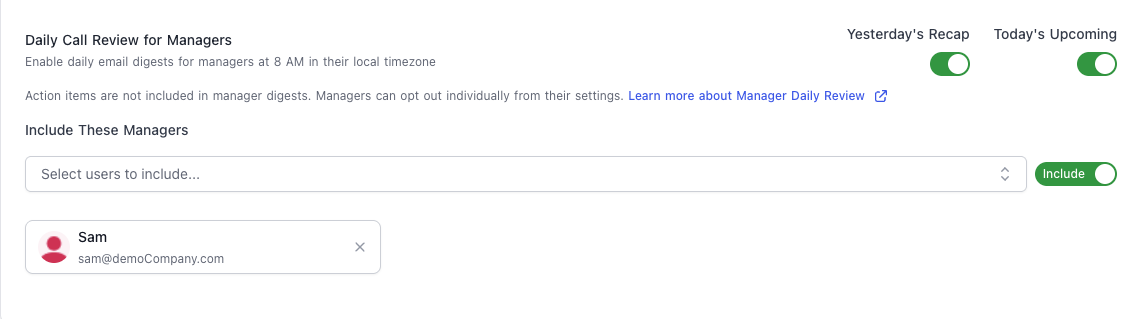
Managers can opt out or customize which emails they receive:
1. Navigate to [Momentum Settings](https://app.momentum.io/settings)
2. Locate the **Daily Meeting Review** card
3. Toggle **Email me a daily review of my team's meetings** to **OFF** to stop all manager emails
**Or customize individual emails:**
* Keep the master toggle **ON**
* Toggle **Yesterday's Recap** or **Today's Upcoming** individually
### What Managers Receive
Manager emails show a **smartly prioritized selection** of team meetings, filtered based on:
* Opportunity stage and amount
* Conversation topics and key moments
* Deal importance and activity
### Manager Configuration
Managers can opt out or customize which emails they receive:
1. Navigate to [Momentum Settings](https://app.momentum.io/settings)
2. Locate the **Daily Meeting Review** card
3. Toggle **Email me a daily review of my team's meetings** to **OFF** to stop all manager emails
**Or customize individual emails:**
* Keep the master toggle **ON**
* Toggle **Yesterday's Recap** or **Today's Upcoming** individually
### What Managers Receive
Manager emails show a **smartly prioritized selection** of team meetings, filtered based on:
* Opportunity stage and amount
* Conversation topics and key moments
* Deal importance and activity
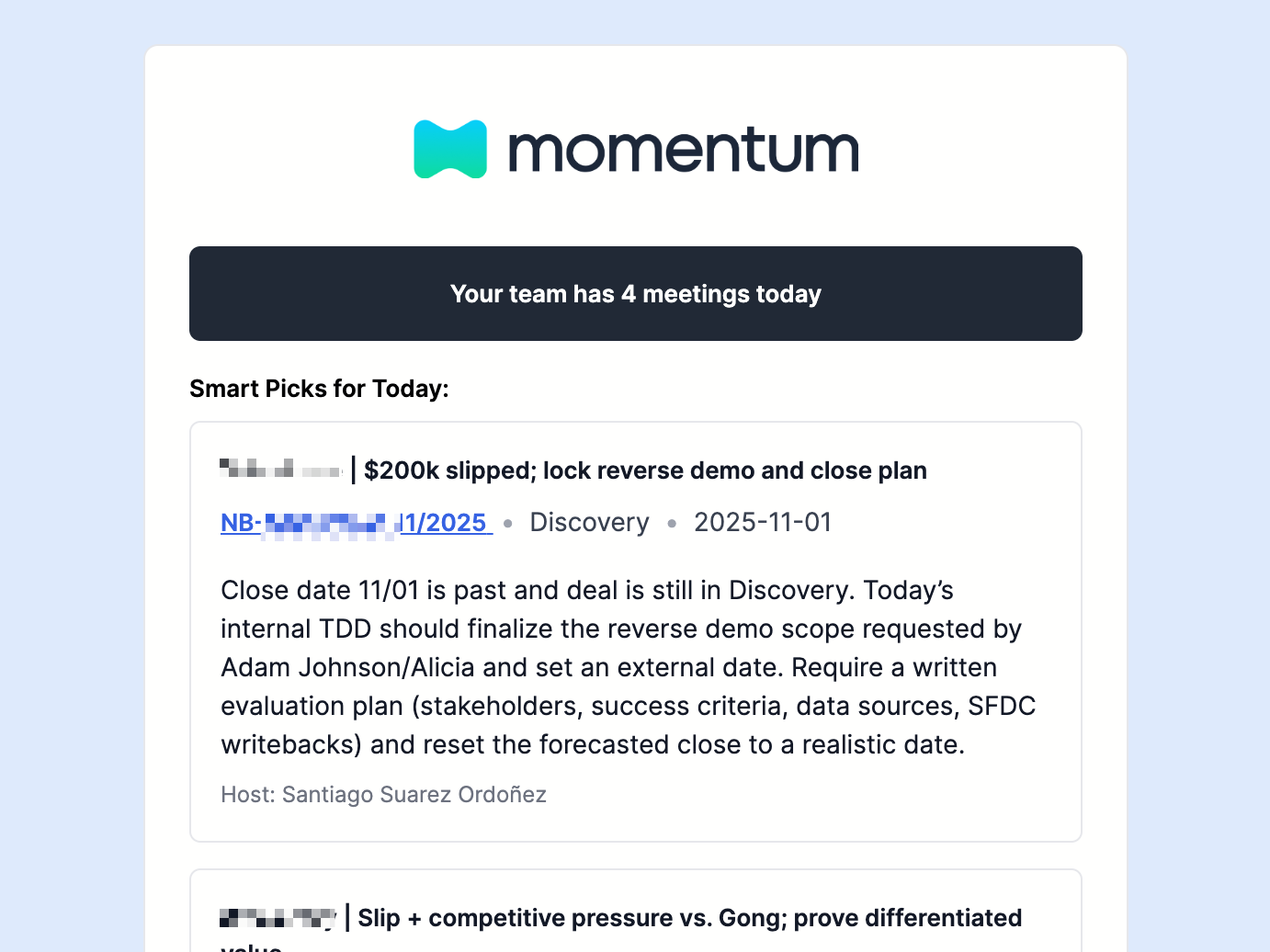 **Team Focus Email** (Today's Upcoming):
* Subject: `Momentum Daily — Team Focus`
* Prioritized list of today's scheduled meetings
* Meeting title, time, and participants
* Account and Opportunity (if mapped to Salesforce)
* Context summary from previous calls (4 lines max)
* Link to call page
**Team Recap Email** (Yesterday's Recap):
* Subject: `Momentum Daily — Team Recap`
* Prioritized list of yesterday's completed meetings
* Meeting title, date/time, and participants
* Account and Opportunity (if mapped)
* Compact summary (4 lines max)
* Link to call page
***
## Troubleshooting
### Not Receiving Emails?
Check in this order:
1. **Admin Settings:** Verify the feature is enabled in [admin dashboard](https://app.momentum.io/admin/momentum-ai-settings)
2. **Exclusion List:** Check if you're on the admin's exclusion list
3. **Personal Settings:** Verify your toggle is **ON** in [personal settings](https://app.momentum.io/settings)
4. **Wait for Next Email:** Emails send at 8:00 AM local time; changes apply to the next scheduled email
### Missing Salesforce Context?
* Verify your [Salesforce integration](/salesforce-event-mapping) is active
* Check that calls are mapped to Salesforce objects
* Ensure attendee emails match Salesforce Contact or Lead emails
### Manager Sub-Toggles Disabled?
* Admin must enable the corresponding email type
* Contact your admin to enable it
* If the issue persists, contact [support@momentum.io](mailto:support@momentum.io)
***
## Best Practices
### For Admins
**Rollout Strategy:**
* Communicate the change before enabling (users receive emails automatically)
* Start with one email type for managers before enabling both
* Use exclusions sparingly (executives or specific roles only)
**Monitoring:**
* Track opt-out rates to gauge adoption
* Gather feedback on email quality and relevance
### For Reps
* Review emails every morning before calls
* Click through for deeper context when needed
* Follow up on action items from previous calls
### For Managers
* Skim emails to identify coaching opportunities
* Reference specific calls in 1-on-1s
* Disable email types that aren't providing value
***
## Support
Need help with Daily Call Reviews?
* **Slack**: Use your shared Momentum channel
* **Email**: [support@momentum.io](mailto:support@momentum.io)
**Team Focus Email** (Today's Upcoming):
* Subject: `Momentum Daily — Team Focus`
* Prioritized list of today's scheduled meetings
* Meeting title, time, and participants
* Account and Opportunity (if mapped to Salesforce)
* Context summary from previous calls (4 lines max)
* Link to call page
**Team Recap Email** (Yesterday's Recap):
* Subject: `Momentum Daily — Team Recap`
* Prioritized list of yesterday's completed meetings
* Meeting title, date/time, and participants
* Account and Opportunity (if mapped)
* Compact summary (4 lines max)
* Link to call page
***
## Troubleshooting
### Not Receiving Emails?
Check in this order:
1. **Admin Settings:** Verify the feature is enabled in [admin dashboard](https://app.momentum.io/admin/momentum-ai-settings)
2. **Exclusion List:** Check if you're on the admin's exclusion list
3. **Personal Settings:** Verify your toggle is **ON** in [personal settings](https://app.momentum.io/settings)
4. **Wait for Next Email:** Emails send at 8:00 AM local time; changes apply to the next scheduled email
### Missing Salesforce Context?
* Verify your [Salesforce integration](/salesforce-event-mapping) is active
* Check that calls are mapped to Salesforce objects
* Ensure attendee emails match Salesforce Contact or Lead emails
### Manager Sub-Toggles Disabled?
* Admin must enable the corresponding email type
* Contact your admin to enable it
* If the issue persists, contact [support@momentum.io](mailto:support@momentum.io)
***
## Best Practices
### For Admins
**Rollout Strategy:**
* Communicate the change before enabling (users receive emails automatically)
* Start with one email type for managers before enabling both
* Use exclusions sparingly (executives or specific roles only)
**Monitoring:**
* Track opt-out rates to gauge adoption
* Gather feedback on email quality and relevance
### For Reps
* Review emails every morning before calls
* Click through for deeper context when needed
* Follow up on action items from previous calls
### For Managers
* Skim emails to identify coaching opportunities
* Reference specific calls in 1-on-1s
* Disable email types that aren't providing value
***
## Support
Need help with Daily Call Reviews?
* **Slack**: Use your shared Momentum channel
* **Email**: [support@momentum.io](mailto:support@momentum.io)