> ## Documentation Index
> Fetch the complete documentation index at: https://docs.momentum.io/llms.txt
> Use this file to discover all available pages before exploring further.
# Creating AI Signals Workflows
> Complete guide to create and configure AI Signals workflows for automated customer insight delivery.
# Creating AI Signals Workflows
This guide walks you through the technical setup process for Momentum's AI Signals feature. AI Signals automatically detect and share key insights from sales calls with relevant teams in real-time.
 ## Prerequisites
Before setting up AI Signals, ensure you have:
* [Momentum AI installed with your preferred call provider](/how-to-install-momentum)
* Admin access to your Momentum Organization
* Slack workspace or Microsoft Teams configured
* Salesforce integration active
## Step-by-Step Setup
### Step 1: Access the AI Signals Section
1. Log in to your [Momentum admin dashboard](https://app.momentum.io/admin/ai-signals)
2. Navigate to the **AI Signals** section in the left sidebar
3. Click **"New AI Signal"** to begin the setup process
### Step 2: Configure Signal Detection Rules
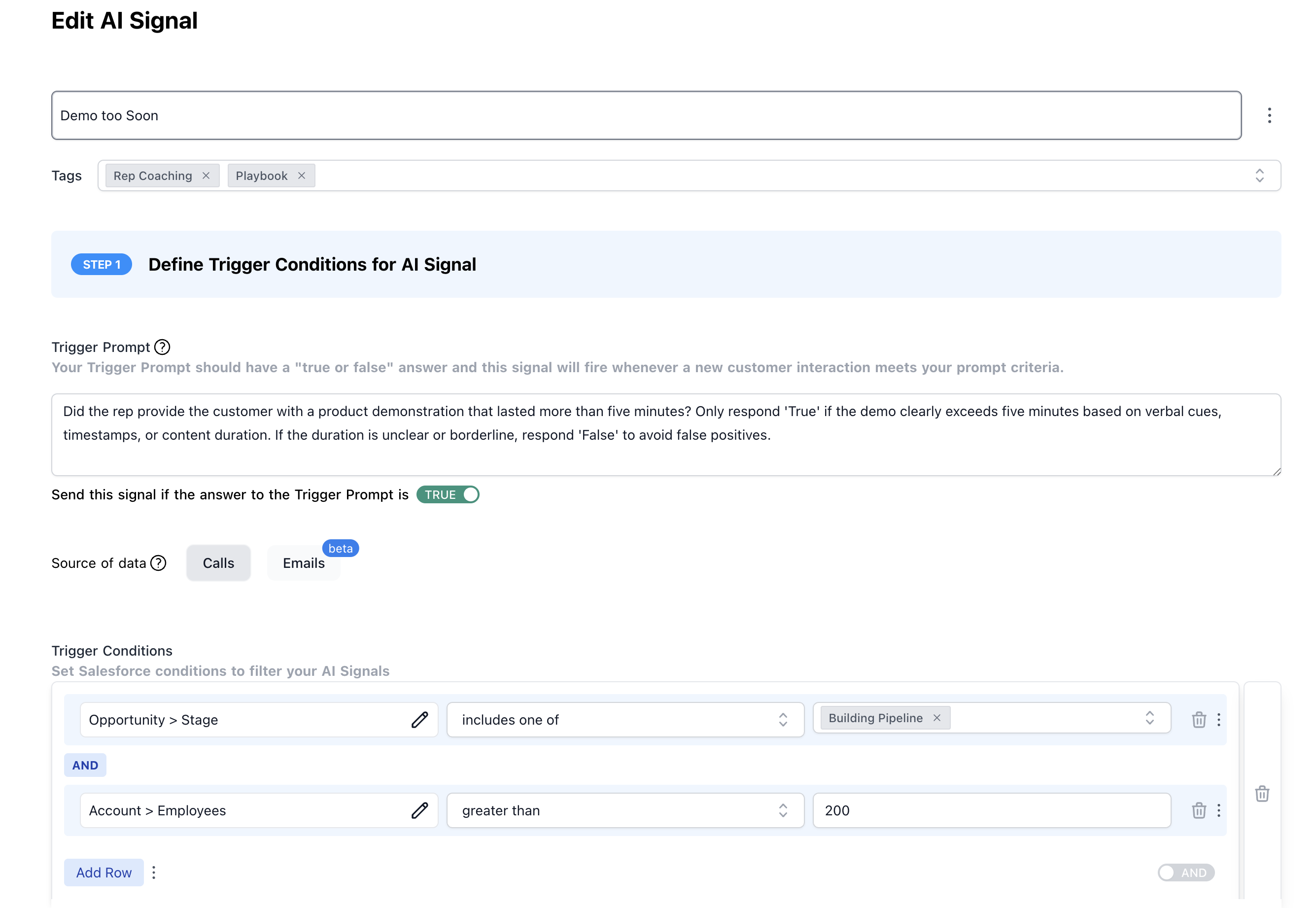
The first section involves setting up rules to determine which calls should trigger this signal.
**Configure Call Detection:**
* **Trigger Prompt**: Write an AI prompt that defines what to listen for
* **Trigger Conditions**: Set specific CRM conditions to filter calls (e.g., "Stage = Discovery")
**Example Configuration:**
```yaml theme={null}
Signal Name: "Enterprise Security Concerns"
Trigger Prompt: "Listen for any mentions of security requirements, compliance needs, or enterprise security concerns during this call. Focus on specific security features, certifications, or compliance standards mentioned."
Stage: Proposal
Account ARR: > $100,000
```
#### Smart Tag Conditions (Optional)
In addition to CRM-based trigger conditions, you can use [Smart Tags](/smart-tags) to trigger signals based on what was actually said during the call. This allows you to fire signals only when specific topics, keywords, or themes are detected.
**Example Smart Tag Conditions:**
```yaml theme={null}
Smart Tag: Competitor Mentions = "Competitor X"
Smart Tag: Pricing Objection = True
Smart Tag: Security Concerns is not empty
```
**Use Cases:**
* **Competitor alerts**: Trigger a signal to sales leadership only when a specific competitor is mentioned
* **Objection routing**: Send pricing objection signals to enablement when the "Pricing Objection" tag is detected
* **Feature request capture**: Route signals to product teams only when feature requests are identified in the conversation
Smart Tag conditions evaluate the tags detected on the current call. Make sure your [Smart Tags are configured](/smart-tags#setting-up-a-smart-tag) in **Admin > Smart Tags** before using them as signal conditions.
### Step 3: Define the Signal Content
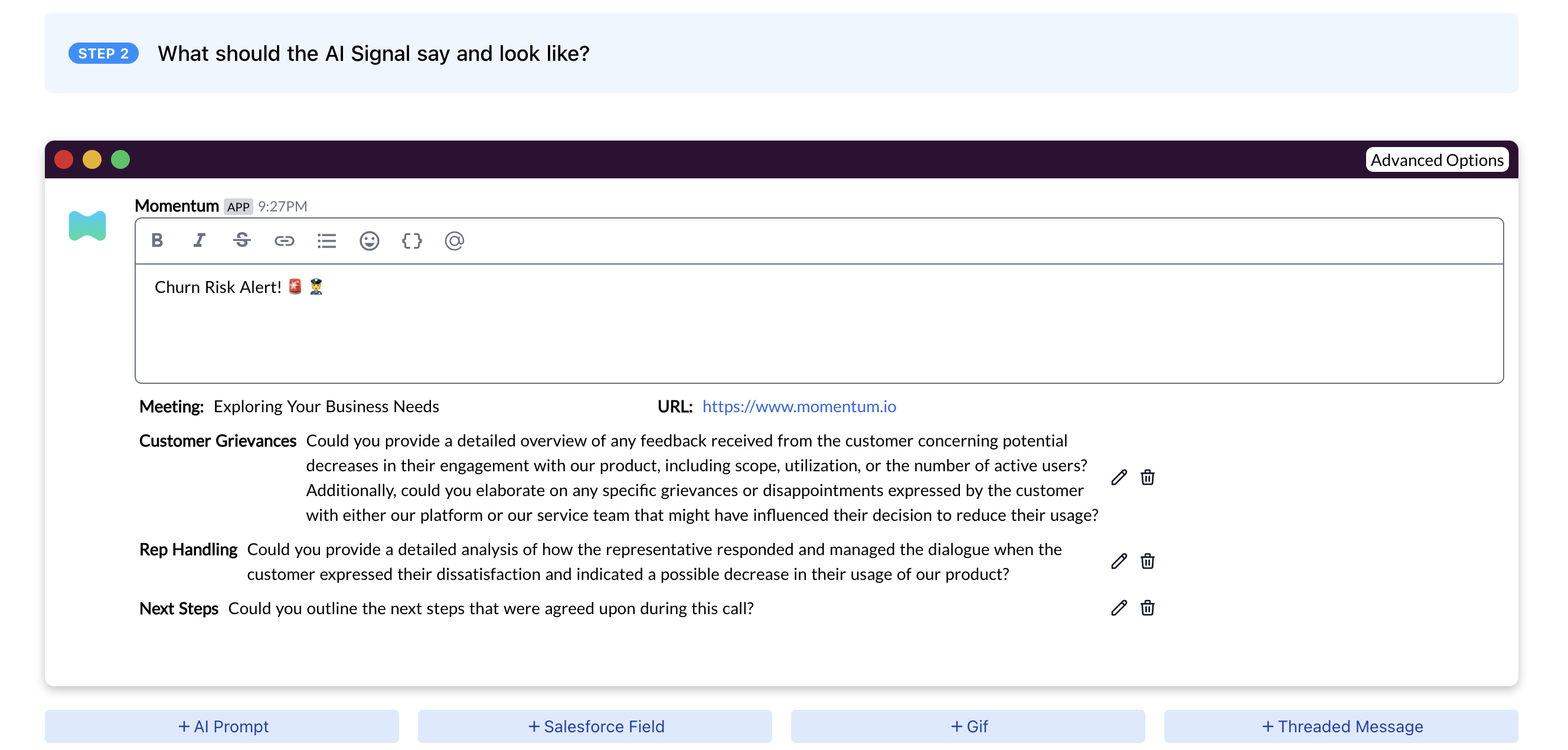
The second section allows you to specify how to format the signal.
* **Output Format**: Specify how the signal should be formatted
* **Follow Up Prompt**: Write additional prompts that will summarize and include specific insights with your signal
* **Mention Users**: Automatically mention relevant team members
**Example Signal:**
```yaml theme={null}
Signal Name: "Enterprise Security Concerns"
Output Format: "Security Concerns Identified: {opportunity.name}"
Follow Up Prompt: "Summarize any security concerns brought up by the customer. Include quotes"
Follow Up Prompt: "Summarize how the sales rep or sales engineer in the call handled any concerns brought up"
```
### Step 4: Configure Delivery Settings
The final section determines where and how signals are delivered.
**Delivery Options:**
* **Channel**: Send to a specific public or private channel
* **Direct Message**: Send to individual users
* **Email**: Send to email addresses
* **Dynamic Delivery**: Route based on Salesforce object ownership
**Example Delivery Configuration:**
```yaml theme={null}
Primary: Product Team Channel (#product-feedback)
Secondary: Direct Message to Opportunity Owner
Escalation: Manager notification for opportunities with ARR over $100k
```
## Prerequisites
Before setting up AI Signals, ensure you have:
* [Momentum AI installed with your preferred call provider](/how-to-install-momentum)
* Admin access to your Momentum Organization
* Slack workspace or Microsoft Teams configured
* Salesforce integration active
## Step-by-Step Setup
### Step 1: Access the AI Signals Section
1. Log in to your [Momentum admin dashboard](https://app.momentum.io/admin/ai-signals)
2. Navigate to the **AI Signals** section in the left sidebar
3. Click **"New AI Signal"** to begin the setup process
### Step 2: Configure Signal Detection Rules
The first section involves setting up rules to determine which calls should trigger this signal.
**Configure Call Detection:**
* **Trigger Prompt**: Write an AI prompt that defines what to listen for
* **Trigger Conditions**: Set specific CRM conditions to filter calls (e.g., "Stage = Discovery")
**Example Configuration:**
```yaml theme={null}
Signal Name: "Enterprise Security Concerns"
Trigger Prompt: "Listen for any mentions of security requirements, compliance needs, or enterprise security concerns during this call. Focus on specific security features, certifications, or compliance standards mentioned."
Stage: Proposal
Account ARR: > $100,000
```
#### Smart Tag Conditions (Optional)
In addition to CRM-based trigger conditions, you can use [Smart Tags](/smart-tags) to trigger signals based on what was actually said during the call. This allows you to fire signals only when specific topics, keywords, or themes are detected.
**Example Smart Tag Conditions:**
```yaml theme={null}
Smart Tag: Competitor Mentions = "Competitor X"
Smart Tag: Pricing Objection = True
Smart Tag: Security Concerns is not empty
```
**Use Cases:**
* **Competitor alerts**: Trigger a signal to sales leadership only when a specific competitor is mentioned
* **Objection routing**: Send pricing objection signals to enablement when the "Pricing Objection" tag is detected
* **Feature request capture**: Route signals to product teams only when feature requests are identified in the conversation
Smart Tag conditions evaluate the tags detected on the current call. Make sure your [Smart Tags are configured](/smart-tags#setting-up-a-smart-tag) in **Admin > Smart Tags** before using them as signal conditions.
### Step 3: Define the Signal Content
The second section allows you to specify how to format the signal.
* **Output Format**: Specify how the signal should be formatted
* **Follow Up Prompt**: Write additional prompts that will summarize and include specific insights with your signal
* **Mention Users**: Automatically mention relevant team members
**Example Signal:**
```yaml theme={null}
Signal Name: "Enterprise Security Concerns"
Output Format: "Security Concerns Identified: {opportunity.name}"
Follow Up Prompt: "Summarize any security concerns brought up by the customer. Include quotes"
Follow Up Prompt: "Summarize how the sales rep or sales engineer in the call handled any concerns brought up"
```
### Step 4: Configure Delivery Settings
The final section determines where and how signals are delivered.
**Delivery Options:**
* **Channel**: Send to a specific public or private channel
* **Direct Message**: Send to individual users
* **Email**: Send to email addresses
* **Dynamic Delivery**: Route based on Salesforce object ownership
**Example Delivery Configuration:**
```yaml theme={null}
Primary: Product Team Channel (#product-feedback)
Secondary: Direct Message to Opportunity Owner
Escalation: Manager notification for opportunities with ARR over $100k
```
 ### Step 5: Test and Validate
1. **Create a Test Signal**: Set up a signal with broad criteria for testing
2. **Schedule a Test Call**: Have a team member conduct a call that should trigger the signal
3. **Review Output**: Check that the signal appears in the correct location
4. **Adjust Settings**: Fine-tune detection and delivery based on results
## Advanced Configuration
### Multiple Signal Workflows
You can create multiple signal workflows for different use cases:
**Product Feedback Signal:**
* **Rules**: All calls with product discussions
* **Content**: Listen for feature requests and feedback
* **Delivery**: Product team channel + opportunity owner
**Churn Risk Signal:**
* **Rules**: Customer success calls + renewal discussions
* **Content**: Listen for dissatisfaction indicators
* **Delivery**: Customer success team + account manager
**Competitive Intelligence Signal:**
* **Rules**: Sales calls in competitive deals
* **Content**: Listen for competitor mentions and comparisons
* **Delivery**: Sales leadership + marketing team
### Cross-Functional Signal Routing
Set up signals that automatically route to different teams:
**Product Team Signals:**
* Feature requests
* Bug reports
* User experience feedback
* Integration requirements
**Marketing Team Signals:**
* Competitive intelligence
* Market trends
* Brand mentions
* Campaign feedback
**Customer Success Signals:**
* Churn risk indicators
* Upsell opportunities
* Support issues
* Renewal concerns
## Best Practices
### Signal Design
1. **Be Specific**: Create focused signals rather than broad ones
2. **Use Clear Language**: Write detection prompts that are unambiguous
3. **Test Thoroughly**: Validate signals in test channels before directing them to your team
4. **Iterate**: Continuously improve based on team feedback
5. **Avoid Noise**: Ensure signals provide actionable insights
### Delivery Optimization
1. **Right Audience**: Send signals to the team that can act on them
2. **Escalation Rules**: Set up automatic escalation for critical signals
3. **Mention Strategy**: Mention relevant team members when appropriate
## Troubleshooting
### Common Issues
**Signals Not Triggering:**
* Check detection rules are correctly configured
* Verify calls are being processed
* Ensure detection prompts are clear and specific
**False Positives:**
* Refine detection prompts to be more specific
* Add additional filtering conditions
* Review and adjust signal criteria
**Delivery Problems:**
* Verify Slack permissions and channel access
* Check user permissions in Momentum
* Confirm delivery settings are properly configured
### Performance Optimization
**For High-Volume Teams:**
* Use specific detection rules to reduce noise
* Consider separate signal workflows for different team segments
**For Large Organizations:**
* Create team-specific signal workflows
* Use dynamic delivery to route to appropriate channels
## Monitoring and Analytics
### Regular Reviews
1. **Weekly**: Check signal accuracy and relevance
2. **Monthly**: Review signal performance and team feedback
3. **Quarterly**: Assess overall AI Signals ROI and optimization opportunities
## Support
If you encounter issues during setup, contact our support team:
* **Slack**: Use your shared Momentum channel
* **Email**: [support@momentum.io](mailto:support@momentum.io)
### Step 5: Test and Validate
1. **Create a Test Signal**: Set up a signal with broad criteria for testing
2. **Schedule a Test Call**: Have a team member conduct a call that should trigger the signal
3. **Review Output**: Check that the signal appears in the correct location
4. **Adjust Settings**: Fine-tune detection and delivery based on results
## Advanced Configuration
### Multiple Signal Workflows
You can create multiple signal workflows for different use cases:
**Product Feedback Signal:**
* **Rules**: All calls with product discussions
* **Content**: Listen for feature requests and feedback
* **Delivery**: Product team channel + opportunity owner
**Churn Risk Signal:**
* **Rules**: Customer success calls + renewal discussions
* **Content**: Listen for dissatisfaction indicators
* **Delivery**: Customer success team + account manager
**Competitive Intelligence Signal:**
* **Rules**: Sales calls in competitive deals
* **Content**: Listen for competitor mentions and comparisons
* **Delivery**: Sales leadership + marketing team
### Cross-Functional Signal Routing
Set up signals that automatically route to different teams:
**Product Team Signals:**
* Feature requests
* Bug reports
* User experience feedback
* Integration requirements
**Marketing Team Signals:**
* Competitive intelligence
* Market trends
* Brand mentions
* Campaign feedback
**Customer Success Signals:**
* Churn risk indicators
* Upsell opportunities
* Support issues
* Renewal concerns
## Best Practices
### Signal Design
1. **Be Specific**: Create focused signals rather than broad ones
2. **Use Clear Language**: Write detection prompts that are unambiguous
3. **Test Thoroughly**: Validate signals in test channels before directing them to your team
4. **Iterate**: Continuously improve based on team feedback
5. **Avoid Noise**: Ensure signals provide actionable insights
### Delivery Optimization
1. **Right Audience**: Send signals to the team that can act on them
2. **Escalation Rules**: Set up automatic escalation for critical signals
3. **Mention Strategy**: Mention relevant team members when appropriate
## Troubleshooting
### Common Issues
**Signals Not Triggering:**
* Check detection rules are correctly configured
* Verify calls are being processed
* Ensure detection prompts are clear and specific
**False Positives:**
* Refine detection prompts to be more specific
* Add additional filtering conditions
* Review and adjust signal criteria
**Delivery Problems:**
* Verify Slack permissions and channel access
* Check user permissions in Momentum
* Confirm delivery settings are properly configured
### Performance Optimization
**For High-Volume Teams:**
* Use specific detection rules to reduce noise
* Consider separate signal workflows for different team segments
**For Large Organizations:**
* Create team-specific signal workflows
* Use dynamic delivery to route to appropriate channels
## Monitoring and Analytics
### Regular Reviews
1. **Weekly**: Check signal accuracy and relevance
2. **Monthly**: Review signal performance and team feedback
3. **Quarterly**: Assess overall AI Signals ROI and optimization opportunities
## Support
If you encounter issues during setup, contact our support team:
* **Slack**: Use your shared Momentum channel
* **Email**: [support@momentum.io](mailto:support@momentum.io)